
The Order App devices page lists the phones and tablets that use your Order App licence. You can see when each was last used and deactivate one that is lost or no longer used, which frees its place for another device.
Before you start
- Sign in to Synergy Web Access as a user who may open Order App devices (it is under the Point of Sale tab).
- Only a desktop administrator can deactivate a device.
- An internet connection, because a deactivation is recorded at Synergy.
Steps
1. Open the page
On the dashboard, open the Point of Sale tab and click Order App devices.
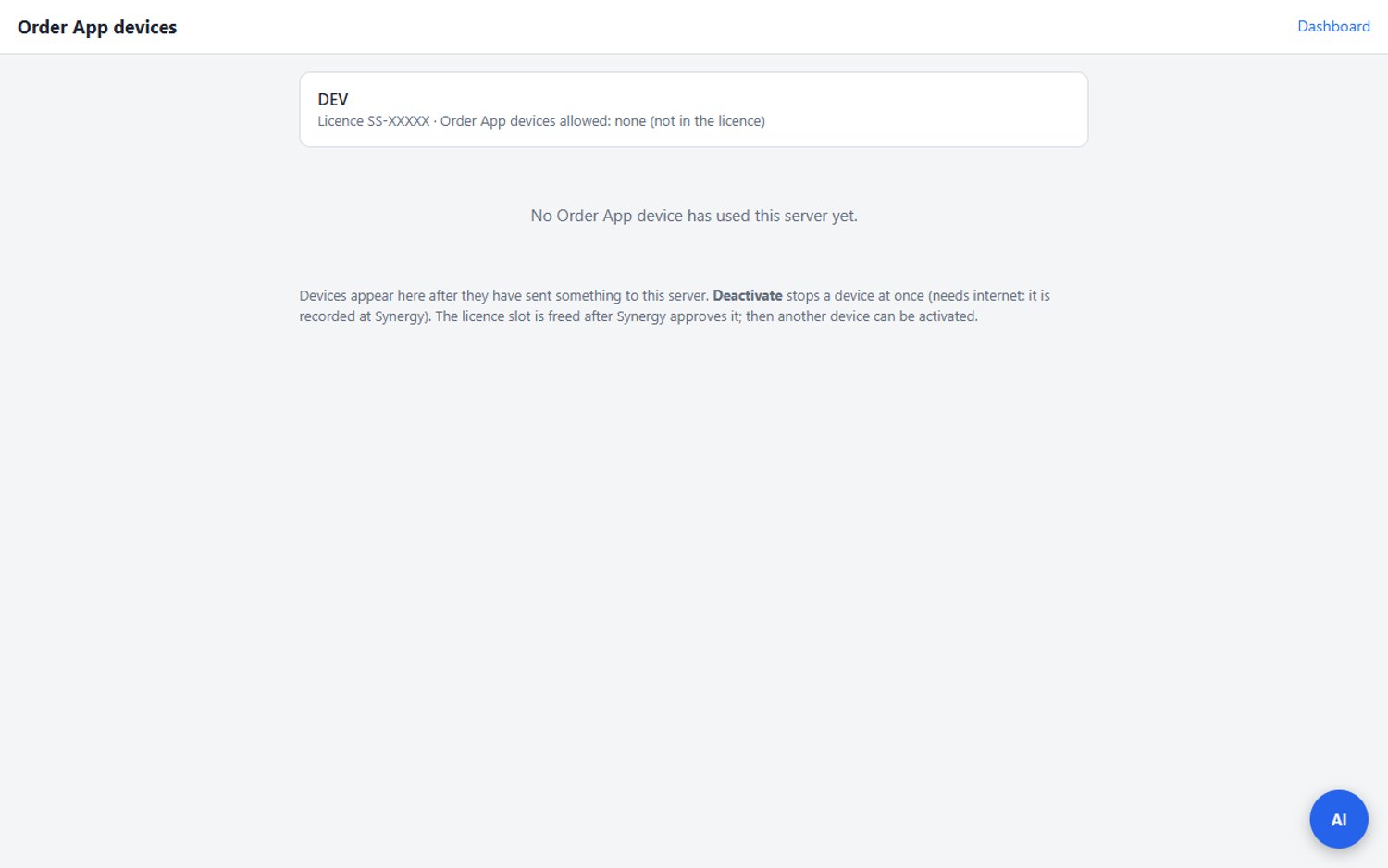
2. Check your licence
The top of the page shows your company, your licence number and how many Order App devices the licence allows.
3. Read the device list
Each device shows its name, when it was last used and when it was activated. The tag says Active or Deactivated, and a deactivated device shows when and by whom.
4. Deactivate a device
Click Deactivate next to the device, read the question and confirm. The device stops taking orders at once.
5. Read the result
A message at the top of the page says what happened. The list refreshes.
6. Use the freed place
The licence place is freed after Synergy approves the deactivation. Then another device can be activated.
Tips
- A device appears in the list only after it has sent something to this server.
- A deactivated device must be activated again to be used. It does not come back by itself.
- If you are not a desktop administrator the page says: Only a desktop administrator can deactivate devices.
Common problems
The list says No Order App device has used this server yet.
Devices only appear after they have sent something to this server. Use the Order App on a device first.
The Deactivate button is missing.
Your user is not a desktop administrator, or the device is already deactivated.
Deactivation fails with an error.
The page needs internet to record it at Synergy. Check the connection and try again.