
When your Price and Stock page takes orders, each order your customers send waits as a draft sales order. The Web Orders page lists them for the staff who process sales orders. This guide shows how to see new orders, turn them into sales orders, and cancel them.
Before you start
- Your Price and Stock page takes orders. See the guide Synergy Web – Setting Up Your Price and Stock Page.
- Your Synergy user has the Sales Order page. The Web Orders page uses the same right.
Steps
1. See that orders are waiting
On the dashboard a red number shows how many web orders are waiting for staff. Nothing is shown when no order is waiting.
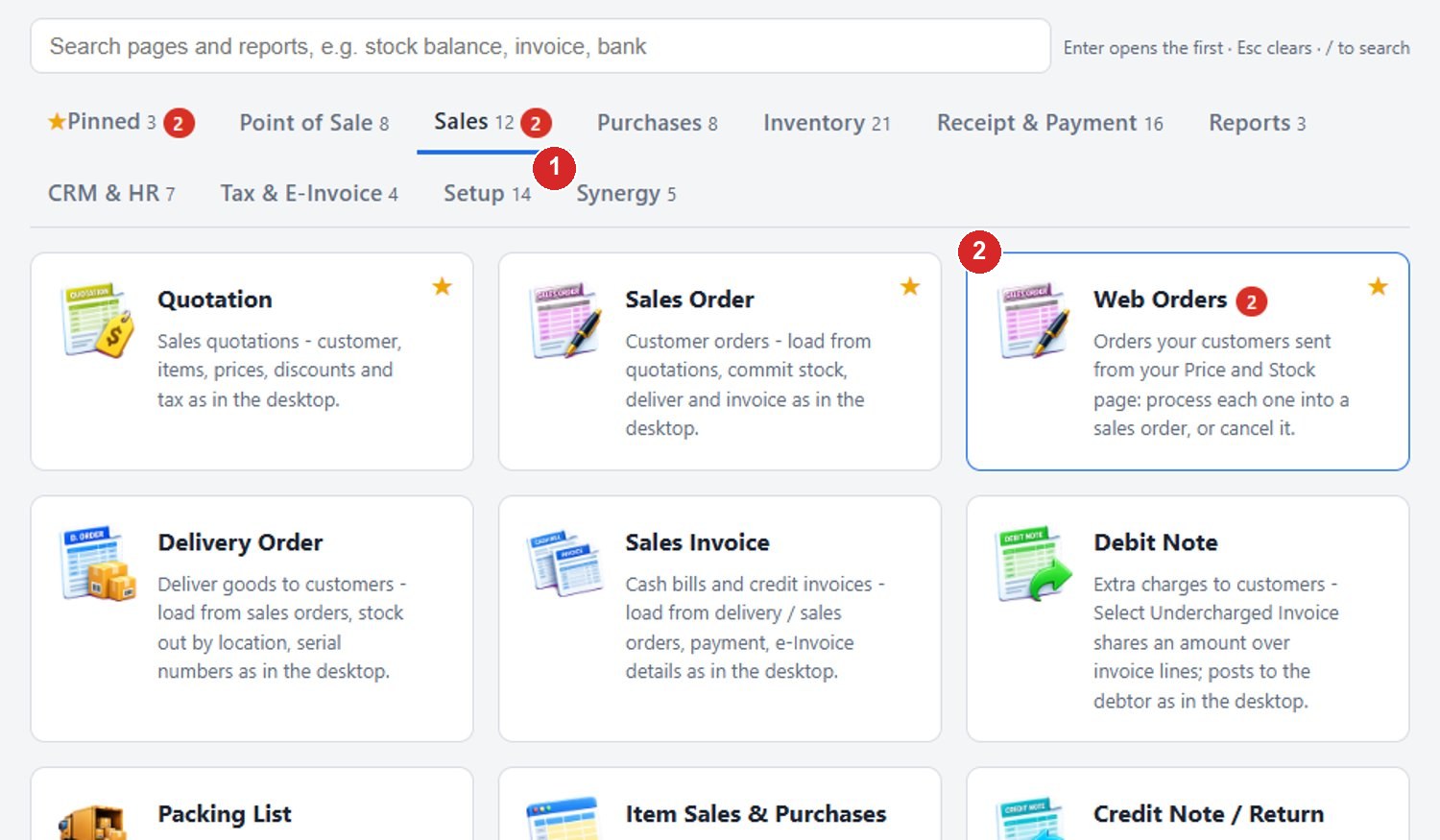
| Step | What to do |
|---|---|
| 1 | The red number on the Sales tab. |
| 2 | Click the Web Orders tile. |
2. Find the order
Each order shows its reference, when it was sent, who sent it, the customer, the items and the note. An order the customer asked to cancel has a red border and shows Customer asked to cancel.
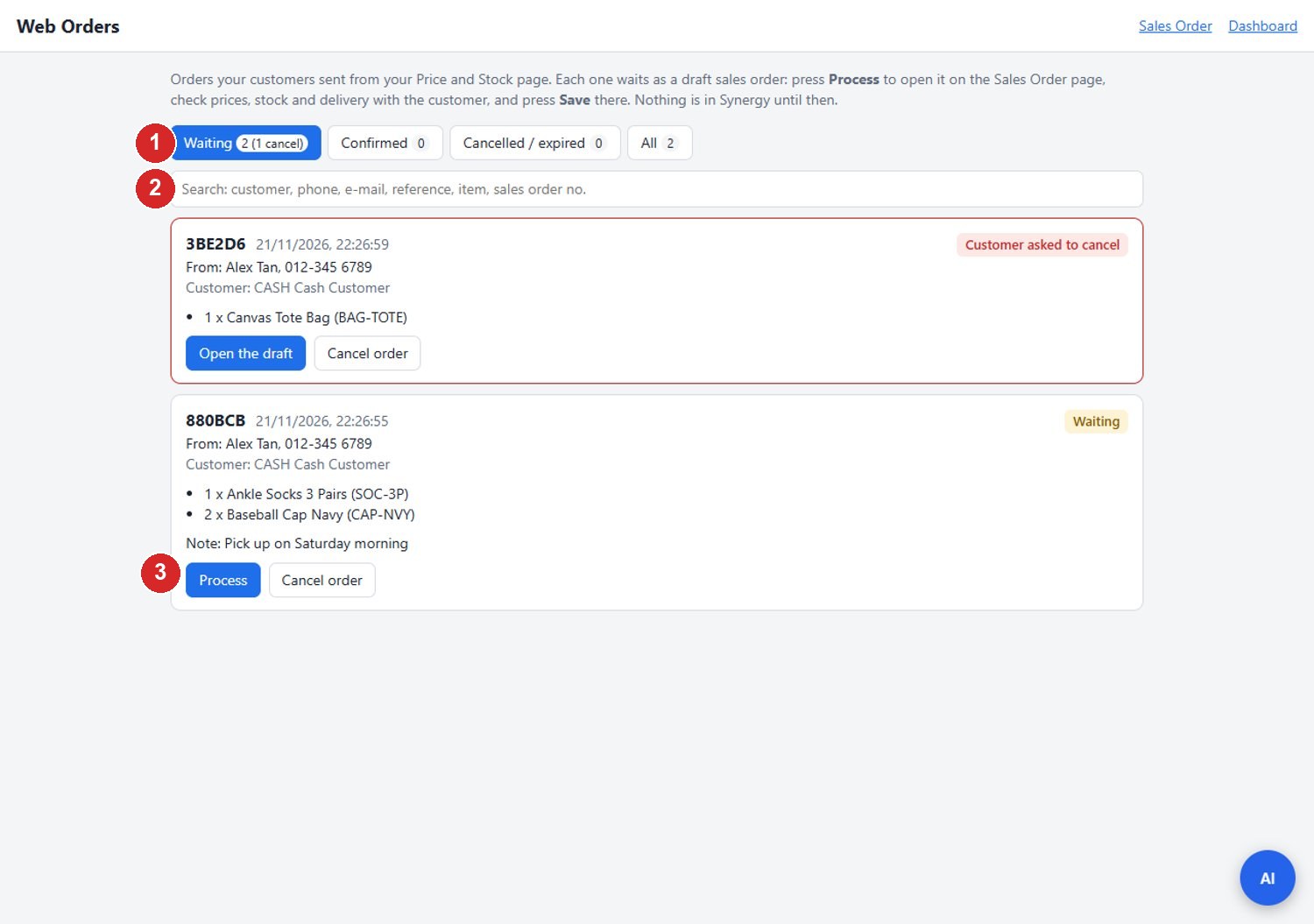
| Step | What to do |
|---|---|
| 1 | Pick a tab: Waiting, Confirmed, Cancelled / expired or All. |
| 2 | Search by customer, phone, e-mail, reference, item or sales order no. |
| 3 | Click Process. |
3. Check the draft and save it
The draft opens on the Sales Order page. Nothing is in Synergy until you save it.
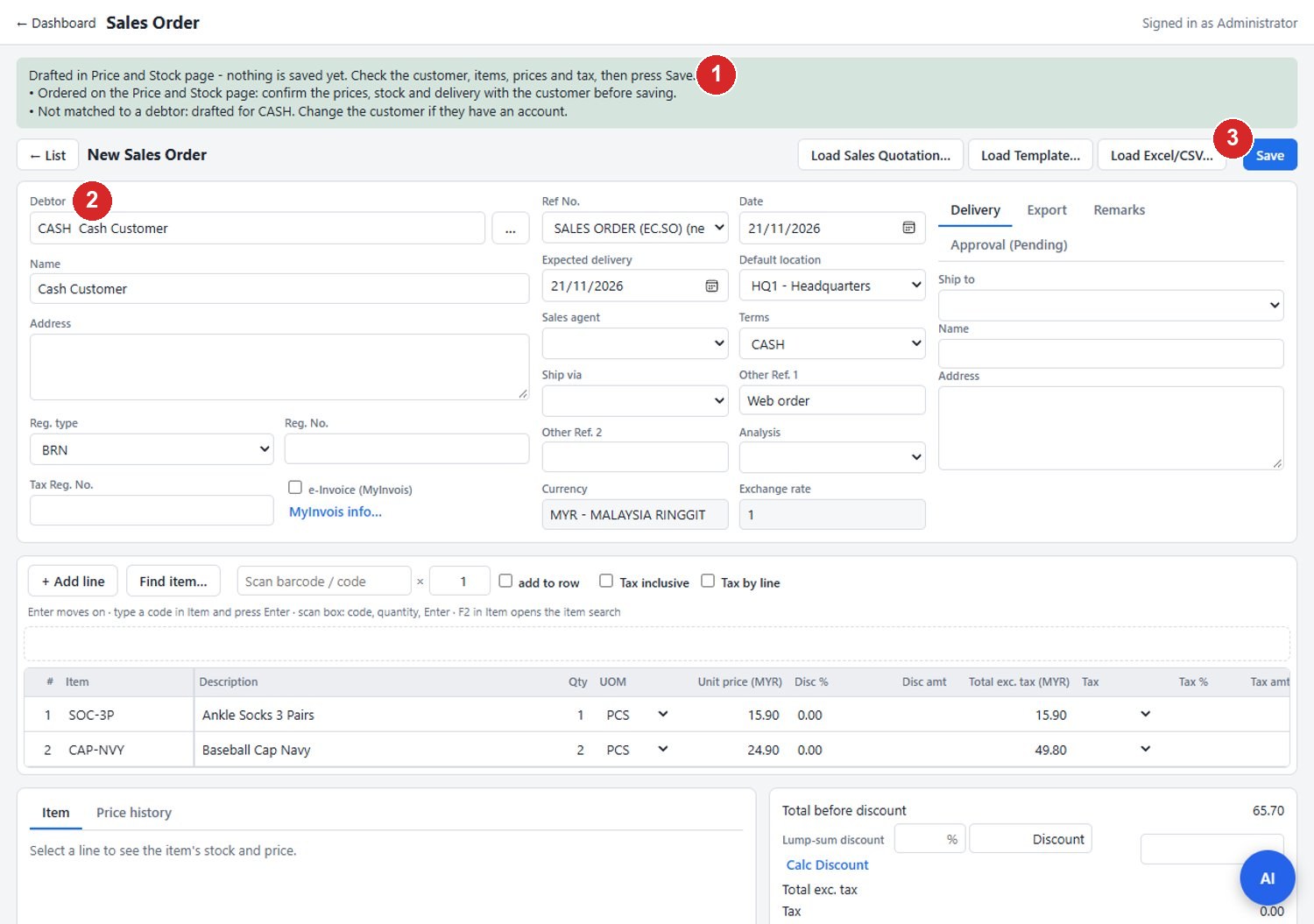
| Step | What to do |
|---|---|
| 1 | Read the notes. If the visitor is not one of your debtors, the order is drafted for the debtor code set for visitors, such as CASH. |
| 2 | Change the debtor if the customer has an account, and check prices, stock and delivery with the customer. |
| 3 | Click Save. The order moves to Confirmed with its sales order number, and the customer sees it as confirmed. |
4. Cancel an order
Click Cancel order and confirm. The draft sales order is removed and the customer sees the order as cancelled. For an order the customer asked to cancel, use Open the draft only to look: don’t save it, cancel it. An order already saved as a sales order can’t be cancelled here: cancel that sales order in Synergy.
Tips
- A draft that is not saved within 14 days expires and moves to Cancelled / expired.
- The list updates when you come back to the page from another tab.
- The shop can also have each new order e-mailed. Recent orders are also on the Price and Stock page settings.
- This page is for orders from the Price and Stock page. Orders from the older Web-Front site are imported in the desktop program instead.
Common problems
The page says You need the Sales Order page to see web orders.
Ask your administrator to give your user the Sales Order page in Synergy.
The page says Your Price and Stock page doesn’t take orders now.
Orders are turned off in the page settings. Orders sent before are still listed.
The Web Orders tile is missing.
Your user needs the Sales Order page, and your website activation must include the Price and Stock page.