
The Packing Check List page checks what was packed against a delivery order, a sales invoice or a stock transfer. You scan the items and the page shows what is still short or over. This also works well on a phone or a scanner.
Before you start
- Sign in to Synergy Web Access as a user who may use Packing Check List (under the Inventory tab).
- Permission to add check lists in Synergy.
Steps
1. Open the page
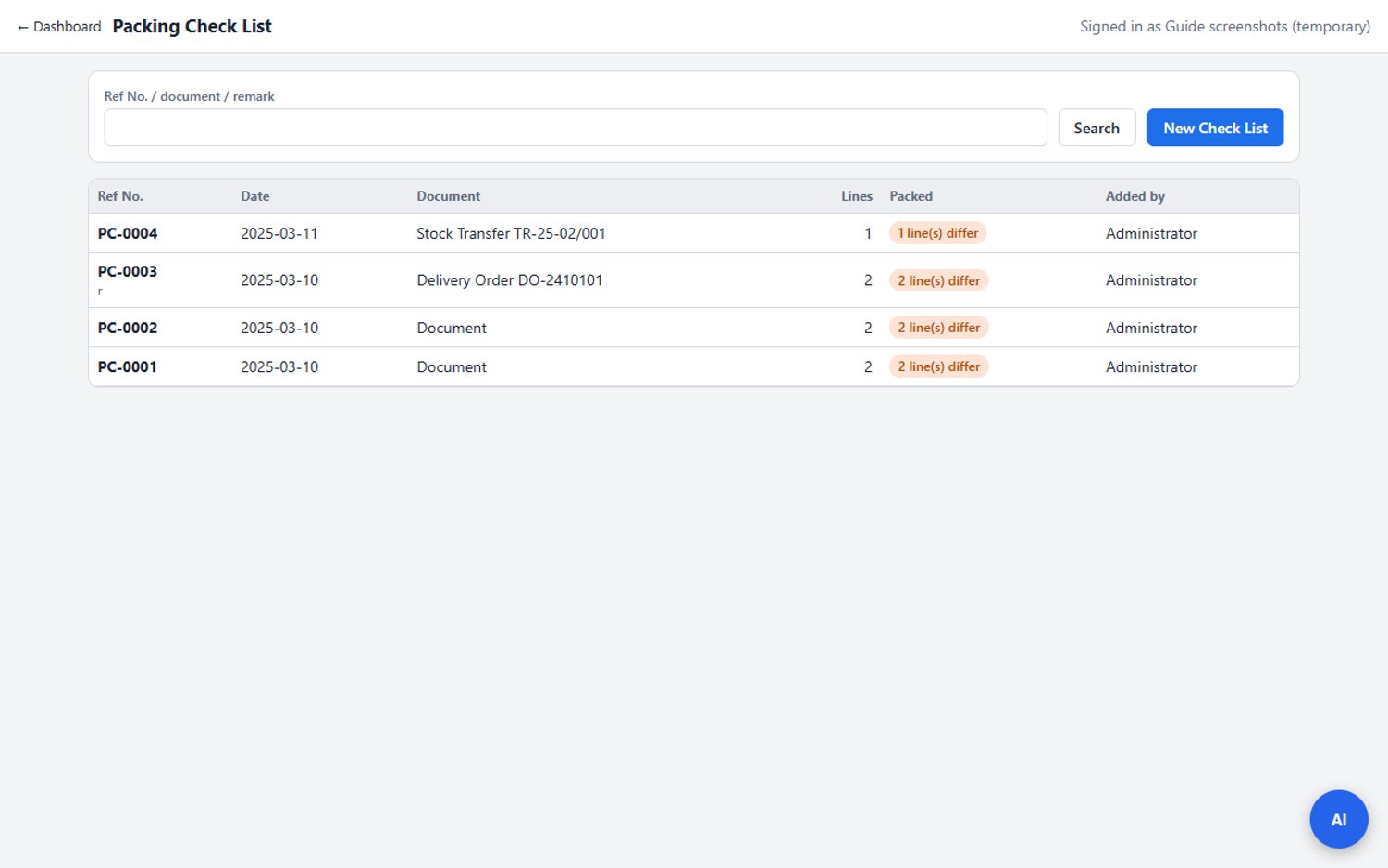
On the dashboard, open the Inventory tab and click Packing Check List. The list shows Ref No., Date, Document, Lines and Packed. A Packed badge such as 2 line(s) differ shows a check list that does not match its document yet.
2. Choose the document
Click New Check List, then find the document. The Check list column shows if it already has one.
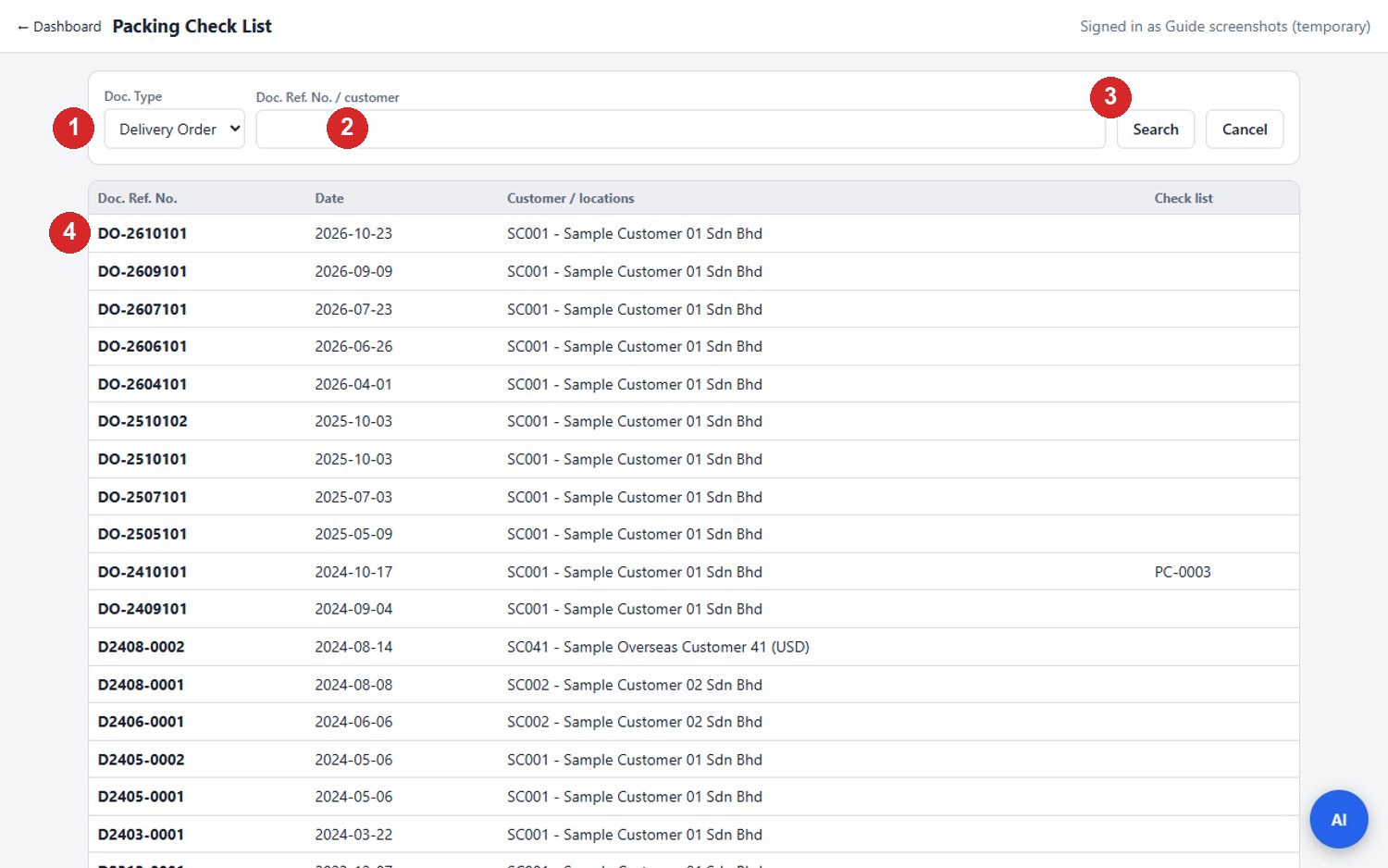
| Step | What to do |
|---|---|
| 1 | Choose the Doc. Type (Delivery Order, Sales Invoice or Stock Transfer). |
| 2 | Type the Doc. Ref. No. or customer. |
| 3 | Click Search. |
| 4 | Click the document in the list. |
3. Fill in the header
Check the Ref No. and the Ref Date, and add a Remark if you want.
4. Scan the items
Click in the scan box, scan or type an item code or barcode and press Enter. The quantity goes onto the first line of that item that is still short. A carton barcode counts all the units in it. Type a quantity before scanning to scan more than one at a time.
5. Check the differences
Each line shows the Item, UOM, Doc. Qty, Qty and Difference, and you can type a Remark. A line that is short or over is coloured. The page shows how many lines are packed, for example 3 of 5 line(s) packed. You can also type the Qty yourself.
6. Save
Click Save. The page says Saved with the Ref No. Open the check list again later from the list to carry on. Delete removes it after you confirm.
Tips
- The page tells you when a checked line is no longer on the document. Such lines are dropped when you save.
- The same check can be started from a saved invoice with its Packing Checklist button.
Common problems
Item [code] not found on this document.
The code or barcode is not on the document you are checking. Check it and scan again.
You are not allowed to add packing check lists.
Ask your administrator for the add permission.