
The Packing List page records the cartons of an export shipment: the packing method, weight and size of each, and which invoice lines went into it. The packing list prints with the invoice. This guide shows how to make one.
Before you start
- Sign in to Synergy Web Access as a user who may use Packing List (under the Sales tab).
- Permission to add packing lists in Synergy, and the sales invoices to pack.
Steps
1. Open the page
On the dashboard, open the Sales tab and click Packing List. The list shows the packing lists; click New to make one. You can also open a saved invoice and click its Packing List button.
2. Fill in the header
Fill in the header boxes.
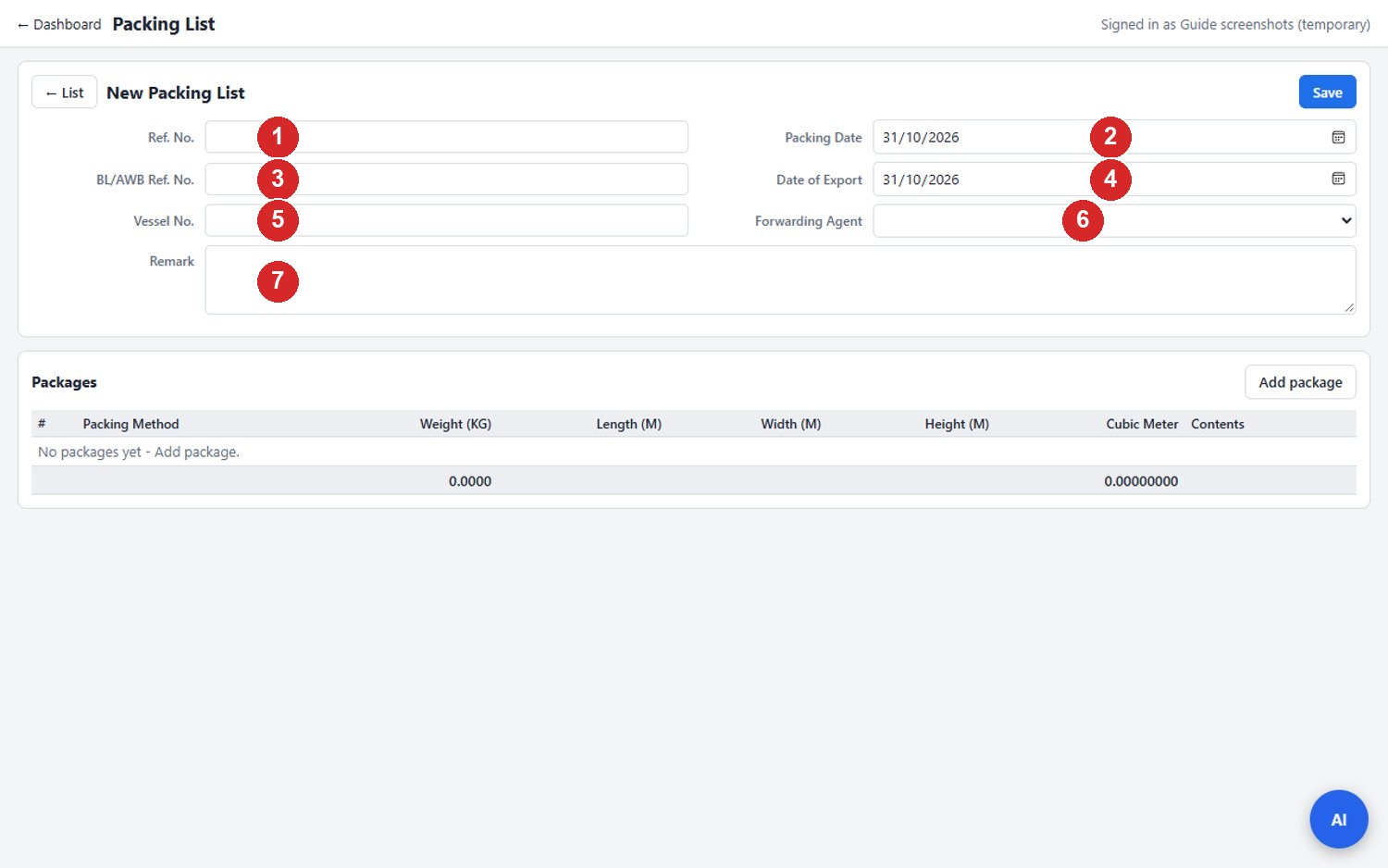
| Step | What to do |
|---|---|
| 1 | Check the Ref. No. (choose a numbering or type it). |
| 2 | Check the Packing Date. |
| 3 | Fill in the BL/AWB Ref. No. |
| 4 | Fill in the Date of Export. |
| 5 | Fill in the Vessel No. |
| 6 | Fill in the Forwarding Agent. |
| 7 | Add a Remark if you want. |
3. Add a package
Under Packages click Add package. Choose the Packing Method and type the Weight (KG), Length (M), Width (M) and Height (M). The Cubic Meter is worked out for you, and the totals are at the bottom.
4. Choose the invoices
In the Pack Item window click Select Invoice. Type the Ref. No., debtor or other reference, click Search and pick the sales invoice or debit note. Invoices with nothing left to pack are not listed.
5. Put the items in the package
Under Not packed yet, check the Quantity of each line and click Add to put it in the package. It moves to In this package. Click Remove to take it back out. Click OK when the package is right.
6. Save and print
Click Save. Click Print to get the packing list as a PDF. Delete removes it after you confirm.
Tips
- A line shows its Order Qty, Quantity and Balance Qty. You cannot pack more than the balance.
- When an invoice has several packing lists, the page lists them so you can choose one. The first one is printed on the invoice.
Common problems
Balance quantity exceeded.
Type a quantity that is not more than the Balance Qty.
No quantity specified.
Type a quantity on the line before you click Add.
This invoice has no packing list, and you are not allowed to add one.
Ask your administrator for the add permission.