
The Salary Draft tab on the Payroll page turns a monthly salary text file into a draft. Names are matched to employees and items to payroll transaction types, and each line is priced with the employee’s wage. You check and edit the draft, then push it to Payroll Transactions.
Before you start
- Payroll on the web must be switched on for your company. If it is not, the Payroll page says so. Ask an administrator.
- Sign in to Synergy Web Access as a user who may add payroll transactions.
- The month’s salary text file. It has a name line, then lines such as Mileage – RM90, Sat Work – 1 Day, OT – 150 mins or Deduct AL – 3 days, with a blank line between people.
Steps
1. Open Salary Draft
On the dashboard, open the CRM & HR tab and click Payroll, then open the Salary Draft tab.
2. Add the file
Add the salary file.
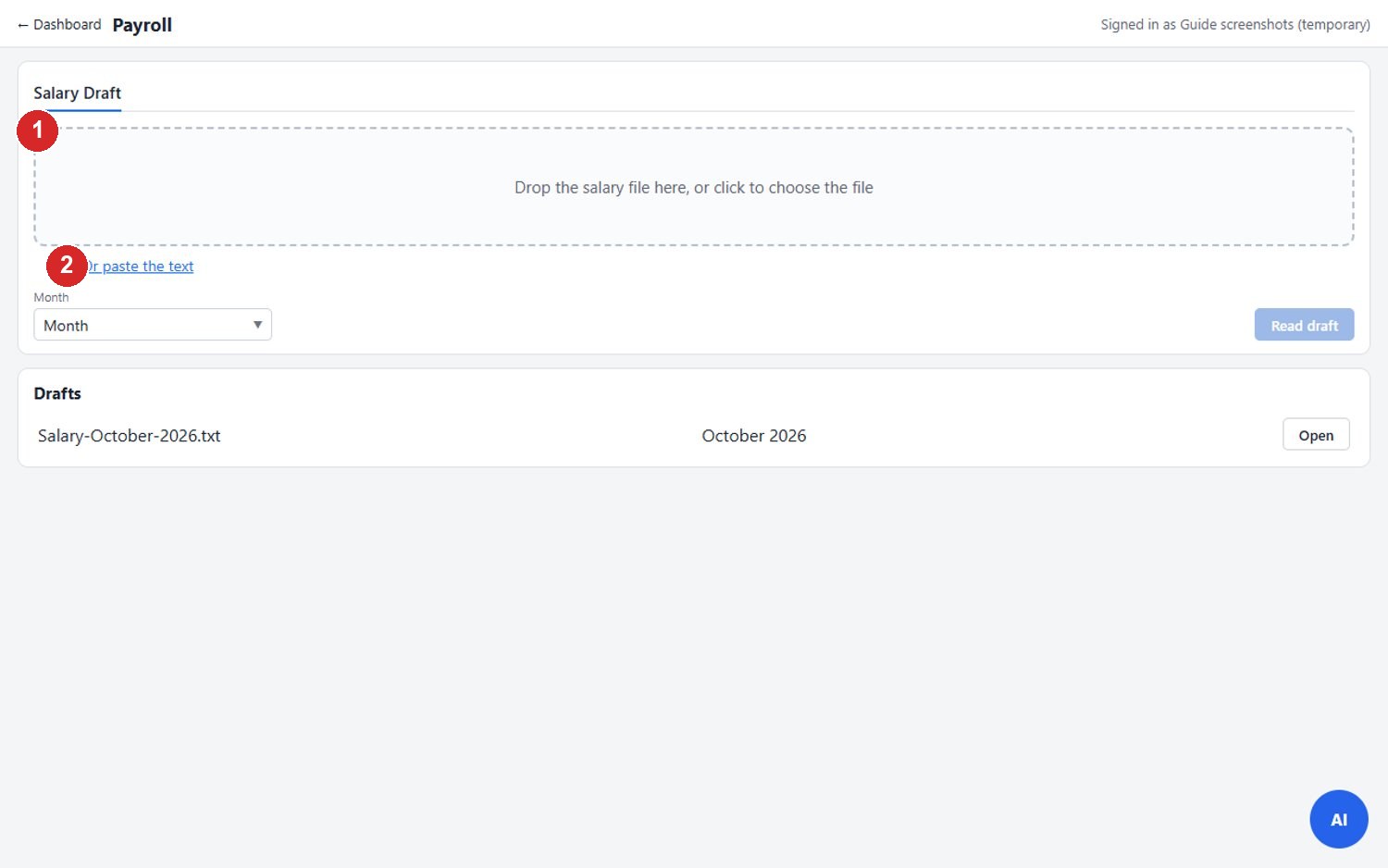
| Step | What to do |
|---|---|
| 1 | Drop the salary file on the drop area, or click it to choose the file. |
| 2 | Click Or paste the text and paste the text. |
3. Check the month
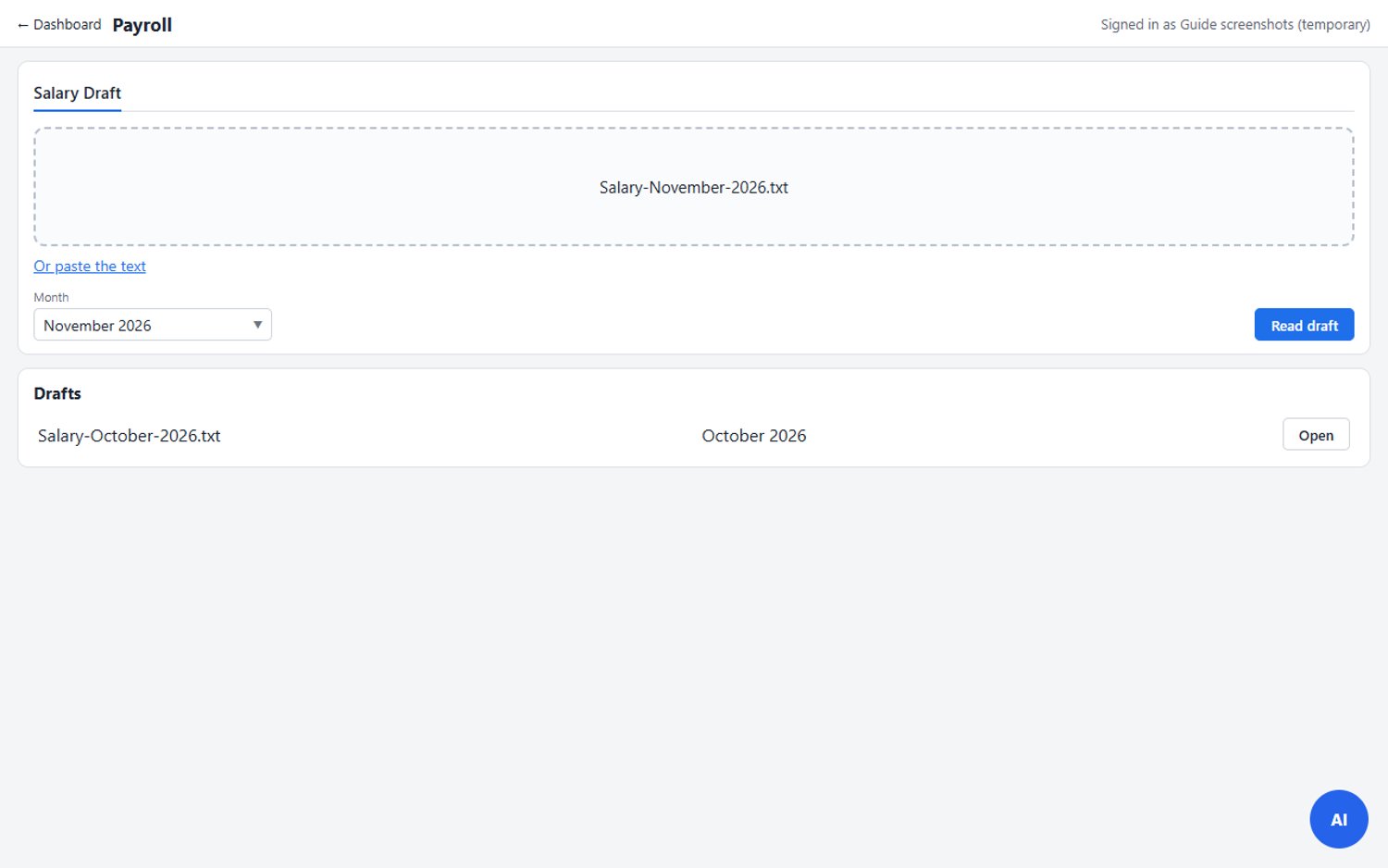
Month is taken from the file name when it says the month. If it does not, choose the Month yourself.
4. Read the draft
Click Read draft. The draft appears and is also listed under Drafts, where you can open it again later.
5. Check each employee
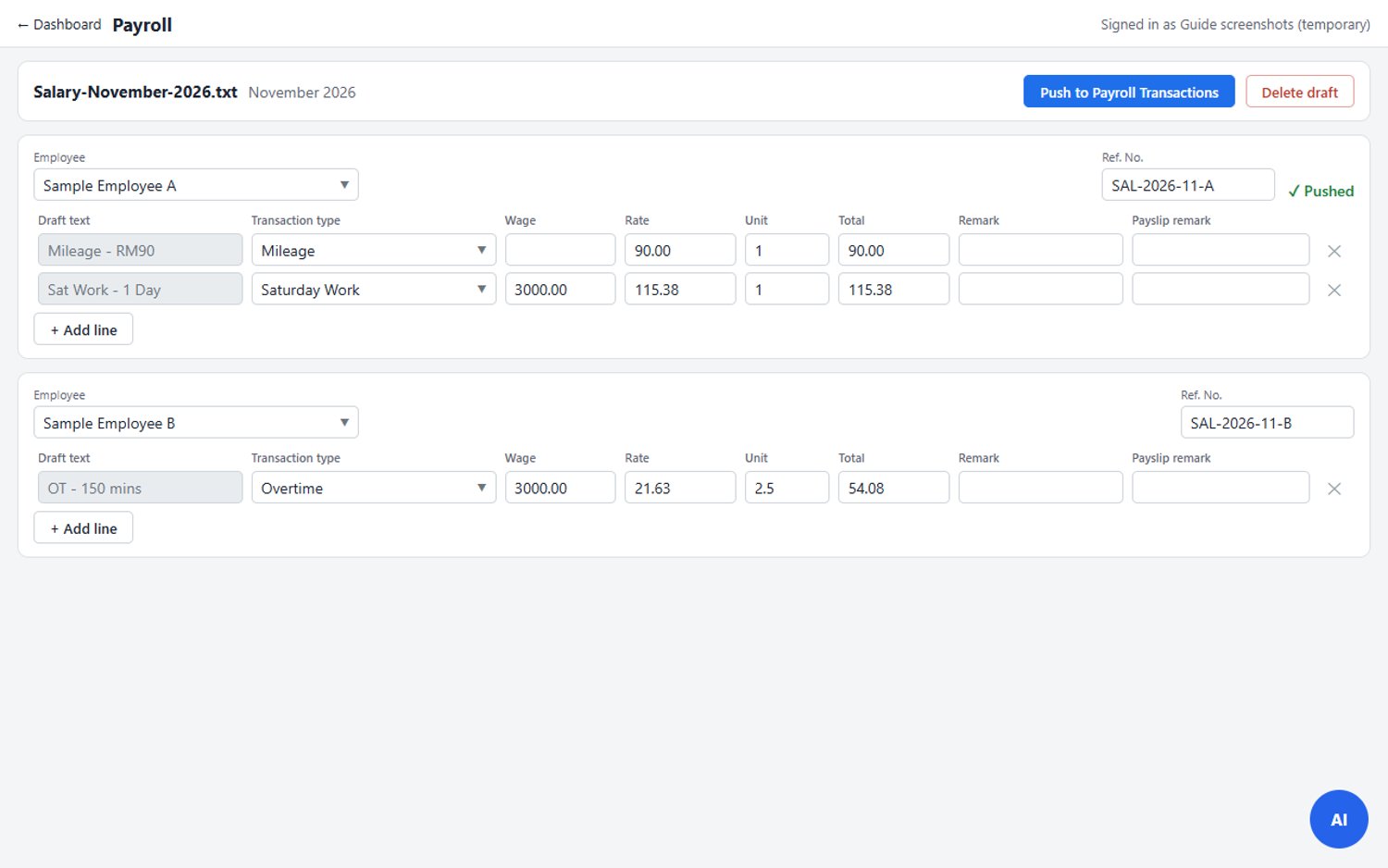
Each person in the file is matched to an employee. If more than one employee matches, choose the right one from the list. You can edit the Ref. No.
6. Check each line
Each line shows the Draft text, the Transaction type, Wage, Rate, Unit and Total, plus a Remark and a Payslip remark.
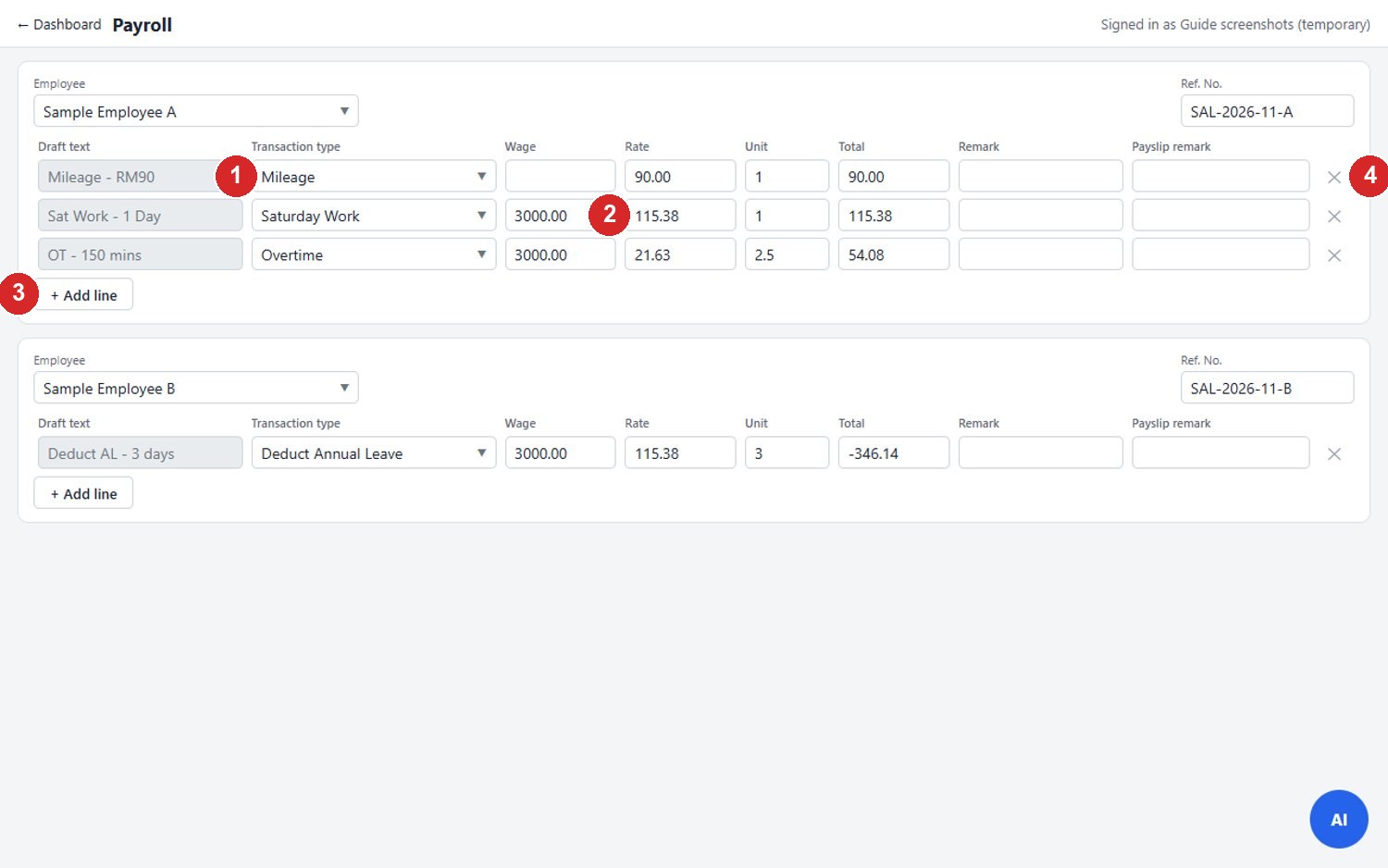
| Step | What to do |
|---|---|
| 1 | Change the Transaction type if it was matched wrongly. |
| 2 | Change the values if needed. |
| 3 | Use + Add line for a missing line. |
| 4 | Use the cross to remove a line. |
7. Watch the warnings
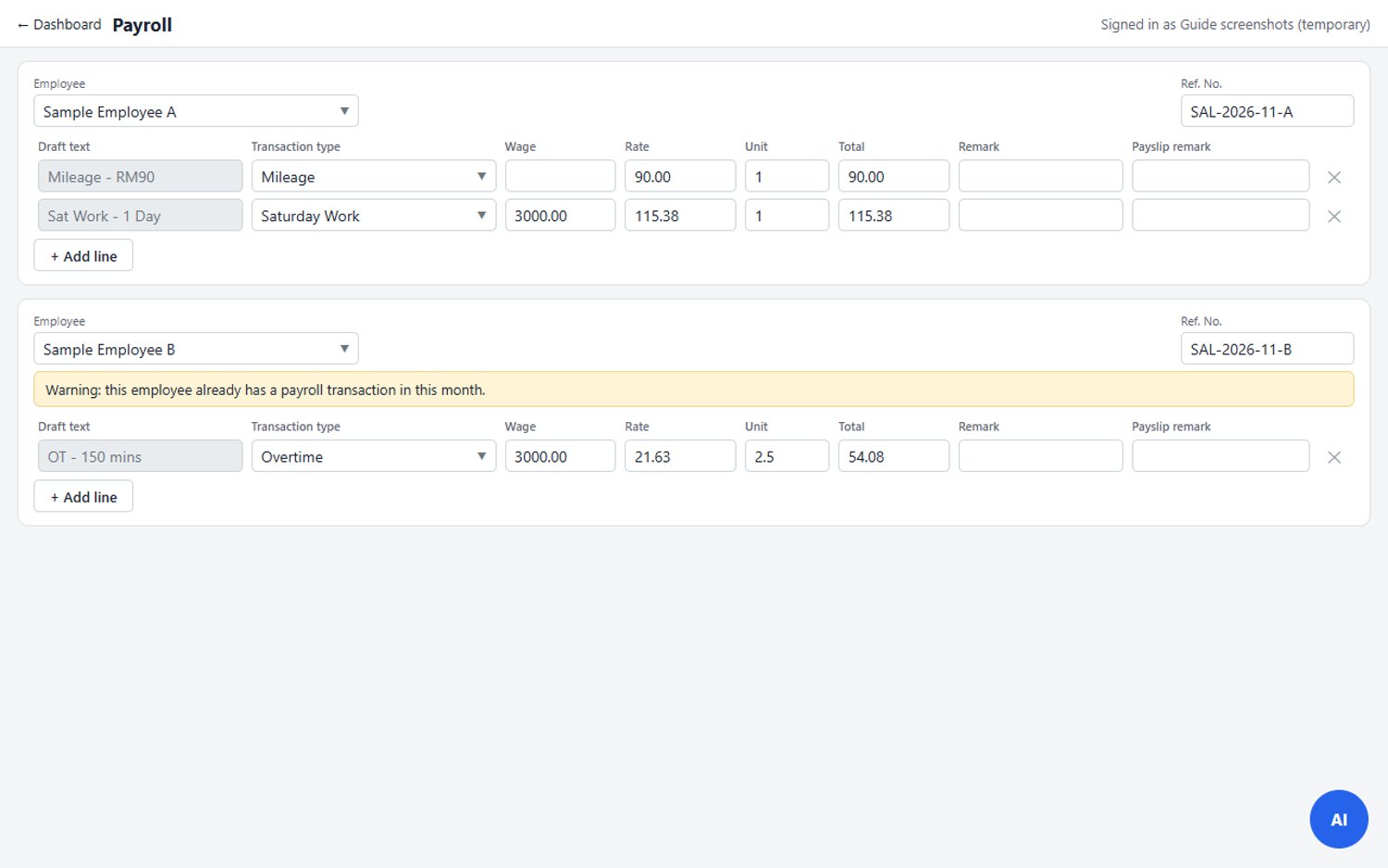
A warning is shown when an employee already has a payroll transaction in this month. Check it is not paid twice.
8. Push to Payroll Transactions
Click Push to Payroll Transactions and confirm. Each employee becomes one payroll transaction. Pushed employees are marked, and any left can be pushed later.
9. Remove a draft
Click Delete draft if you do not need it. Payroll transactions already pushed stay.
Tips
- Changes you make in the draft are saved as you make them. An employee or transaction type you choose by hand is remembered for the next draft.
- Nothing reaches the payroll until you push.
- The rate used is the employee’s own wage and extra work rate; a (x1.5) note in the file is only a note.
Common problems
Payroll on the web is turned off for this company.
Ask an administrator to turn Payroll on the web on.
The Salary Draft tab is missing.
Your Synergy user has no permission to add payroll transactions.
The draft could not be read.
Check the file’s layout. Each person needs a name line followed by lines of the form Label – amount.
A line shows a problem.
Choose the Transaction type yourself and check the values.