
The Price and Stock page is a public web page of your shop. Your own customers look up prices and stock on it, and if you allow it they put items in a cart and send you an order. This guide shows how to switch the page on, choose what visitors see, and take orders.
Before you start
- Your website activation must include Price and Stock page. Web Access includes it unless Synergy took it away. Ask Synergy if the page does not open.
- To switch the page on for a company you need the /setup page on the server PC.
- To change the page settings later from any PC, your Synergy user needs the User Flag (PriceStock.Admin). The page is then the Price and Stock Page tile on the Synergy tab of the dashboard.
- If you want Email + PIN, the mail settings in /setup must work. If you want AI search, you need your own AI key.
Steps
1. Switch the page on for the company
On the server PC open /setup, section 1.6 Price and Stock page. Switching a company off here closes its page at once.
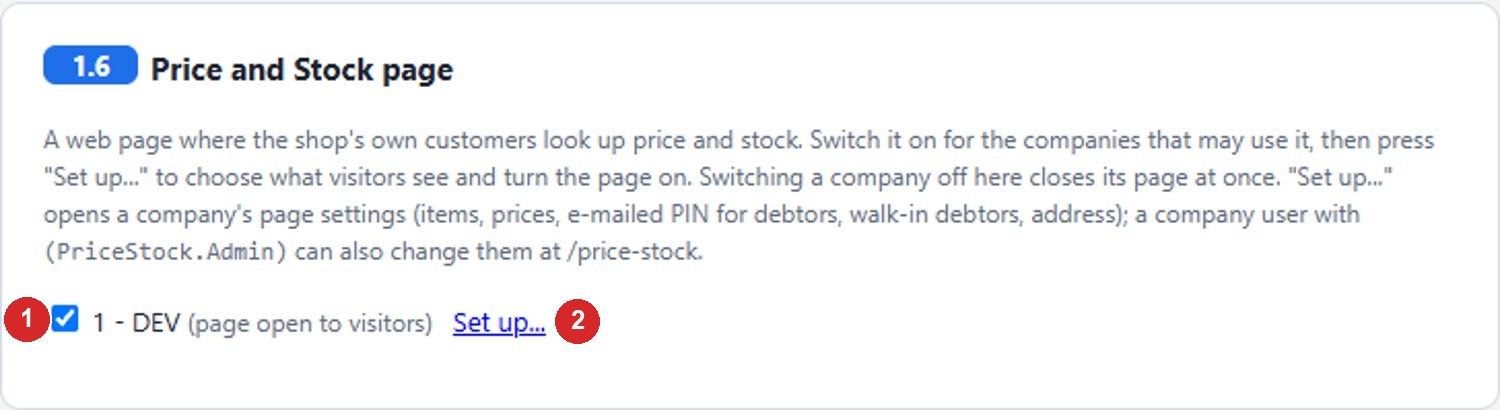
| Step | What to do |
|---|---|
| 1 | Tick the company. |
| 2 | Click Set up… to open its page settings. |
2. Turn the page on and choose its address
Under The page you see the public address of the page. A name is easy to share but anyone can guess it: keep Email + PIN on if your prices are not for everyone. When you change the address, the old link stops working and visitors sign in again.
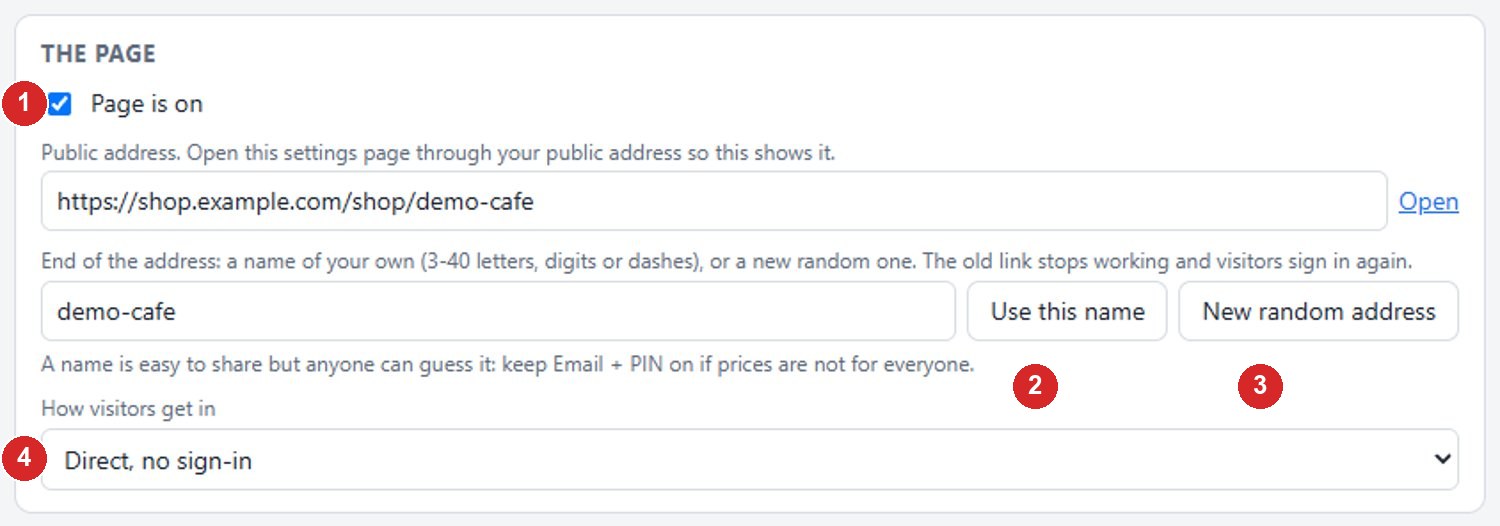
| Step | What to do |
|---|---|
| 1 | Tick Page is on. |
| 2 | Type the end of the address (3-40 letters, digits or dashes) and click Use this name. |
| 3 | Or click New random address. |
| 4 | Choose How visitors get in: Email + PIN, or Direct, no sign-in. |
3. Set up the sign-in (Email + PIN only)
With Email + PIN, choose Who can sign in: Only emails in my debtor records, or Any email. Tick Include walk-in debtors if debtors marked walk-in may also get a PIN. Set Stay signed in (days). Type an e-mail address and click Send test e-mail: Email + PIN can’t be switched on until a test has gone out. Sign every visitor out ends all sign-ins; visitors then need a new PIN.
4. Choose the items
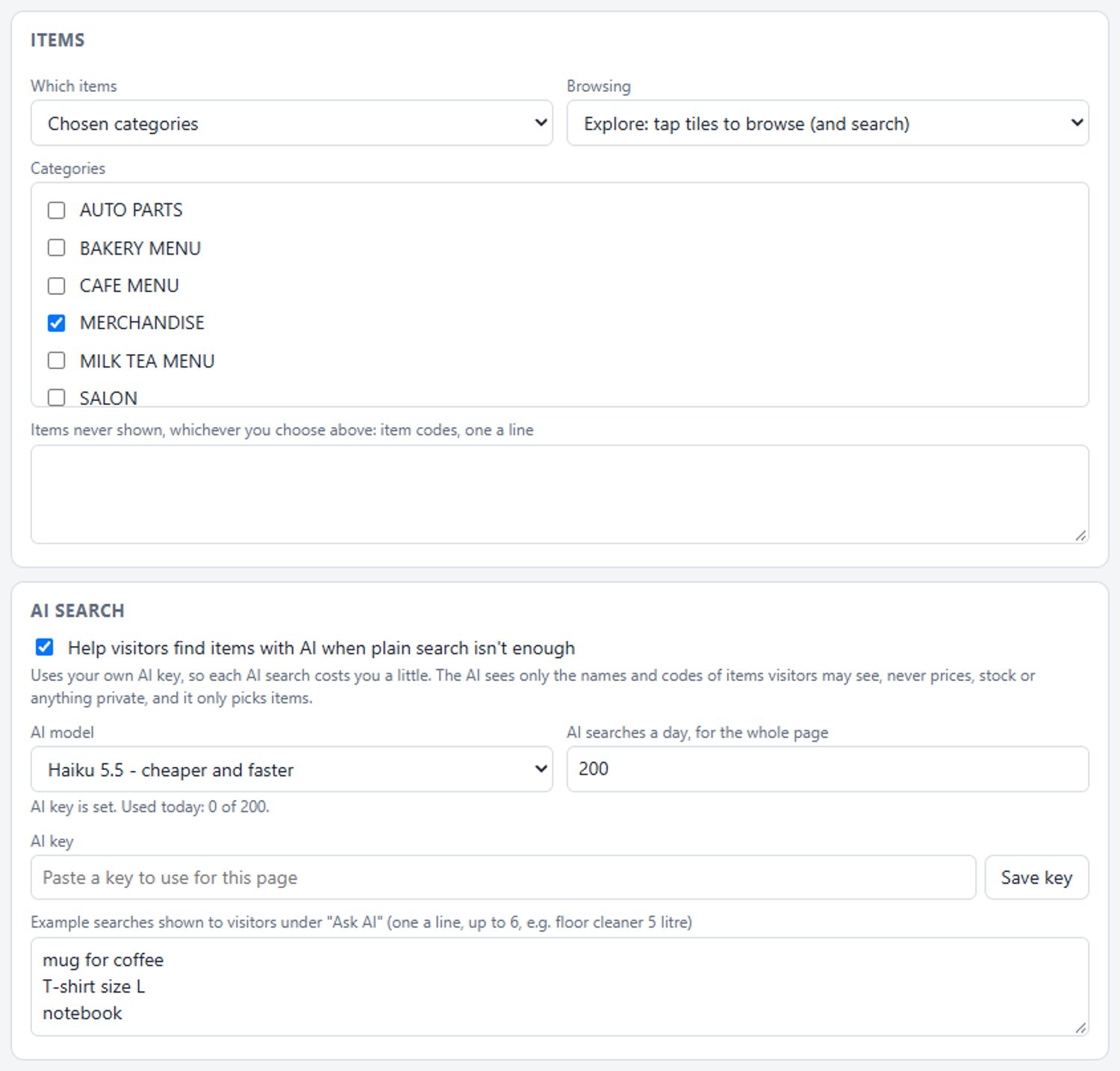
Under Items choose Which items: Chosen categories (tick them) or All items. Under Browsing choose Explore: tap tiles to browse (and search), Search only, or Search + full list. Type the codes of items that must never be shown, one a line.
5. Switch on AI search (optional)
Under AI search tick Help visitors find items with AI when plain search isn’t enough. It uses your own AI key, so each AI search costs you a little. The AI sees only the names and codes of items visitors may see, never prices or stock. Choose the AI model and the AI searches a day for the whole page, paste the AI key and click Save key. Type up to 6 example searches, one a line: visitors see them under Ask AI.
6. Choose what visitors see
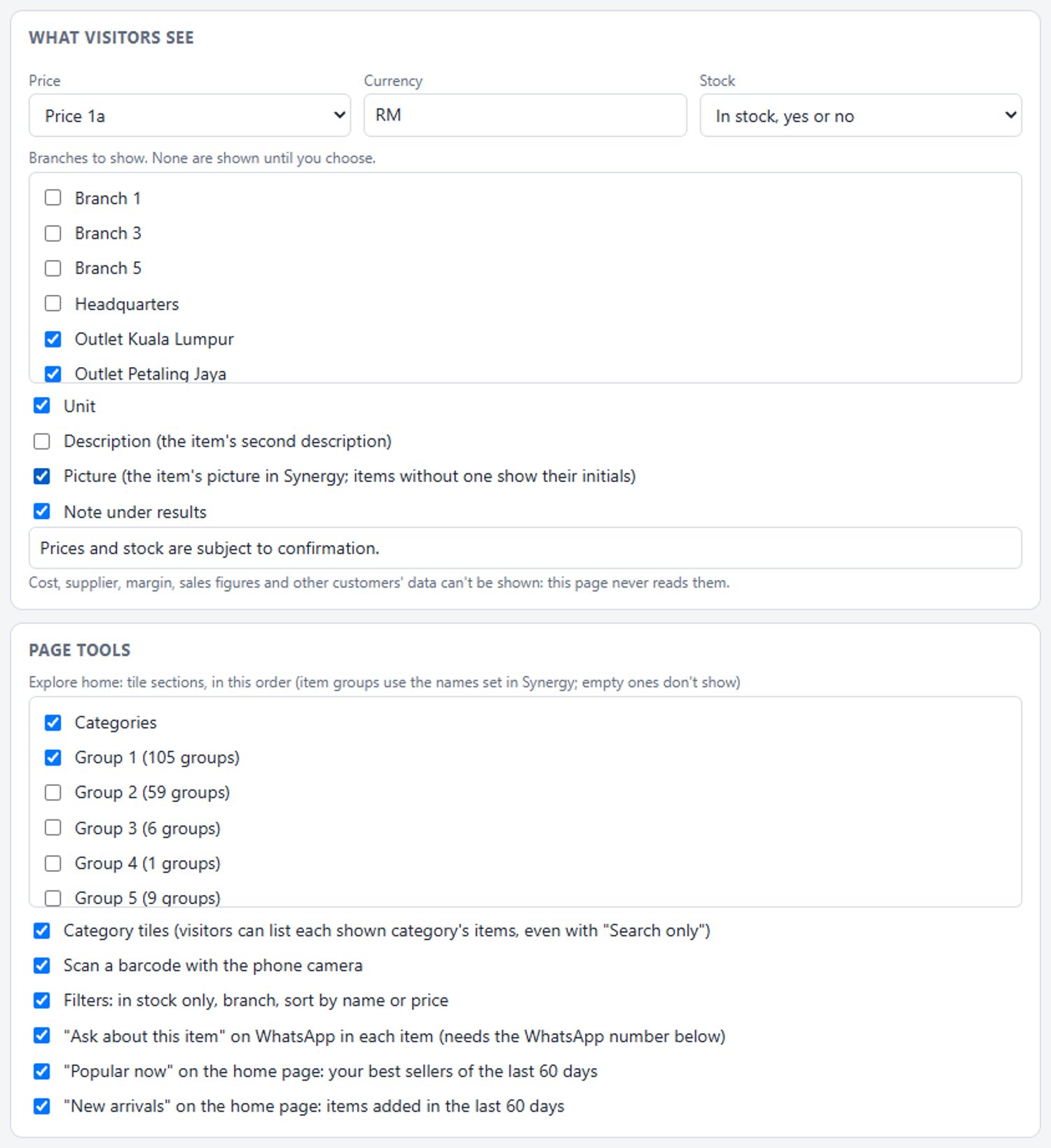
Under What visitors see choose the Price column (or Hidden), the Currency and the Stock: In stock, yes or no, Exact quantity, or Hidden. Tick the branches to show: none are shown until you choose. Tick Unit, Description, Picture and Note under results as you like. Cost, supplier, margin, sales figures and other customers’ data can’t be shown: the page never reads them.
7. Choose the page tools
Under Page tools tick the tile sections of the Explore home: Categories, and your item groups with the names set in Synergy. Then tick the tools: Category tiles, Scan a barcode with the phone camera, Filters, Ask about this item on WhatsApp (needs the WhatsApp number under Branding), Popular now (your best sellers of the last 60 days) and New arrivals (items added in the last 60 days).
8. Take orders with the shopping cart (optional)
Each order becomes a draft sales order in Synergy at the customer’s own prices. Nothing is saved until your staff open it, check it with the customer and press Save.
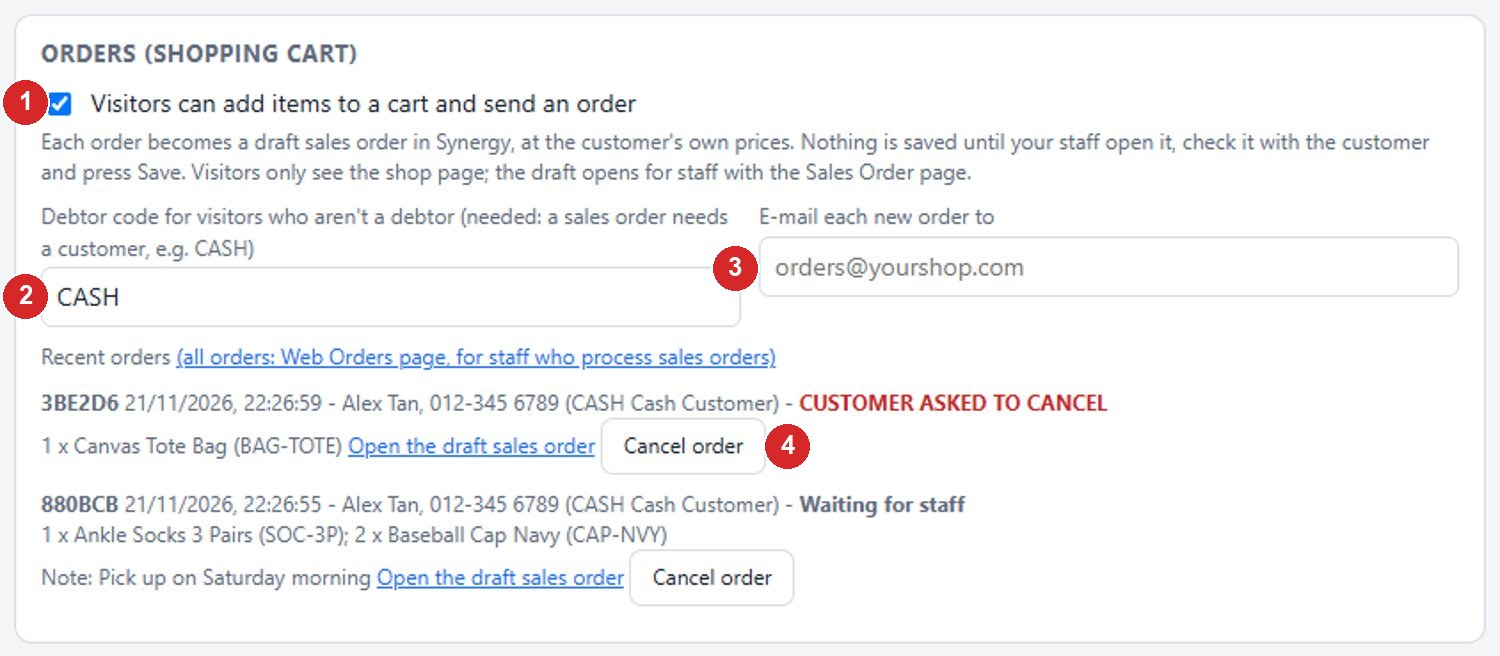
| Step | What to do |
|---|---|
| 1 | Tick Visitors can add items to a cart and send an order. |
| 2 | Type the debtor code for visitors who aren’t a debtor, for example CASH. It is needed: a sales order needs a customer. |
| 3 | Type the e-mail address that gets each new order. |
| 4 | Under Recent orders, open a draft sales order or cancel an order. All orders are on the Web Orders page. |
9. Add your branding
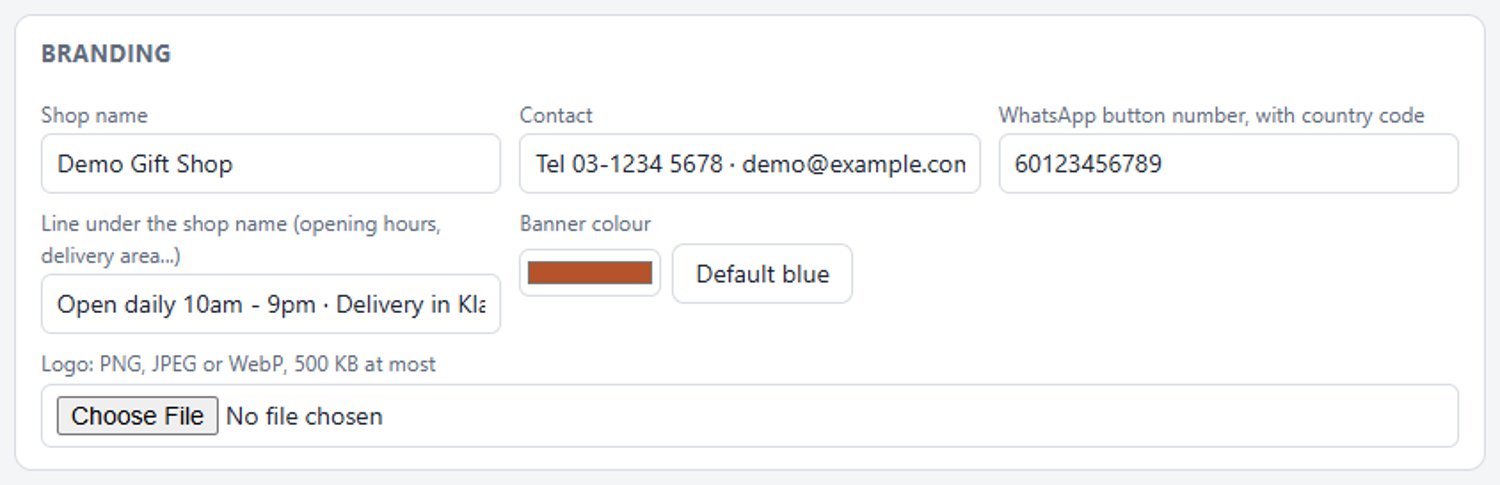
Under Branding type the Shop name, the Contact, the WhatsApp button number with country code and a Line under the shop name, such as opening hours or delivery area. Pick the Banner colour (Default blue goes back to blue) and choose a Logo: PNG, JPEG or WebP, 500 KB at most. Then click Save. Saving makes your changes live at once.
10. Check it as a visitor
Preview as visitor shows exactly what a visitor gets under the saved settings.
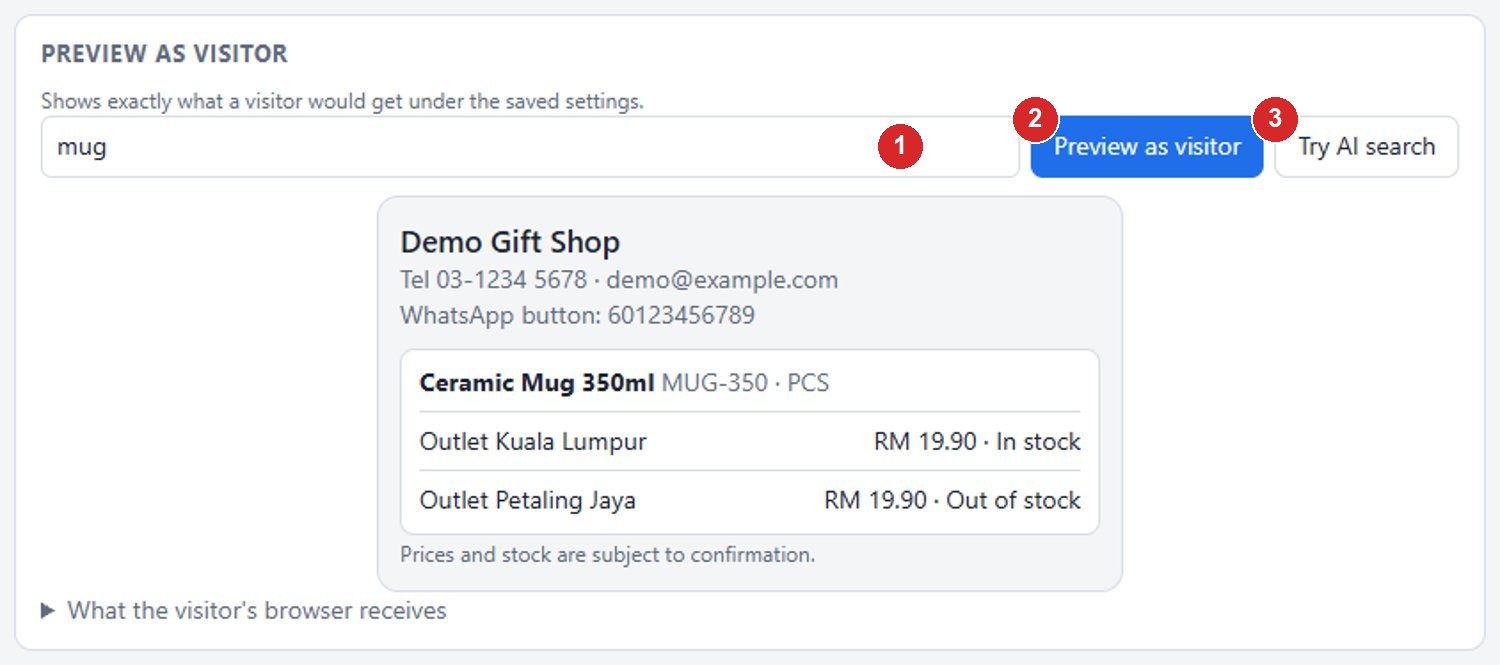
| Step | What to do |
|---|---|
| 1 | Type a product name, code or barcode. |
| 2 | Click Preview as visitor. |
| 3 | Or click Try AI search. |
11. Open the page
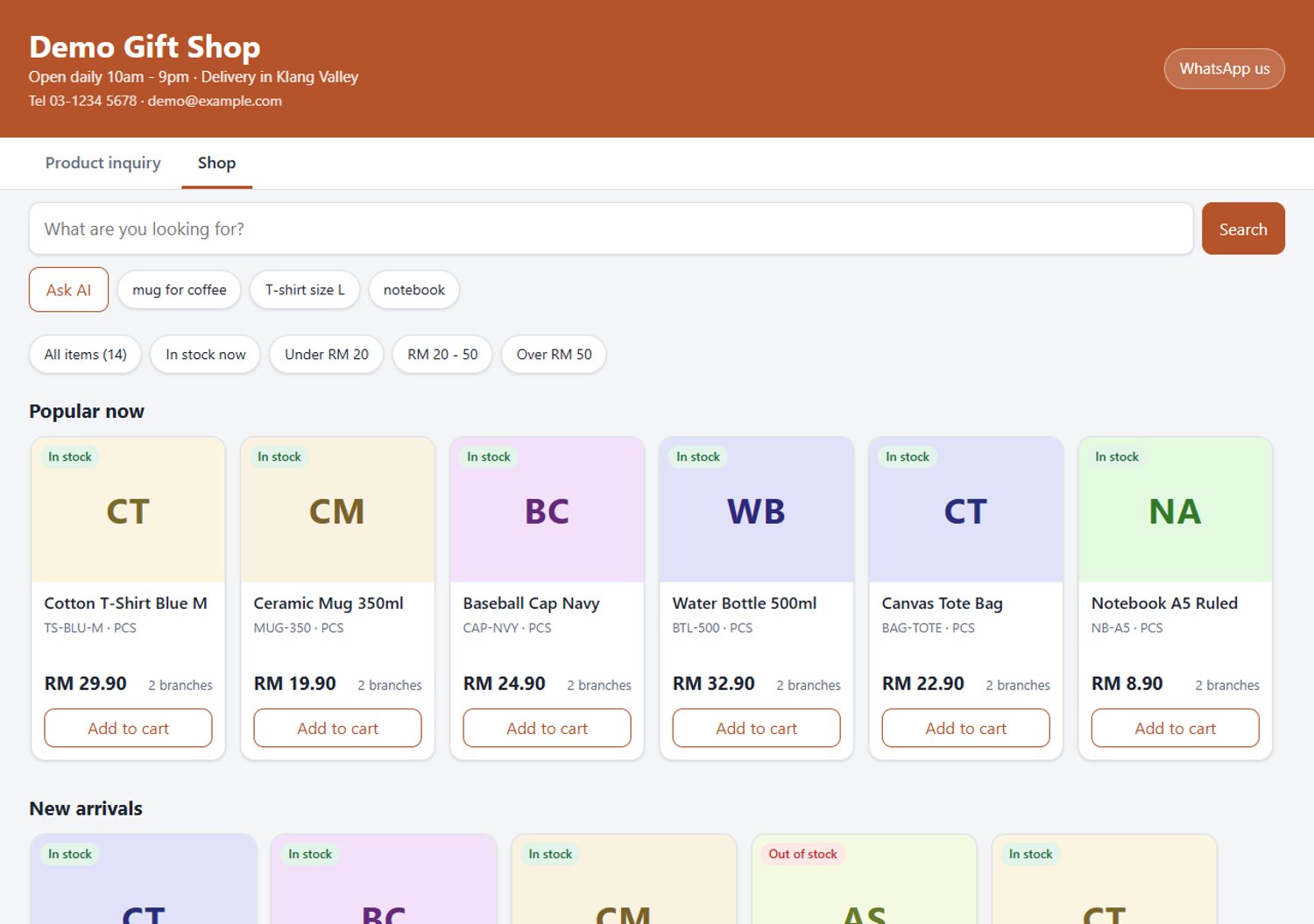
Click Open next to the public address and share the address with your customers. The page shows your banner, item pictures, Popular now and New arrivals. When the page takes orders it has two tabs: Product inquiry for prices and stock, and Shop for pictures, the cart and My orders.
Tips
- Open the settings page through your public address, so that the public address shown is the right one.
- Changing How visitors get in, or Who can sign in, signs every visitor out by itself.
- Items without a picture in Synergy show their initials.
- One order can have at most 30 different items. A visitor can send 5 orders an hour, and the page takes at most 200 orders a day.
- An order that staff do not save within 14 days expires.
Common problems
Page is on can’t be ticked, or section 1.6 is missing in /setup.
Your website activation does not include Price and Stock page. Ask Synergy.
The settings page shows Visitors can’t use the page and a reason.
Follow the reason, for example turn the page on, or send a test e-mail for Email + PIN.
Visitors get no PIN e-mail.
Check the mail settings in /setup and click Send test e-mail again. The settings page shows the last PIN e-mail problem.
AI search finds nothing.
Check that an AI key is set and that the searches a day are not used up. The settings page shows the last AI search problem.