
Some shops give their customers a Price and Stock page. On it you look up prices and stock, and if the shop takes orders there, you put items in a cart and send the order. This guide is for the shop’s customers. It works on a phone or a computer.
Before you start
- The shop gives you the address of its page.
- Some shops ask you to sign in with your e-mail and a PIN. Use the e-mail the shop has for you.
Steps
1. Sign in, if the page asks
If you see Sign in to see prices and stock, type Your email and tap Get PIN. The shop’s page e-mails you a 6-digit PIN. Type it and tap Sign in. No PIN yet? After 60 seconds tap Send again, or tap Use another email.
2. Find an item
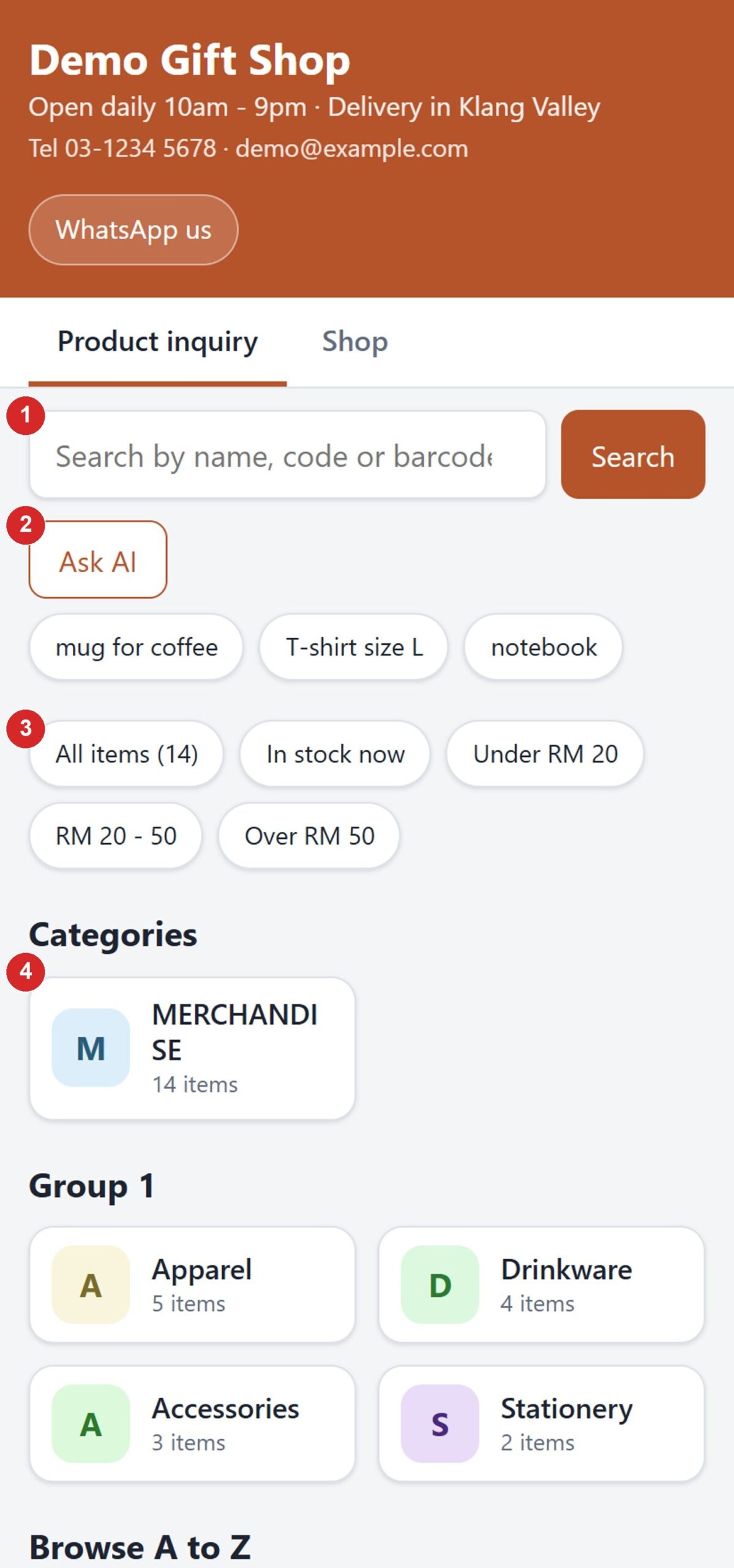
The page opens on its home. Pages that take orders have two tabs: Product inquiry for prices and stock, and Shop for buying.
| Step | What to do |
|---|---|
| 1 | Type a name, code or barcode and tap Search. |
| 2 | Or tap Ask AI and describe what you need, for example a use or a size. The example searches under it work too. |
| 3 | Or tap a quick choice such as All items, In stock now or a price range. |
| 4 | Or tap a category or group tile to see its items. |
3. Narrow the list
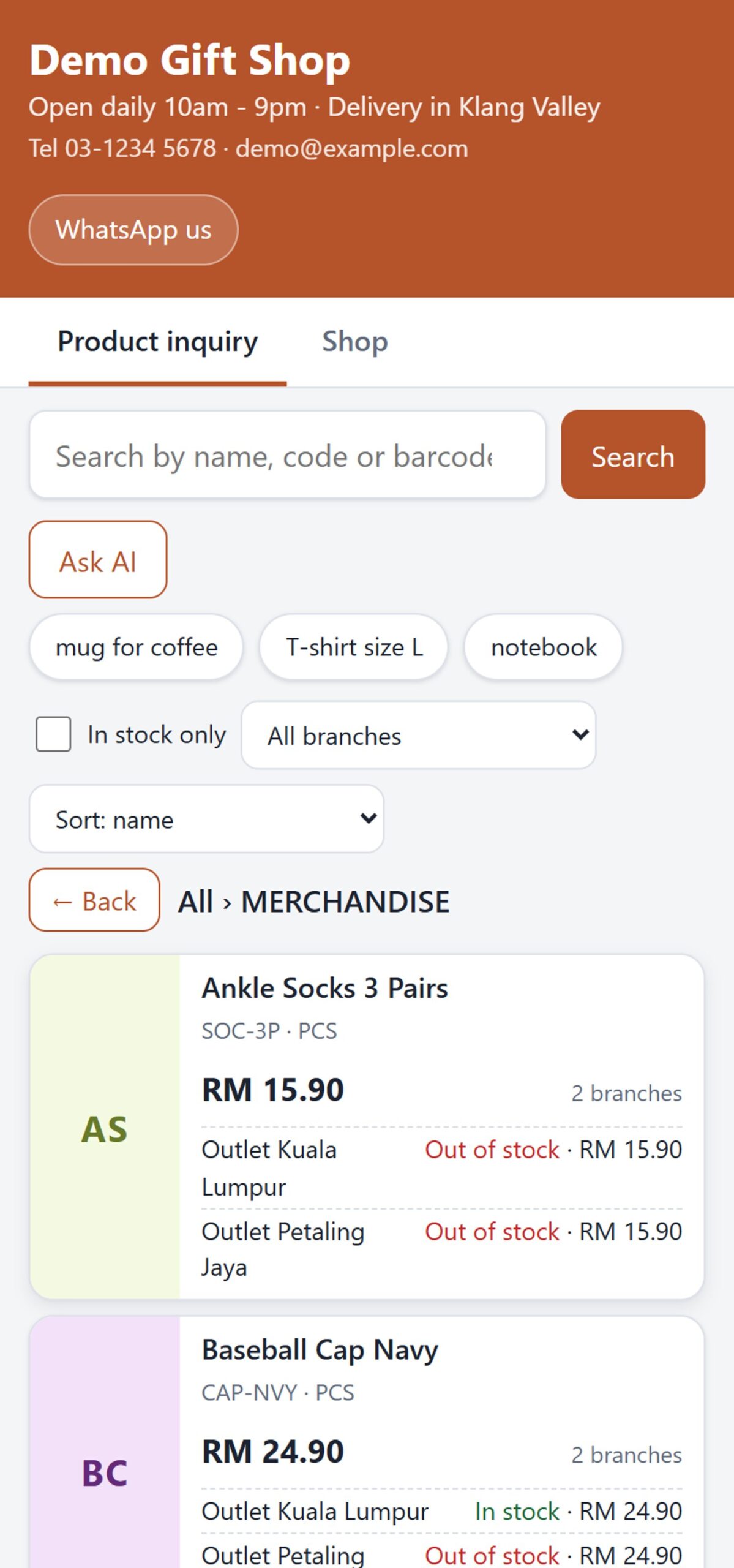
In a list, tick In stock only, pick a branch, or sort by name or price. Tap Back to go back. On a phone, Scan opens the camera to read a barcode, if the phone’s browser can.
4. Read price and stock
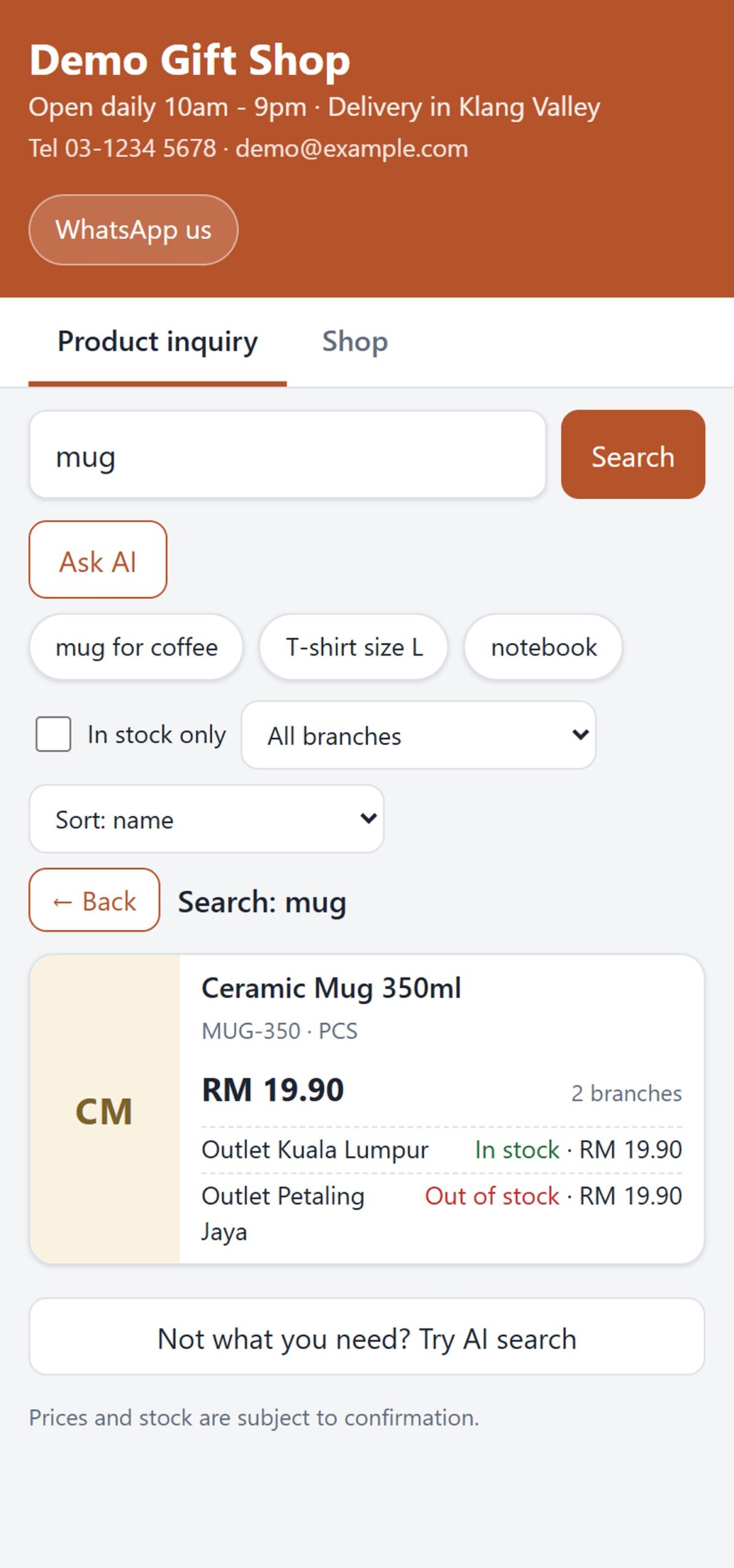
Each item shows its price and, for every branch, whether it is in stock. If nothing matches, tap Not what you need? Try AI search.
5. Open an item
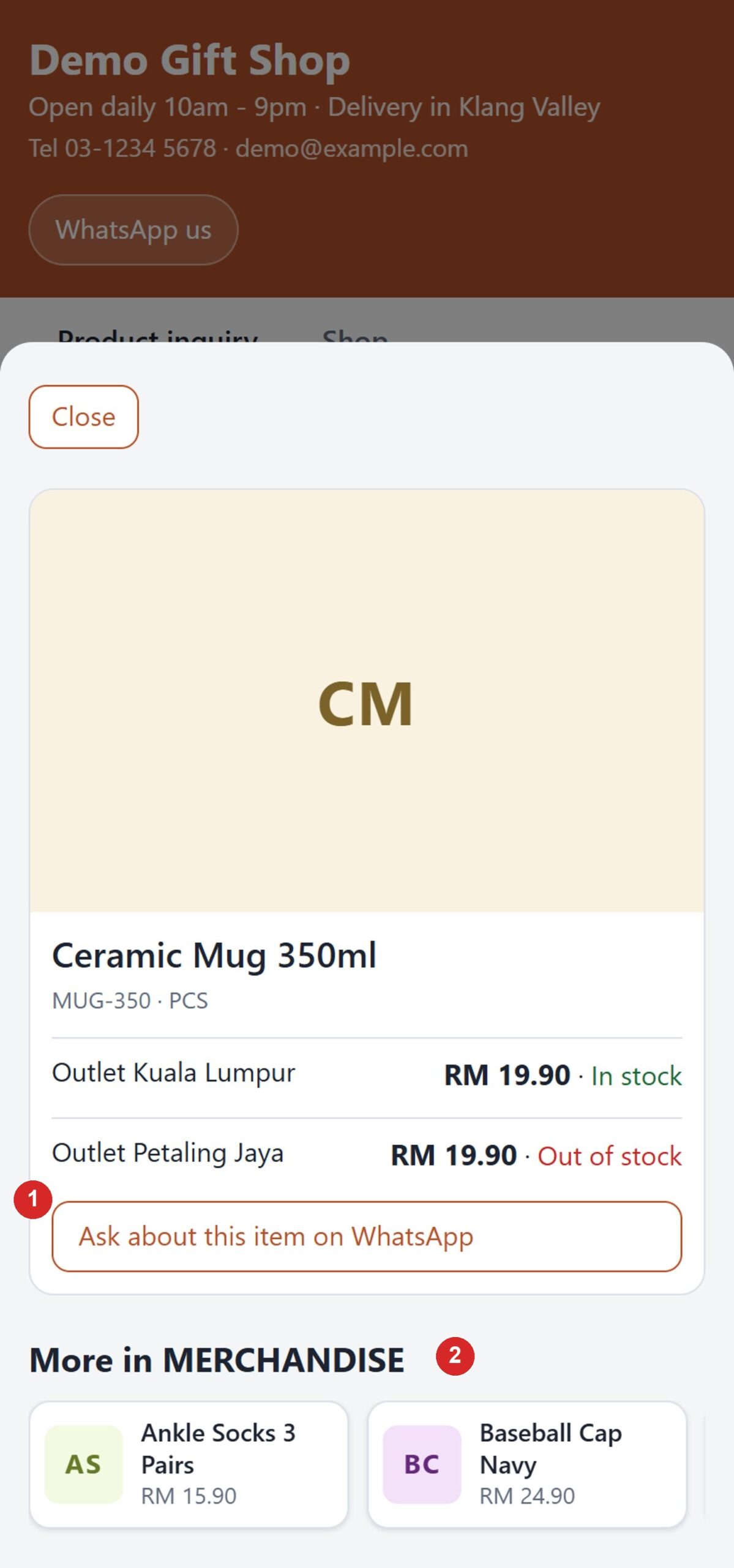
Tap an item to see it on its own.
| Step | What to do |
|---|---|
| 1 | Tap Ask about this item on WhatsApp to send the shop a ready message about it. |
| 2 | More in shows similar items. Tap Close to go back. |
6. Shop: browse with pictures
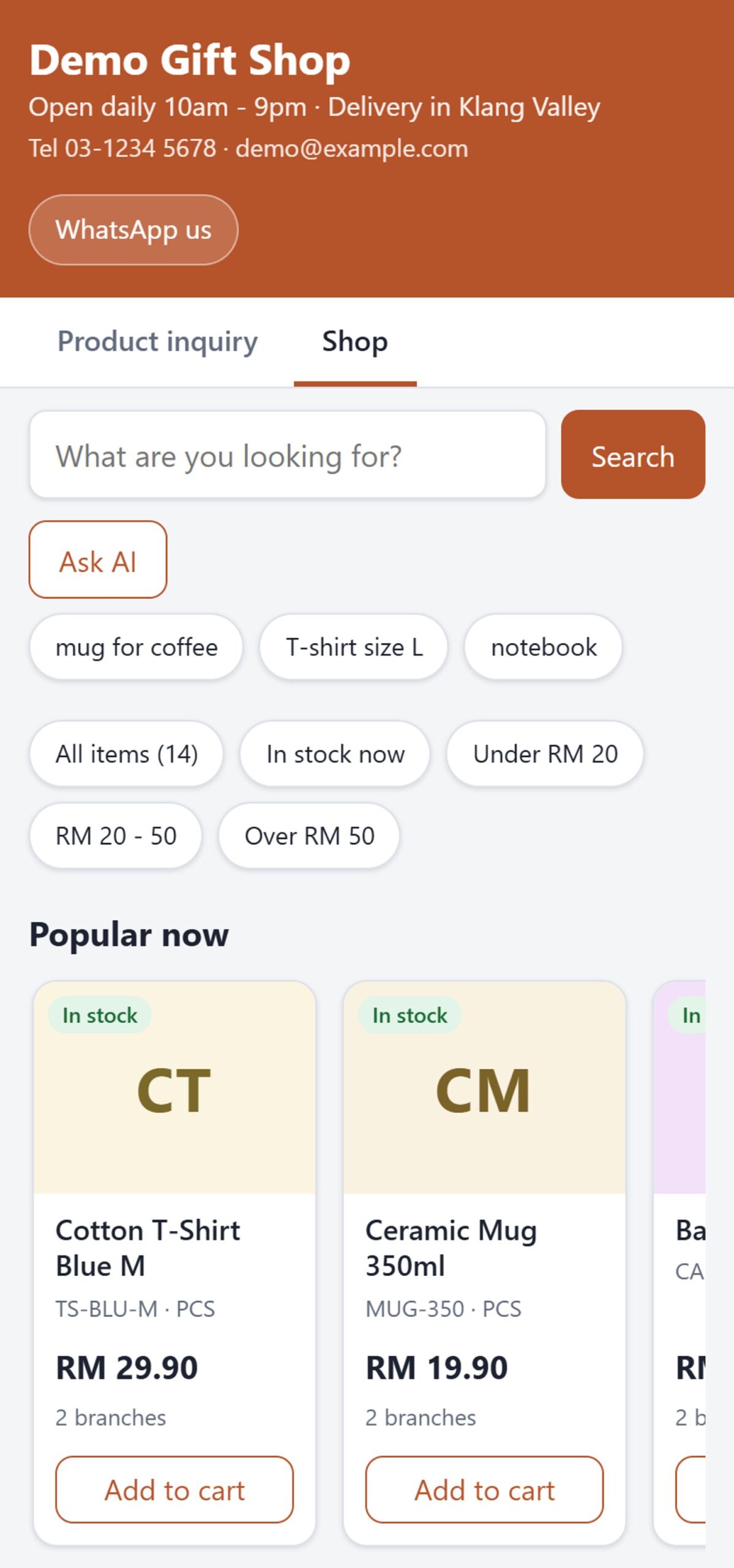
Tap the Shop tab. You see item pictures, Popular now and New arrivals, if the shop shows them.
7. Put items in the cart
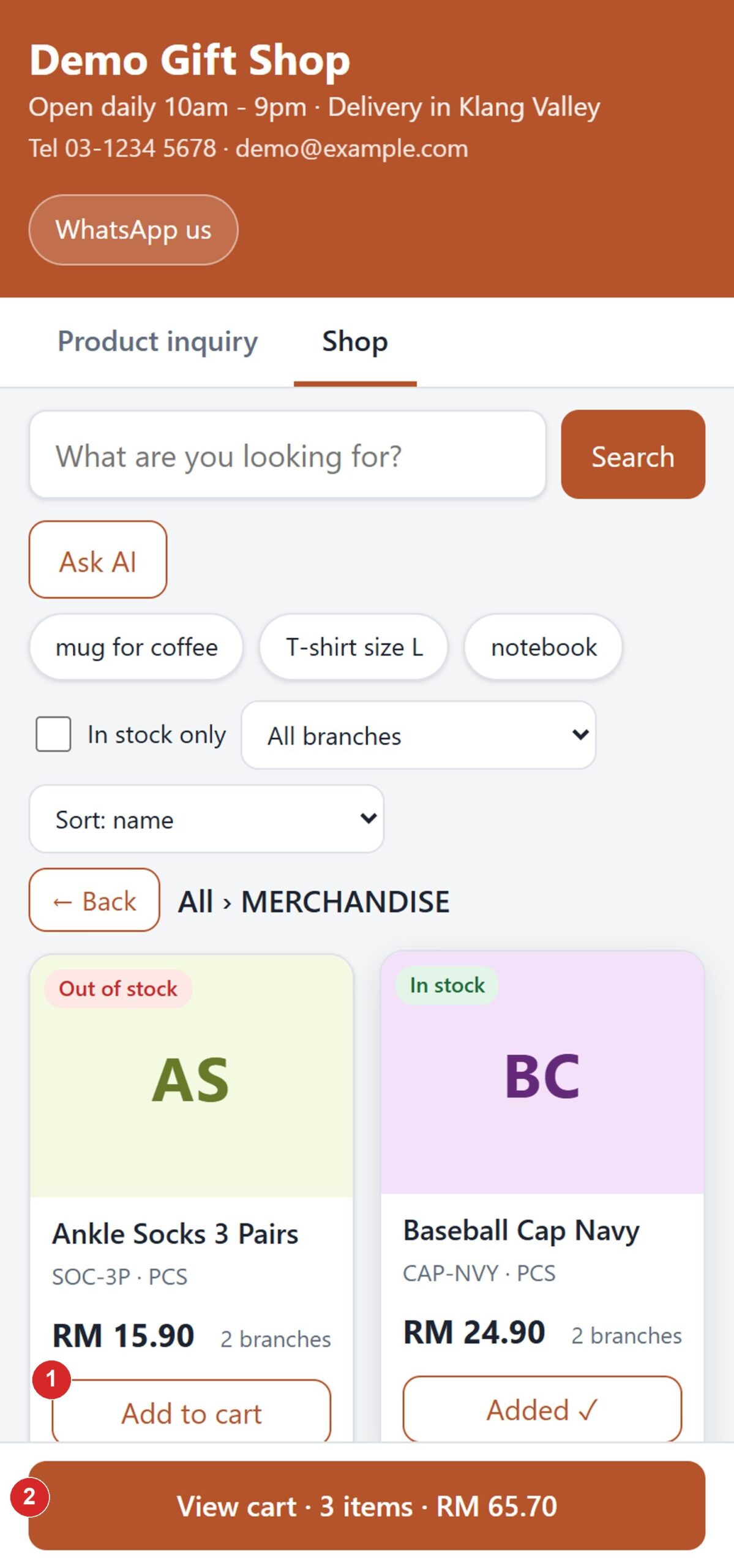
Tap Add to cart on each item you want. The bar at the bottom shows how many items are in the cart and about how much they cost.
| Step | What to do |
|---|---|
| 1 | Tap Add to cart. |
| 2 | Tap View cart. |
8. Send the order
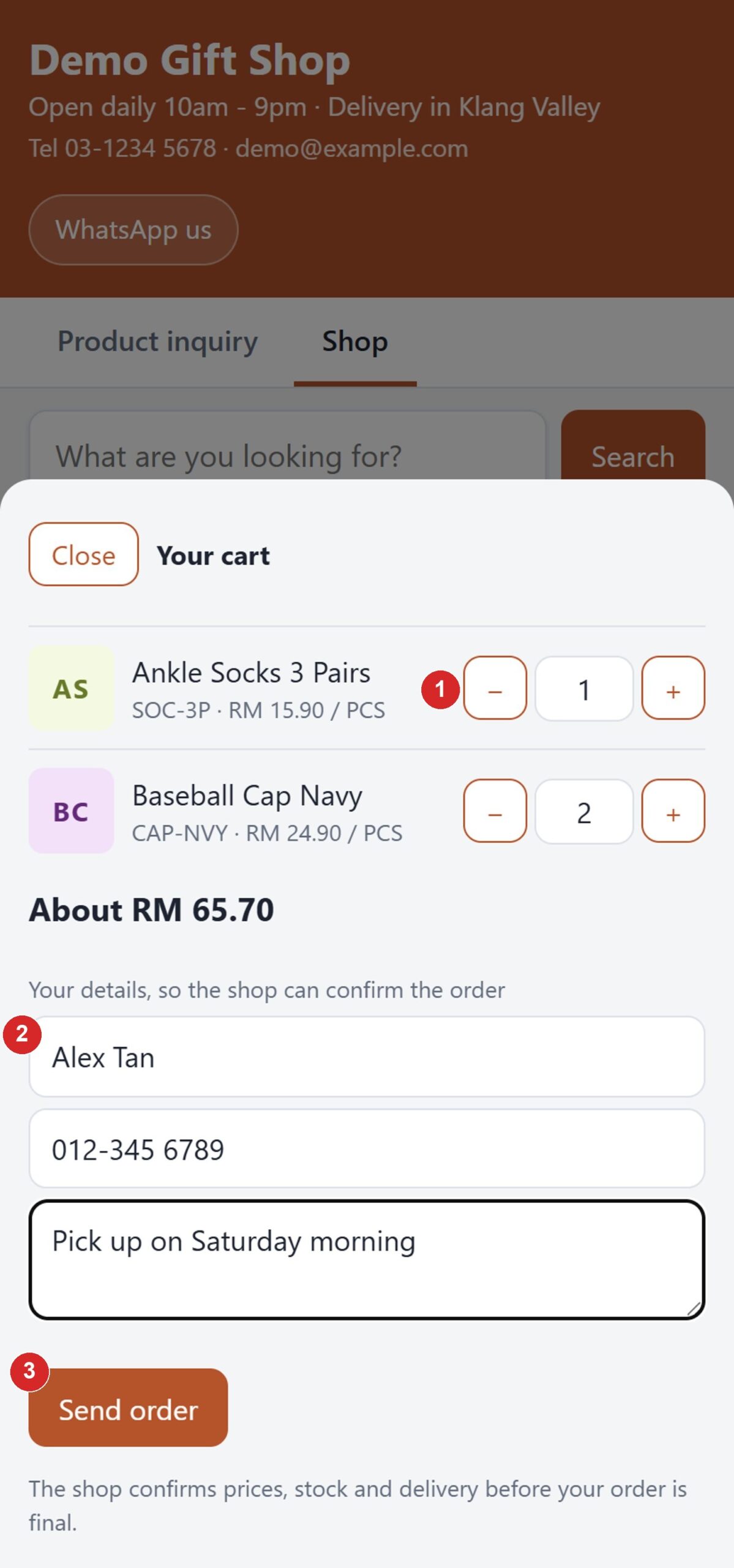
The total is an estimate: the shop confirms prices, stock and delivery before your order is final. One order can have up to 30 different items.
| Step | What to do |
|---|---|
| 1 | Change a quantity with – and +, or type it. |
| 2 | Type your name, phone number and a note to the shop (delivery, pick-up time…). |
| 3 | Tap Send order. |
9. Keep the order number
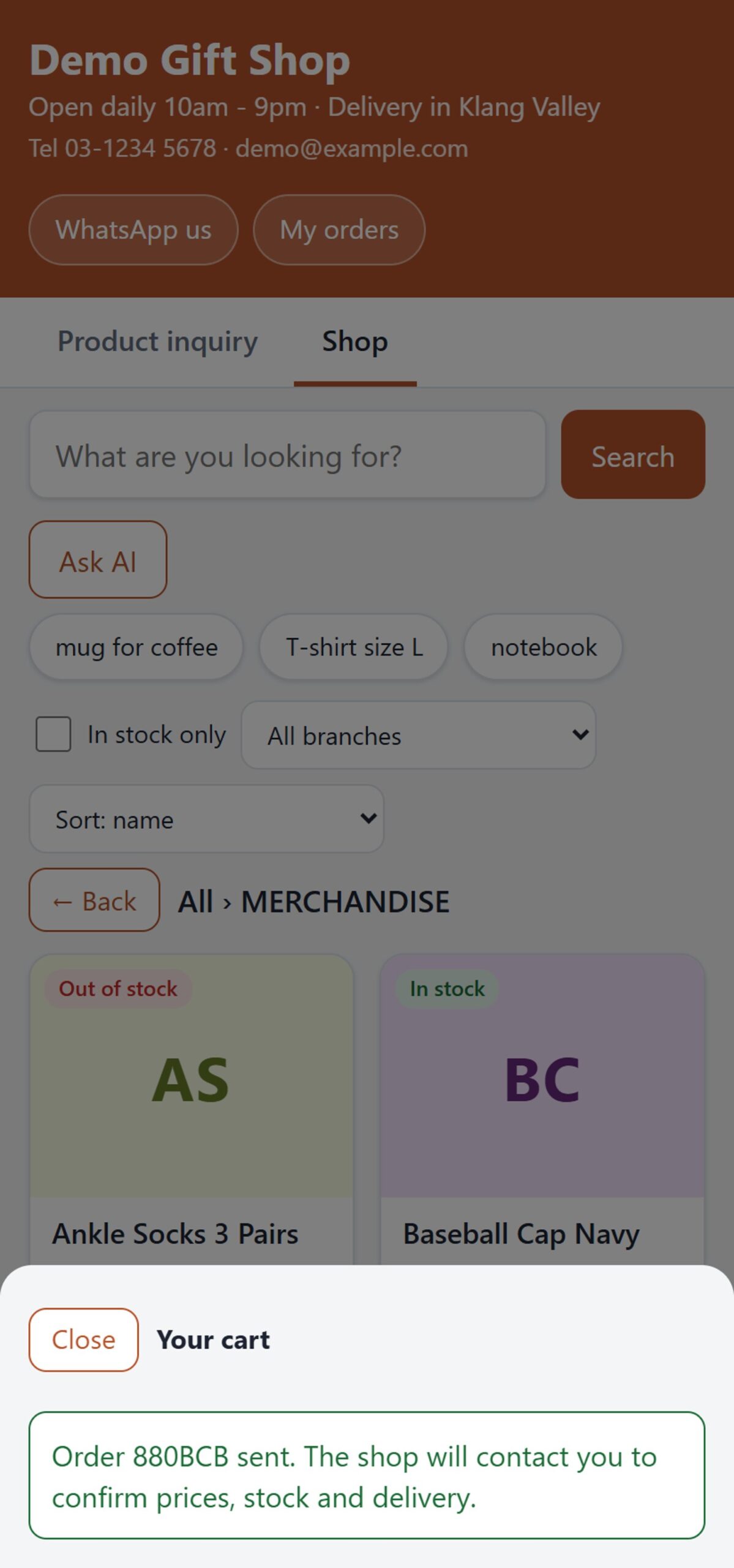
The page shows your order number and says the shop will contact you to confirm prices, stock and delivery.
10. Follow your orders
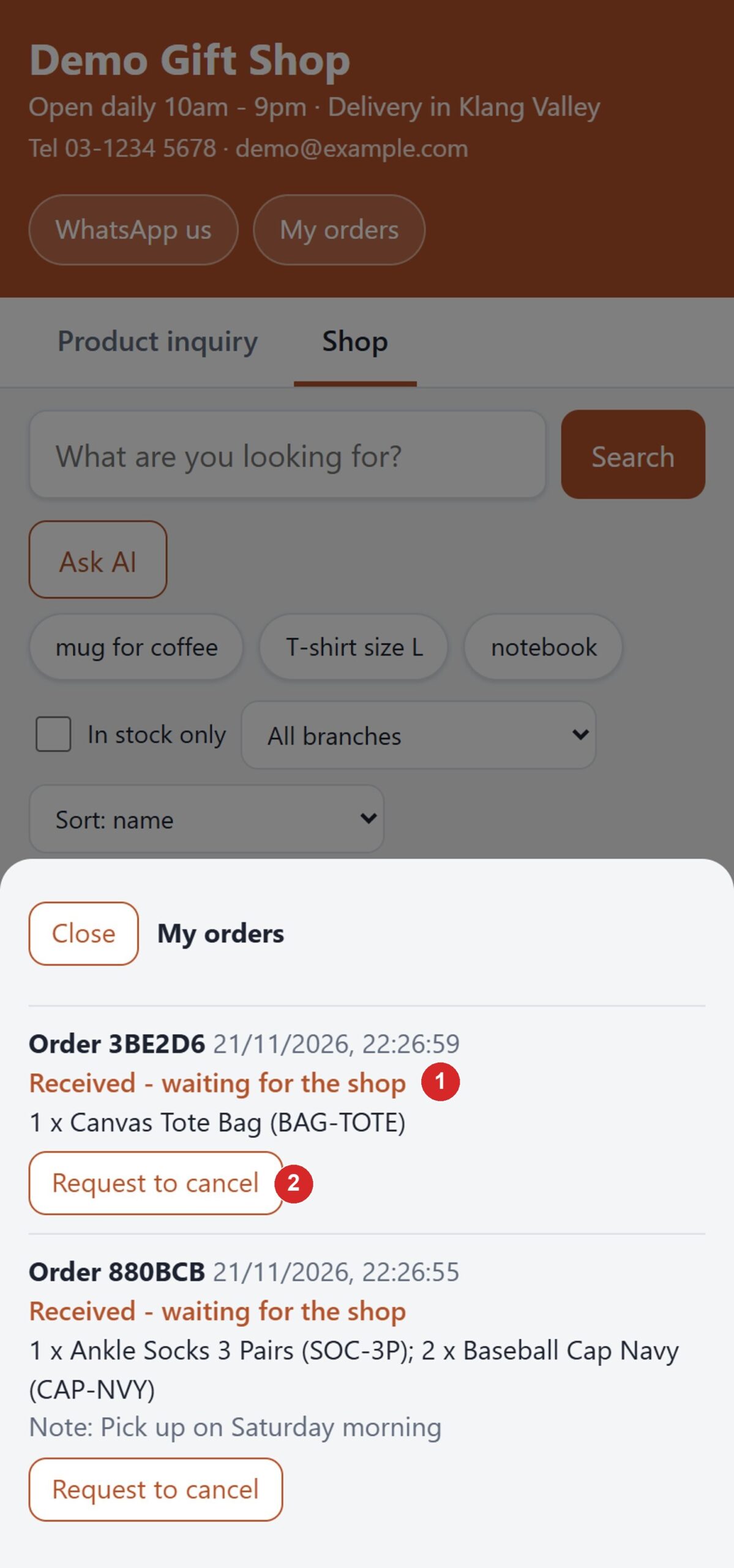
Tap My orders at the top. Each order shows where it stands: Received – waiting for the shop, Confirmed with the sales order number, You asked to cancel, Cancelled, or Not confirmed by the shop.
| Step | What to do |
|---|---|
| 1 | Read the status of the order. |
| 2 | Tap Request to cancel to ask the shop to cancel an order it has not confirmed yet. |
11. After you ask to cancel
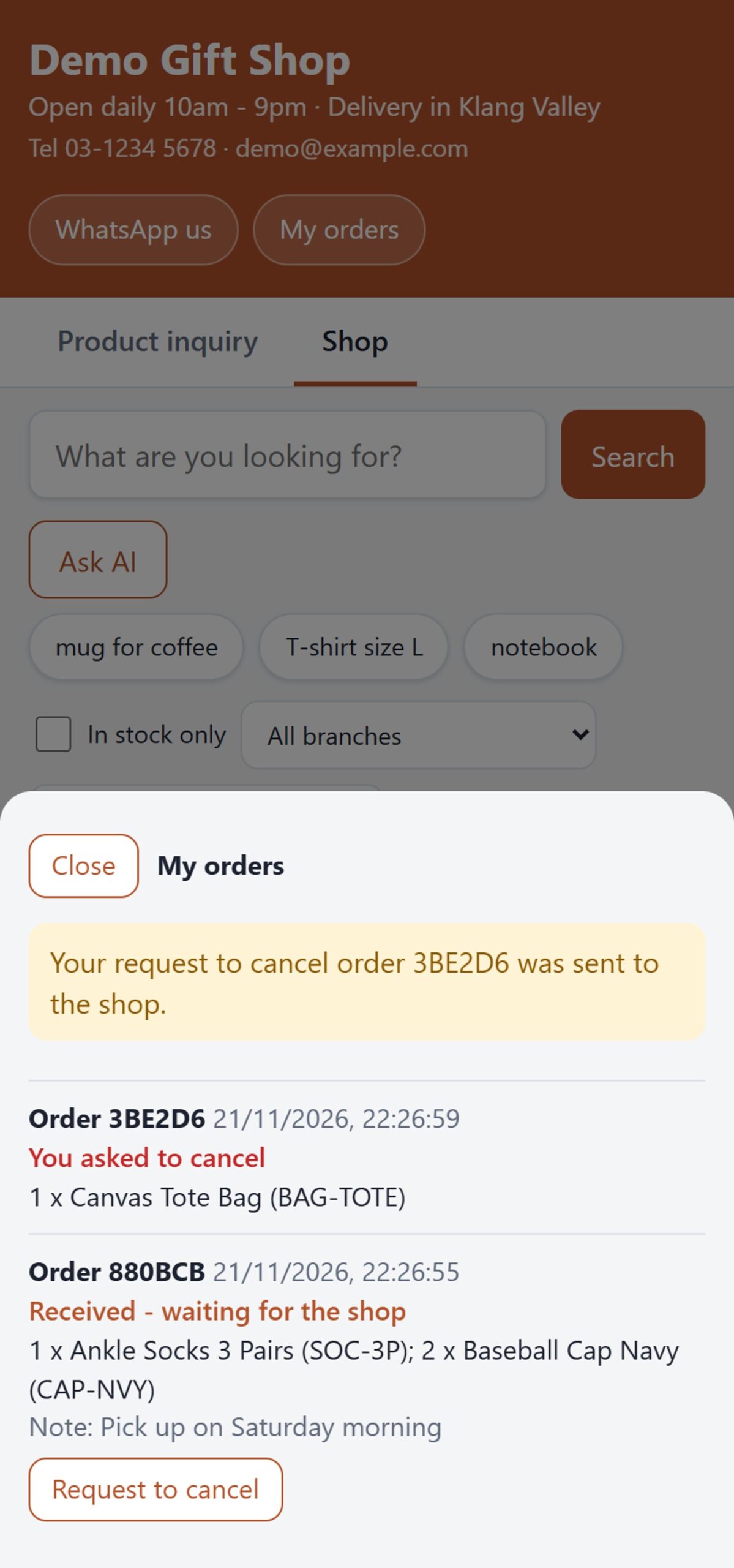
The order shows You asked to cancel and the shop gets your request. A confirmed order can’t be cancelled here: tap Ask the shop about this order to send the shop a WhatsApp message.
Tips
- My orders shows the orders sent from this browser, or from your e-mail when you are signed in.
- Prices and stock on the page may change. The shop confirms them with you.
- WhatsApp us at the top sends the shop a WhatsApp message.
Common problems
The page says Please fill in your name and phone number.
Type your name and a phone number, then tap Send order again.
The page says Too many orders from here for now.
Wait a while and try again, or contact the shop.
The camera does not open for Scan.
Allow the camera for this page in the browser, or type the code instead.
No PIN arrives.
Check the spam folder, wait 60 seconds and tap Send again. If your e-mail is not in the shop’s records, ask the shop.