
The Promotion page sets item promotions: prices, discounts and bundles, with the dates, times and locations they are valid for. This guide shows how to make one and add its items.
Before you start
- Sign in to Synergy Web Access as a user who may use Promotion (under the Inventory tab).
- Permission to add promotions in Synergy.
Steps
1. Open the page
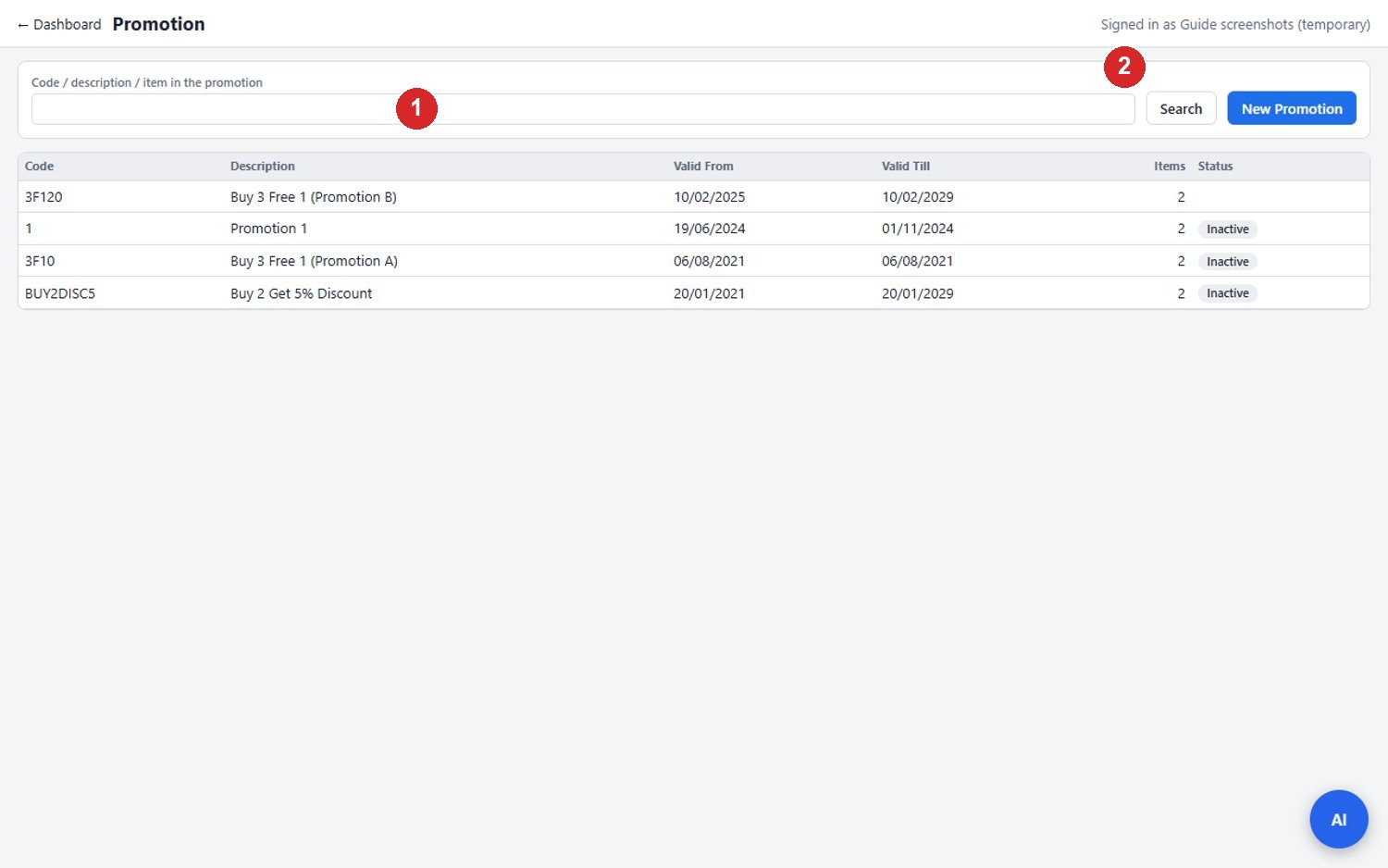
On the dashboard, open the Inventory tab and click Promotion. The list shows Code, Description, Valid From, Valid Till, Items and Status.
| Step | What to do |
|---|---|
| 1 | Type a code, description or item in the search box. |
| 2 | Click Search. |
2. Start a promotion
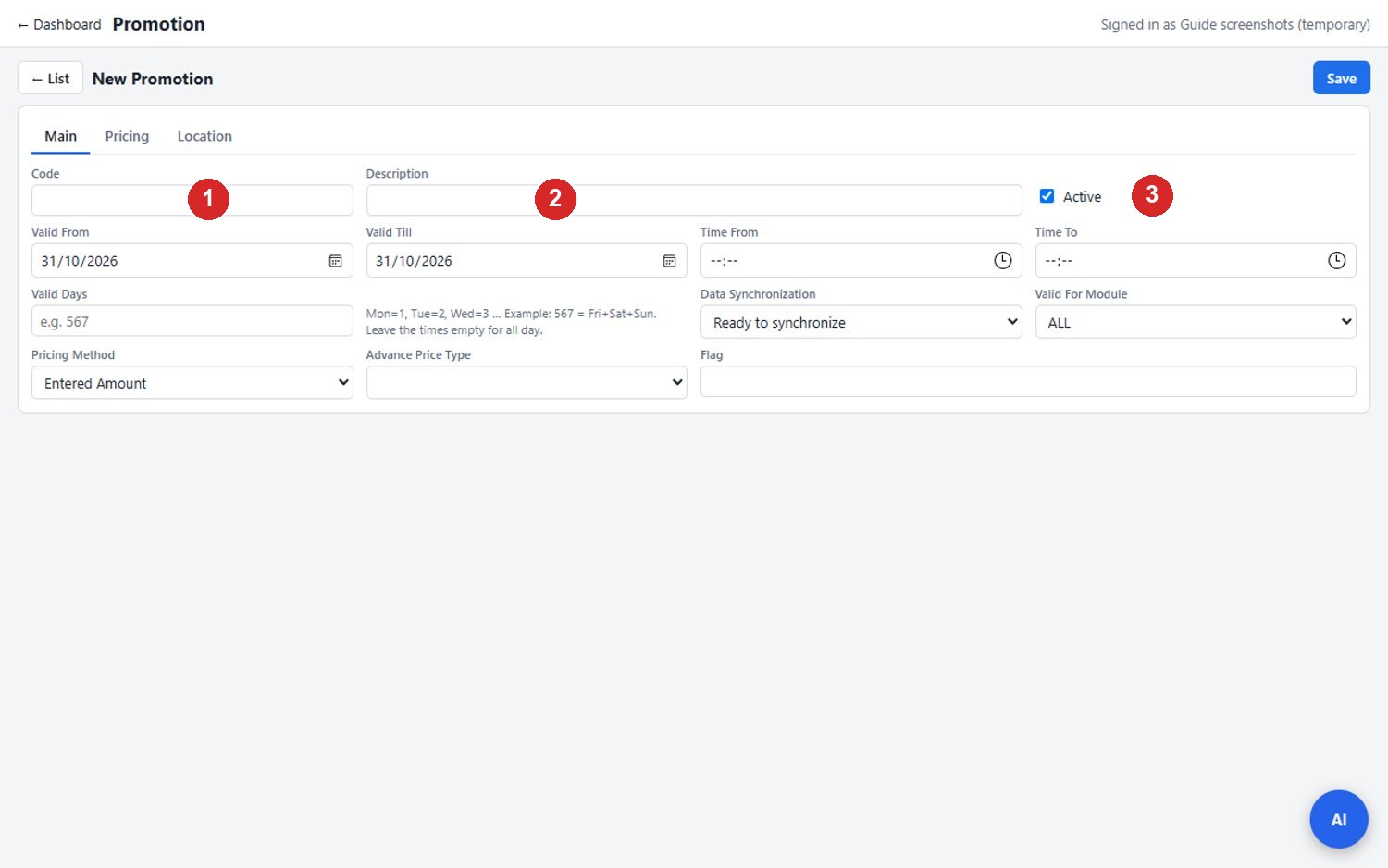
Click New Promotion. Use the Main tab.
| Step | What to do |
|---|---|
| 1 | Type the Code. |
| 2 | Type the Description. |
| 3 | Keep Active ticked. |
3. Set when it is valid
Set Valid From and Valid Till. Time From and Time To are optional; leave them empty for all day. In Valid Days type the days as numbers, Mon=1, Tue=2, Wed=3 and so on. For example 567 means Friday, Saturday and Sunday.
4. Choose how it prices
Choose the Valid For Module, the Pricing Method and, where needed, the Advance Price Type. Data Synchronization is the synchronization status (it starts as Ready to synchronize). Flag holds a short text of your own.
5. Add the items
On the Pricing tab click Select Item, or + Add item and type an item code and press Enter. The price comes from the item. The columns follow the Pricing Method, for example Amount, Disc. %, Discount Amount, Net Amount, Rounding, Bundle and TaxInclusive. Fill in the discount or price of each item. Clear All Items empties the list.
6. Add items from Excel
Click Load From Excel and choose a file. See Required Excel Format shows the columns: Code, Amt, Discount, NetAmt, TaxInclusive and Bundle. It also reads UOM, DiscAmt, BasicPriceGroup and Rounding when they are there.
7. Qualifying items
Tick Show Qualifying Item to add Qualifying Package Items with + Add qualifying item, for a promotion that needs certain items to be bought.
8. Choose the locations
On the Location tab tick the locations the promotion is for (or tick all). Only locations with a POS branch code are listed. The ones you tick are remembered for the next new promotion.
9. Save
Click Save. The page says Saved with the code. Delete removes the promotion after you confirm.
Tips
- The status shows Inactive when Active is not ticked.
- For Item Redemption By Point the grid shows Redeem Amount and Redeem Point. Set Redeem Amount to 0 to redeem the item at its full price.
Common problems
Invalid code entered.
The item code was not found. Type it again, or use the search button to pick the item.
The file could not be read.
Check that it is an .xlsx, .xls or .csv file with the required column names.
You do not have access to Promotion.
Your Synergy user has no permission for this page. Ask your administrator.