
The purchase pages work like the sales pages, but with a supplier (Creditor) instead of a customer and a Purchaser instead of a Sales agent. This guide follows a purchase from the order to the supplier’s invoice.
Before you start
- Sign in to Synergy Web Access as a user who may use the purchase pages you need (under the Purchases tab).
- Add and edit permissions for those documents in Synergy.
Steps
1. Open the page
On the dashboard, open the Purchases tab. It has Purchase Requisition, Generate P/O From P/R, Purchase Order, Goods Received, Invoice Received, Supplier’s Debit Note and Return Outwards. The list works as on the Quotation page: search, then click New.
2. Make a purchase order
Click New on Purchase Order.
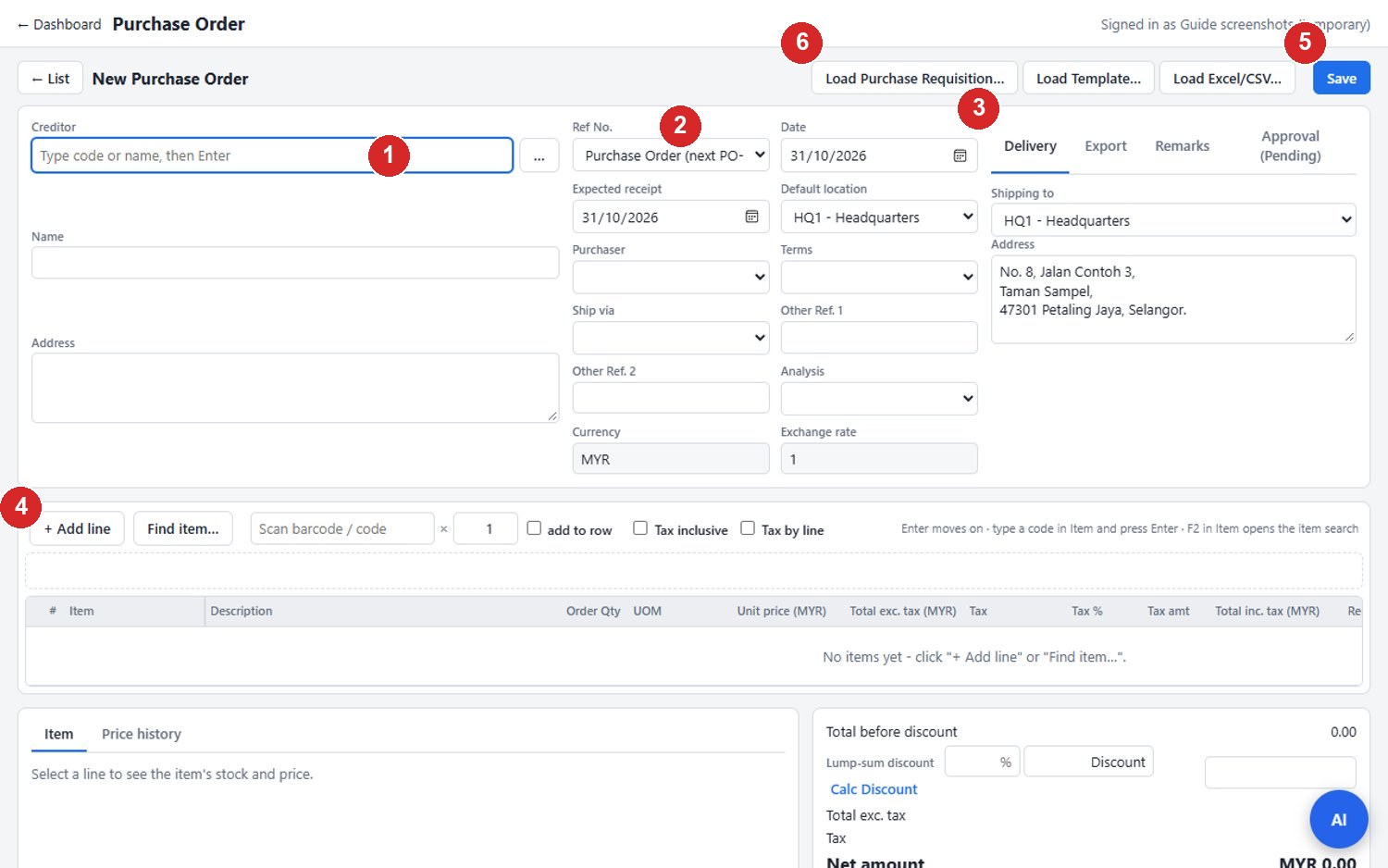
| Step | What to do |
|---|---|
| 1 | Under Creditor type the supplier’s code or name and press Enter. |
| 2 | Check Ref No., Date, Expected receipt, Default location, Purchaser, Terms and Ship via. |
| 3 | The Delivery tab has Shipping to and the address. |
| 4 | Add the items with + Add line or Find item. |
| 5 | Click Save. |
| 6 | Load Purchase Requisition brings in approved requisition lines. |
3. Receive the goods
On Goods Received click New. After loading, change the quantities to what really arrived. The stock goes in at the location. You can also click Convert to Goods Received on a saved purchase order.
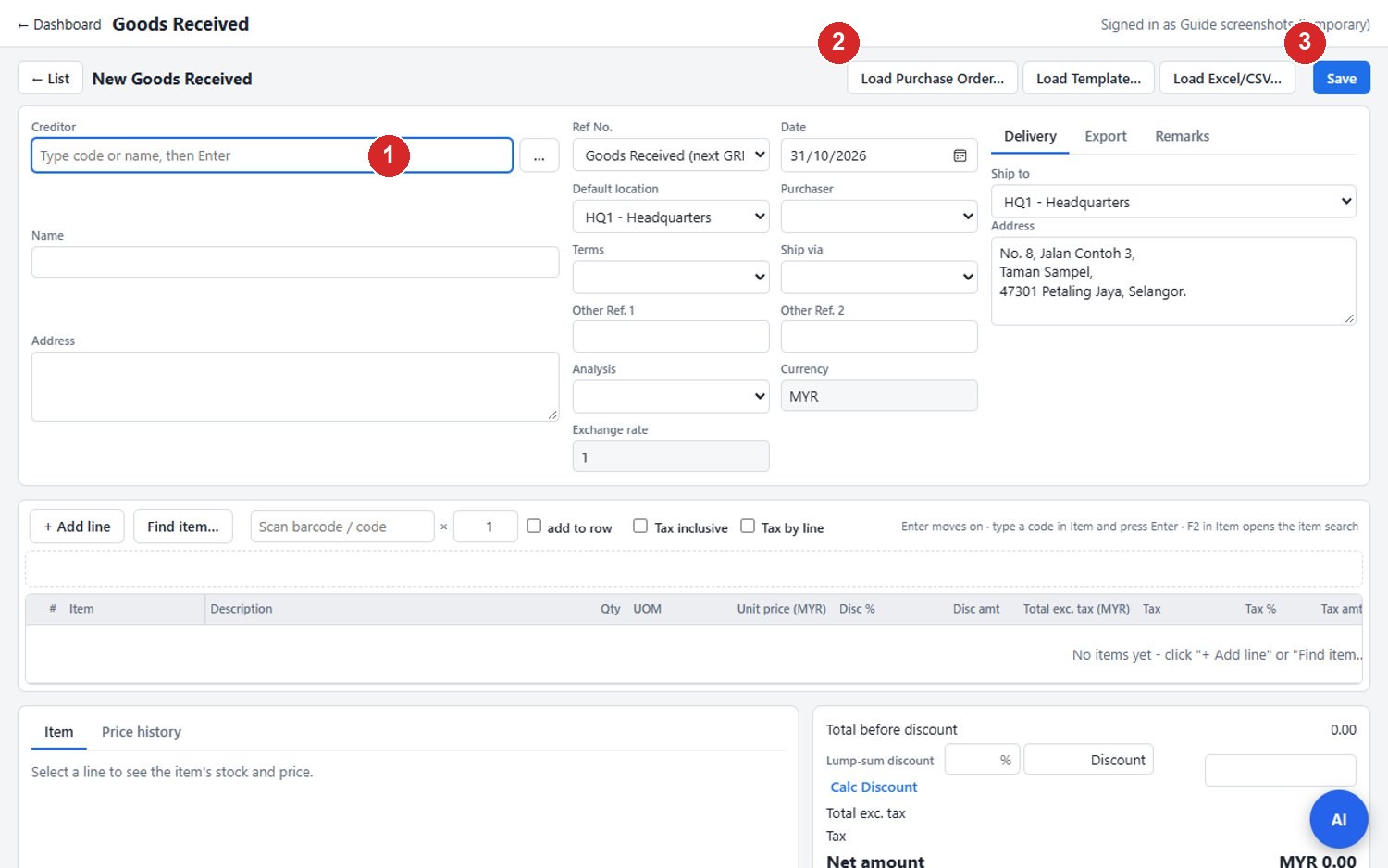
| Step | What to do |
|---|---|
| 1 | Choose the Creditor. |
| 2 | Click Load Purchase Order to pick the supplier’s order and its lines. |
| 3 | Click Save. |
4. Enter the supplier’s invoice
On Invoice Received click New. A cash purchase has a Payment tab for the account.
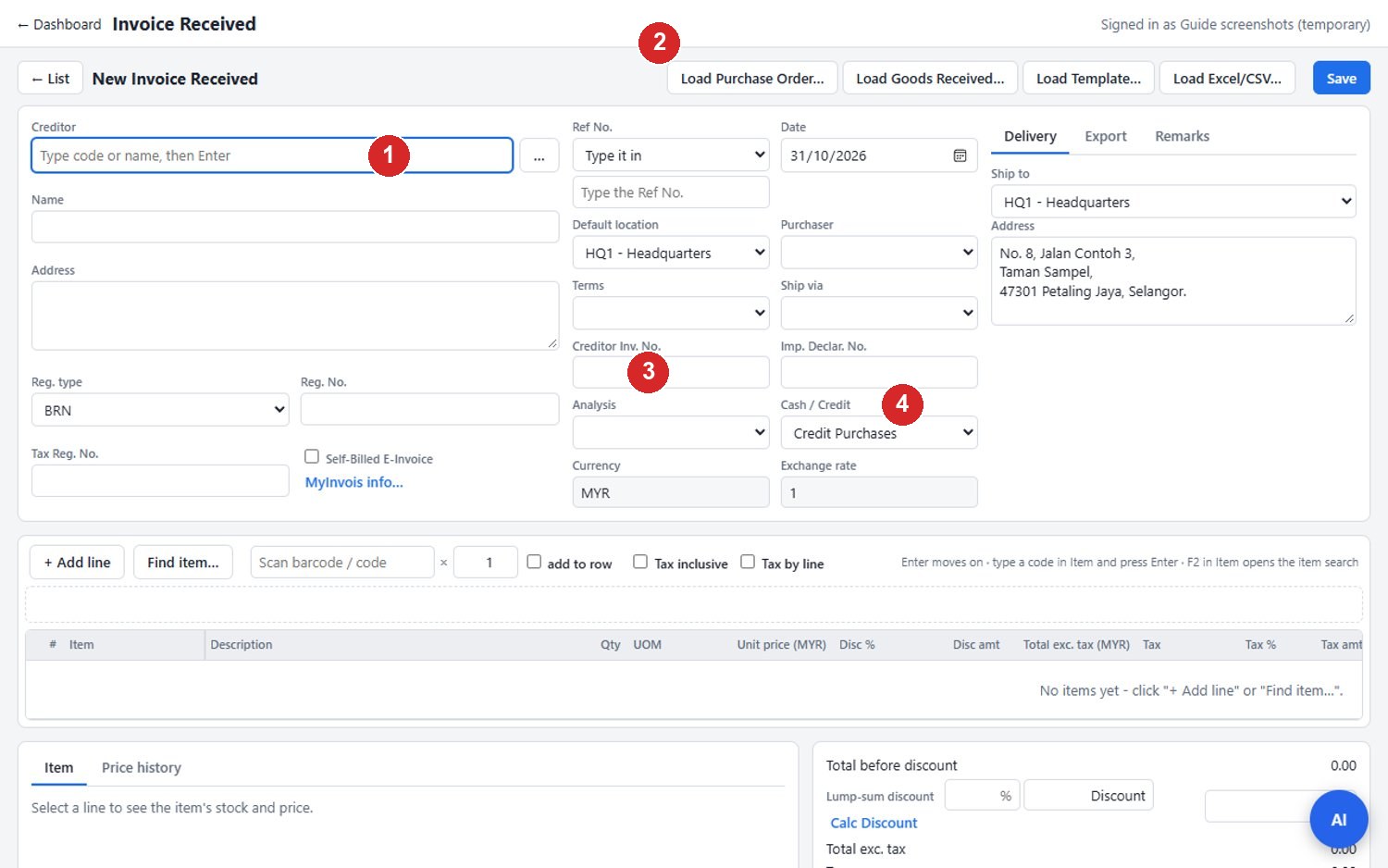
| Step | What to do |
|---|---|
| 1 | Choose the Creditor. |
| 2 | Click Load Purchase Order or Load Goods Received to bring in the lines. |
| 3 | Type the supplier’s number in Creditor Inv. No. (and Imp. Declar. No. if you import). |
| 4 | Choose Cash / Credit: Cash Purchases or Credit Purchases. |
5. Self-billed e-invoice
Tick Self-Billed E-Invoice on the invoice received when the document must be sent as a self-billed e-invoice.
6. Save and post
Click Save. On Invoice Received click Post and confirm Do you want to Post this transaction? Use Unpost to undo it. Click Print for the PDF.
7. Purchase requisitions
A Purchase Requisition lists the items and quantities to buy, with no supplier or price. On Generate P/O From P/R, approve the requisition lines (supplier, order and rejected quantity, price, tax) and the page makes the purchase orders, one for each supplier and location.
Tips
- Return Outwards loads Select Invoice Received For Returning Goods, Select Goods Received For Returning Goods or Select Invoice For Discount. It has Supplier CN and CN date fields.
- Supplier’s Debit Note uses Select Undercharged Invoice to share an amount over the lines of an invoice received.
- Items that need serial numbers, bins or batches open a small window to fill in, as on the sales pages.
Common problems
Please save this transaction first.
Click Save, then Post or Print again.
The Load button lists no purchase orders.
Only the chosen supplier’s documents that still have something outstanding are listed. Choose the Creditor first.
You do not have access to this page.
Your Synergy user has no permission for it. Ask your administrator.