
With QR Order a diner scans the QR code at the table, picks items on the phone and sends the order to the kitchen. This guide follows the diner’s steps, so staff can also use it to help a guest.
Before you start
- The QR code at the table, scanned with the phone’s camera.
- If the restaurant uses members: your member code, name, phone number or e-mail.
Steps
1. Open the table’s page
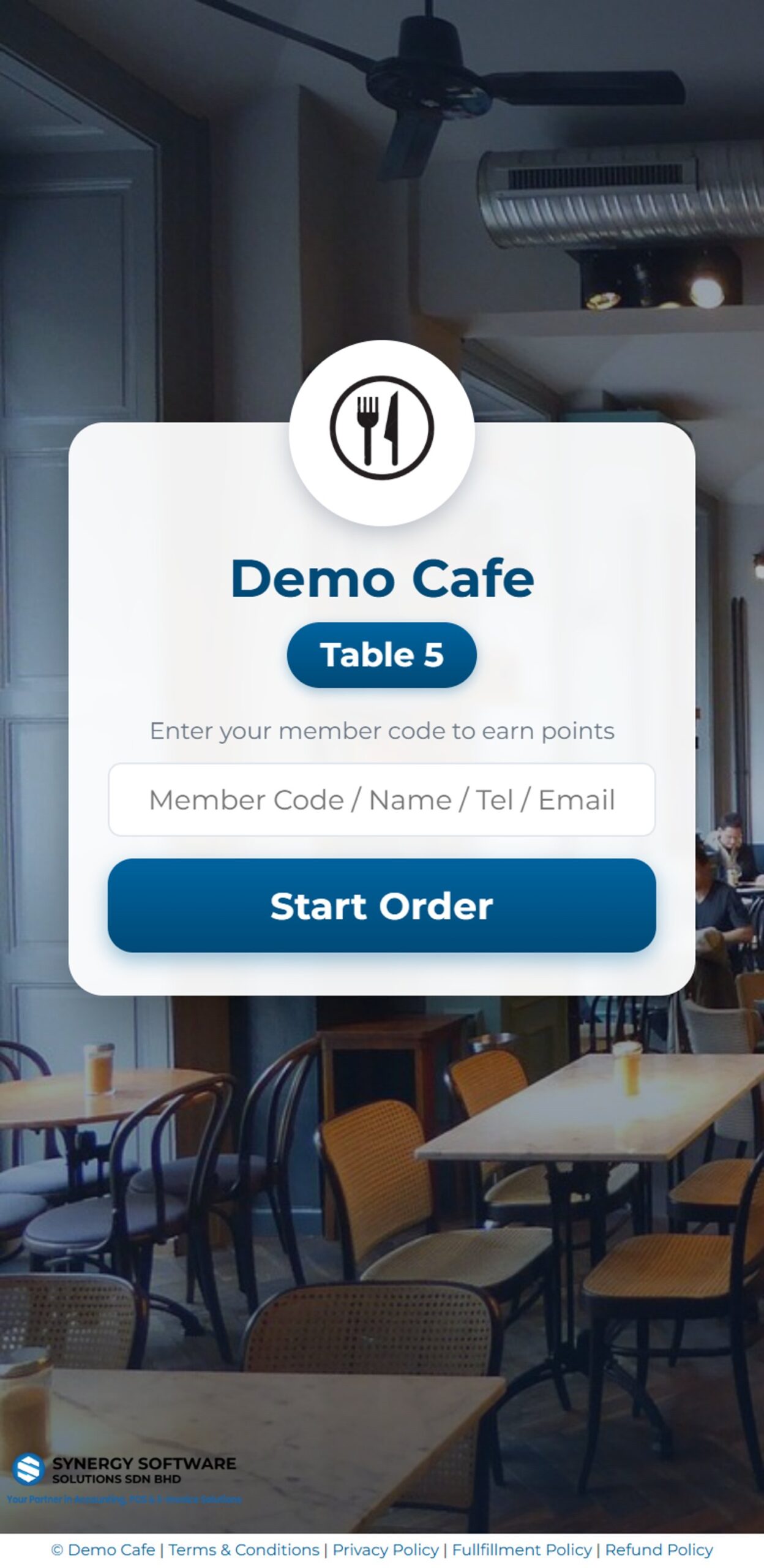
Scan the QR code. The welcome page shows the restaurant’s name and Table with its number.
2. Start the order
If the restaurant uses members, type your Member Code / Name / Tel / Email to earn points. Otherwise you may type an Email Address (optional) to receive your e-receipt. Then click Start Order.
3. Find your items
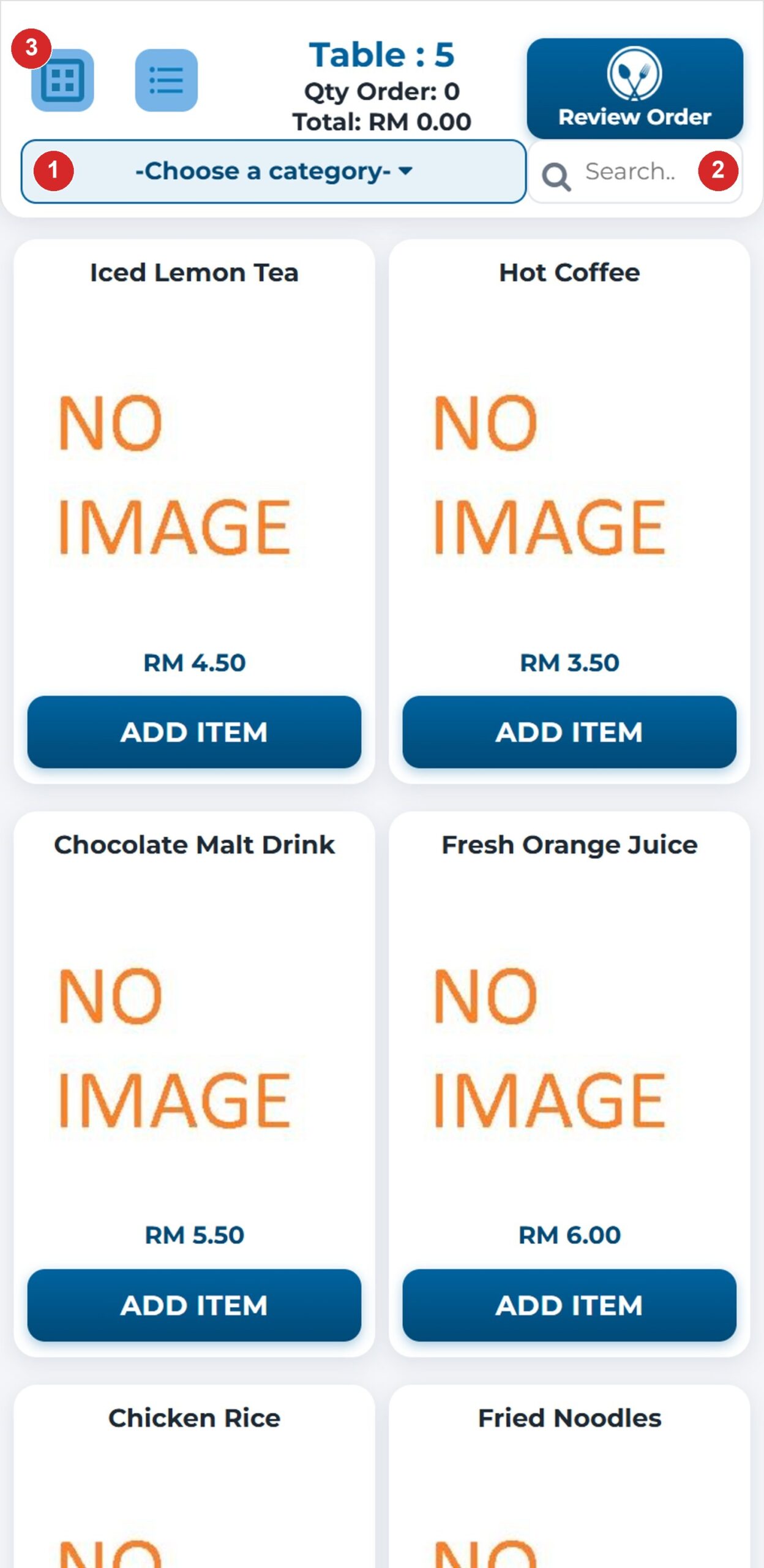
The top of the order page also shows the table, the quantity ordered and the total.
| Step | What to do |
|---|---|
| 1 | Choose a category with the Choose a category button. |
| 2 | Or type in Search… |
| 3 | Use the grid or list icon at the top to change how items are shown. |
4. Add an item
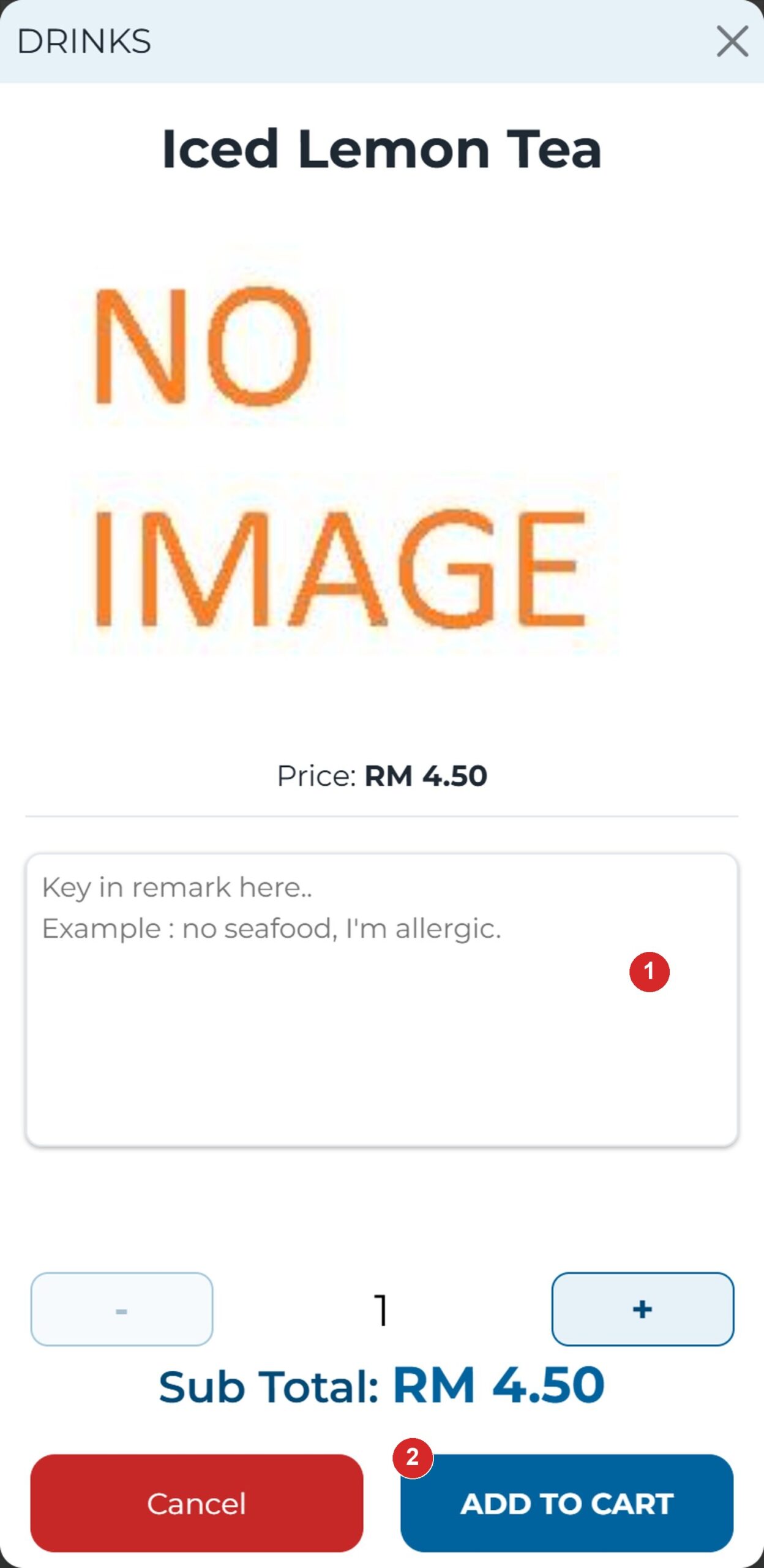
Click ADD ITEM on an item. Items marked SOLD OUT cannot be ordered. If the item has add-ons, choose them. A message says Added to your order.
| Step | What to do |
|---|---|
| 1 | Use the remark box for special requests, for example no seafood, I am allergic. |
| 2 | Click ADD TO CART. |
5. Review the order
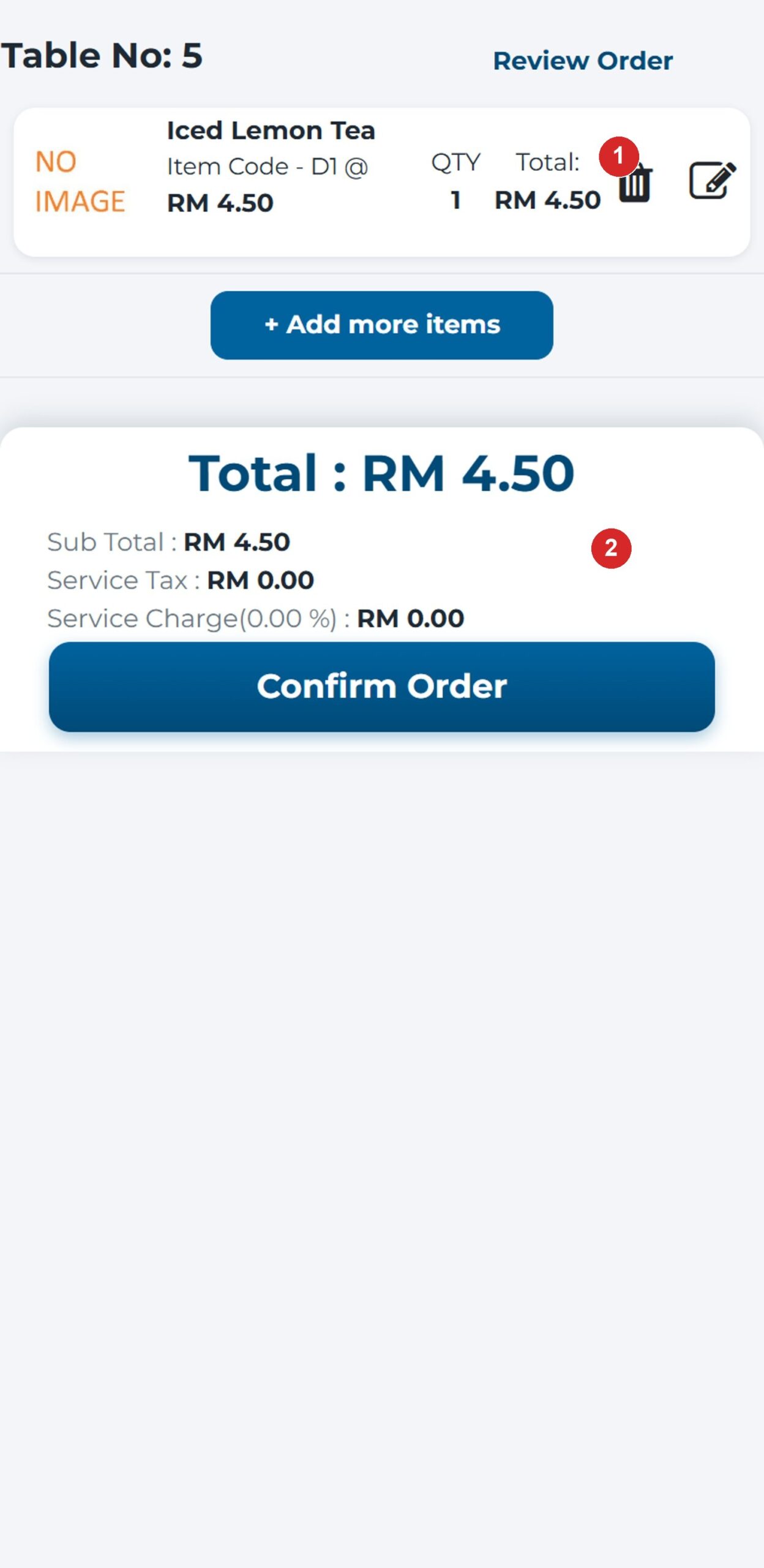
Click Review Order. Check each item, price and remark.
| Step | What to do |
|---|---|
| 1 | To take an item out, remove it and confirm the question. |
| 2 | The page shows Sub Total, Service Tax and Total. |
6. Confirm the order
Click Confirm Order. Once confirmed, the order is sent to the kitchen and cannot be changed. Choose Pay at Counter (if the restaurant offers it) or Pay Online, or click Cancel to go back and change your cart.
7. Follow your order
The welcome page lists each order with its Order Ref, its status (for example Awaiting Kitchen Confirmation… or Orders received by kitchen), Total and Qty. Click Show Detail to see the items, or use Order more for table to add another order.
8. After an online payment
A successful payment shows Payment Success with the Payment ID, Table No, Order No and Amount. Click Continue to go back. If the payment fails, the page asks you to go back and try again.
Tips
- Online payment is shown only when the restaurant has it switched on, and Pay at Counter only when the restaurant allows it.
- A paid or confirmed order cannot be edited by the diner. Ask the staff if you need a change.
- If the shop’s picture of an item is missing, a placeholder picture is shown.
Common problems
This QR has expired, please request a new QR from restaurant.
Ask the staff for a new QR code for the table.
Invalid Member! or Membership Expired!
Check the member code you typed, or ask the staff about the membership.
Sorry, we could not send your order. Please try again, or call our staff.
Click Confirm Order again after a moment. If it still fails, call the staff.
Payment Failed, Please try again.
Go back to the review page and choose the payment again.