
The Quotation page makes sales quotations with the customer, items, prices, discounts and tax as in the Synergy desktop program. This guide covers making one, saving it, getting it approved and printing it as a PDF. The Sales Order, Delivery Order, Sales Invoice and Credit Note pages work the same way.
Before you start
- Sign in to Synergy Web Access as a user who may use Quotation (under the Sales tab).
- Add and edit permissions for quotations in Synergy. Approval and delete need their own permissions.
Steps
1. Open the Quotation page
On the dashboard, open the Sales tab and click Quotation. The list shows your quotations.
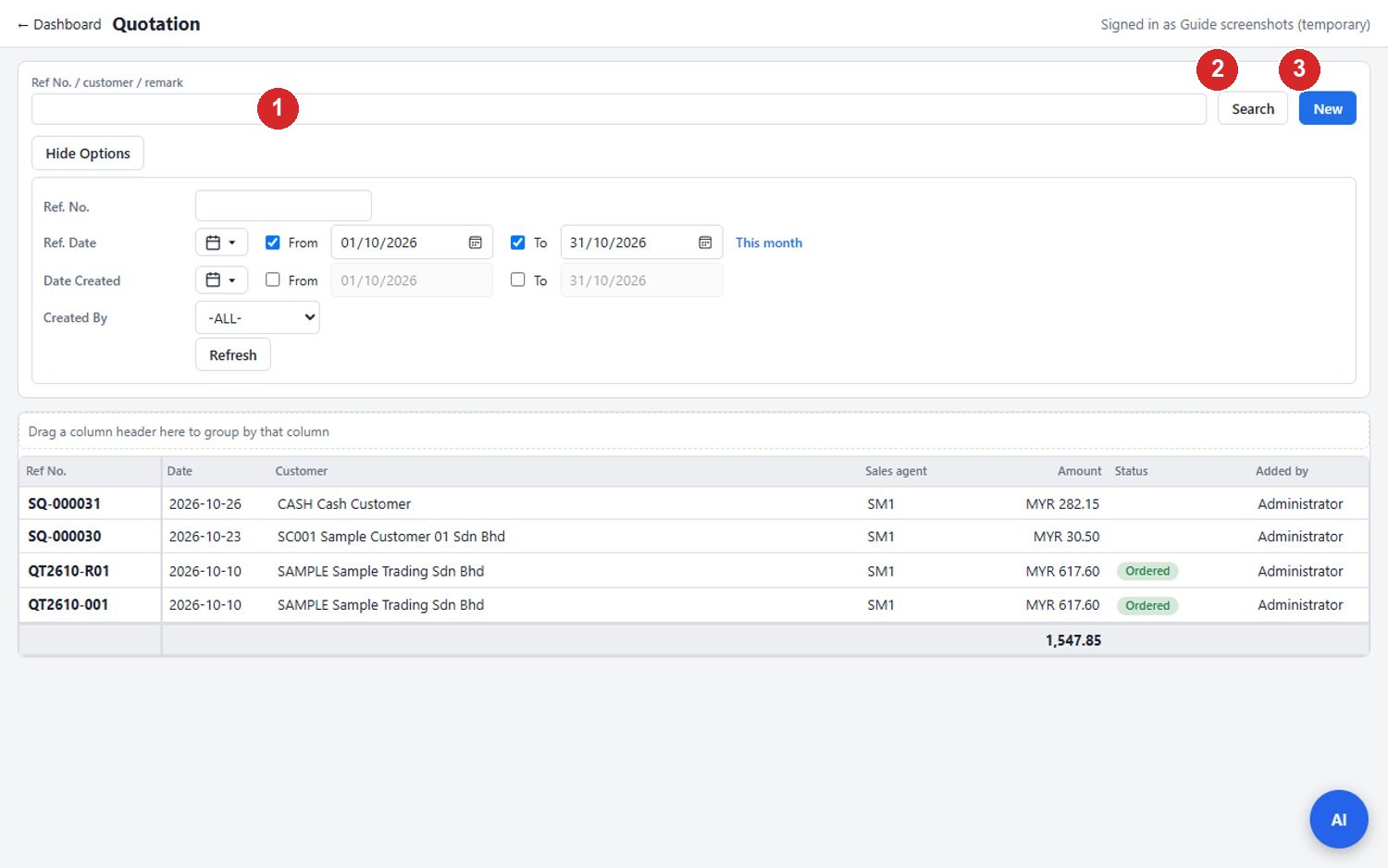
| Step | What to do |
|---|---|
| 1 | Type in Ref No. / customer / remark. |
| 2 | Click Search to find a quotation. |
| 3 | Click New to start a new quotation. |
2. Choose the customer
Choose the customer for the quotation.
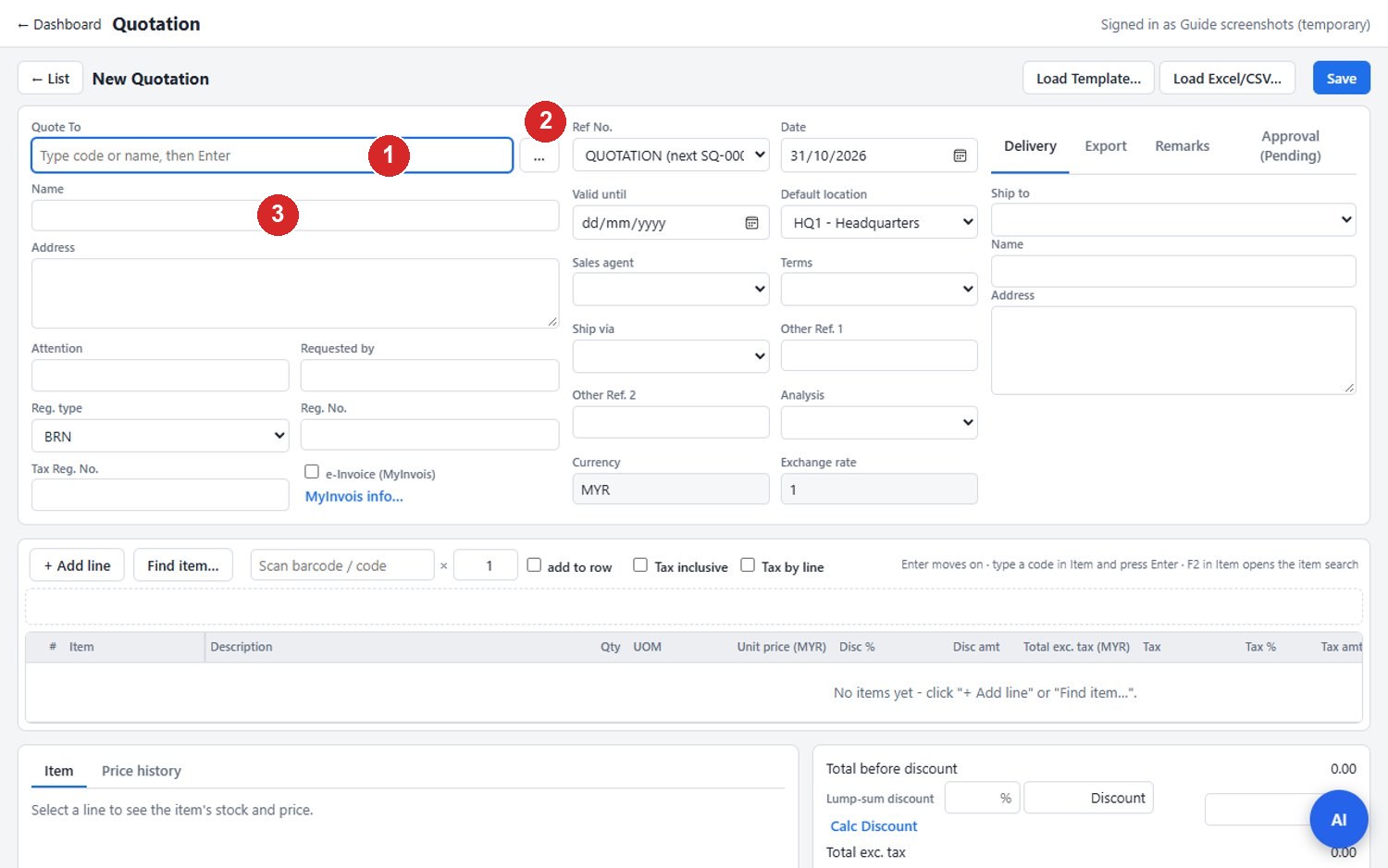
| Step | What to do |
|---|---|
| 1 | Under Quote To type the customer’s code or name and press Enter. |
| 2 | Or click Find customer. |
| 3 | Name, Address and Attention are filled in and can be changed on this quotation. |
3. Fill in the header
Check the Ref No., Date and Valid until. Set the Default location, Sales agent and Terms as needed. The Remarks and Payment tabs hold extra text, and the Approval tab holds approvals.
4. Add the items
Click + Add line, then type an item code in Item and press Enter, or press F2 in Item to search. You can also use Find item or type or scan a code in the Scan barcode / code box; scanning an item that is already on a line adds to that line. Enter Qty, UOM and Unit price.
5. Check the amounts
Tick Tax inclusive or Tax by line when it applies. The page works out the Total before discount, the Lump-sum discount (use Calc Discount), Tax, Rounding adjustment and Net amount as the desktop does.
6. Copy lines from elsewhere
Load Template copies the lines of another document, with prices, discounts and remarks as they are. Load Excel/CSV adds item lines from a file that has Code or Barcode and Qty columns; you can Download template first.
7. Save
Click Save. The page confirms the Ref No. that was saved. If you leave with changes that are not saved, the page asks Discard your changes?
8. Approve, if your company needs it
On the Approval tab click Approve. The tab says how many approvals the company needs before the quotation is printed or converted. Approve changes only count after you click Save.
9. Print a PDF
Save the quotation, click Print, choose the print format, and click Download or Open in new tab. If approval is still needed, the page tells you the quotation has not been approved yet.
10. Make a sales order from it
On the Sales Order page, use the Load Sales Quotation command to pick the customer’s quotation with something outstanding, and load its lines.
Tips
- Use the Delete button only on a quotation you no longer need; the page asks you to confirm.
- Price history under the lines shows the item’s earlier prices, its stock and its pending orders when you select a line.
- The assistant (AI button) can draft a quotation for you. It opens unsaved and you still click Save.
Common problems
You do not have access to …
Your Synergy user has no permission for this page. Ask your administrator.
Please save this transaction first.
Click Save before using Print.
Insufficient stock or a quantity warning appears when you enter a line.
Read the question. Choose to continue only if you want that quantity.
A supervisor permission box appears.
The action needs a supervisor. Type the supervisor’s user name and password, or ask your supervisor to do it.