
The Restaurant Table Setting page holds the floors and tables used by the POS table picker, the Order App and QR Order. You draw each floor on a shop layout picture, place the tables and save.
Before you start
- Sign in to Synergy Web Access as a user who may open Restaurant Table Setting (under the Point of Sale tab).
- A picture of your shop layout, if you want one behind the tables (png, jpg, jpeg, gif or webp).
Steps
1. Open the page
On the dashboard, open the Point of Sale tab and click Restaurant Table Setting.
2. Choose or create a floor
Choose or create a floor.
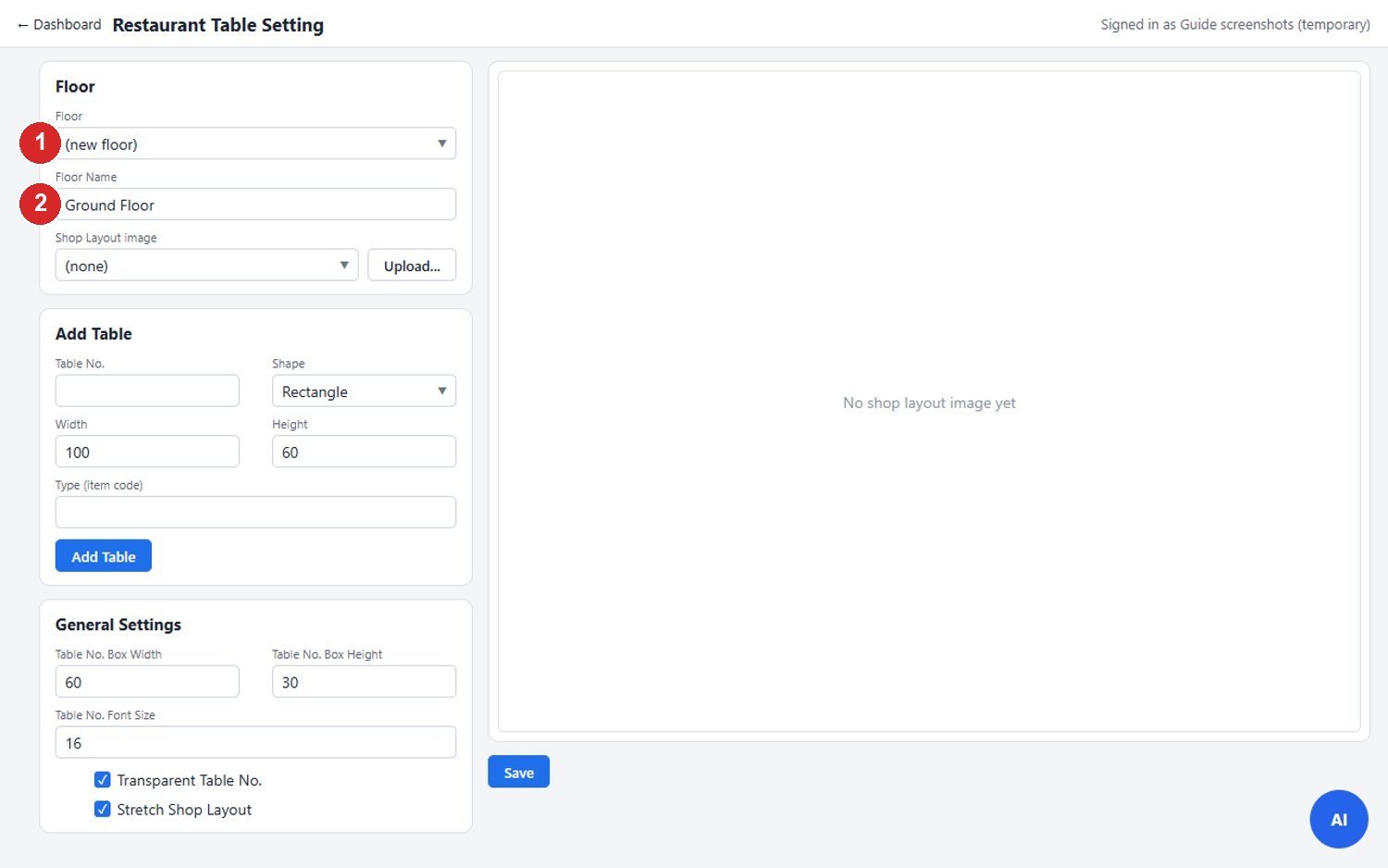
| Step | What to do |
|---|---|
| 1 | Pick the Floor in the list. To make a new floor, choose the new-floor entry. |
| 2 | Type the Floor Name (required) and continue. |
3. Add the shop layout picture
The page says Uploaded as … Save to use it for this floor.
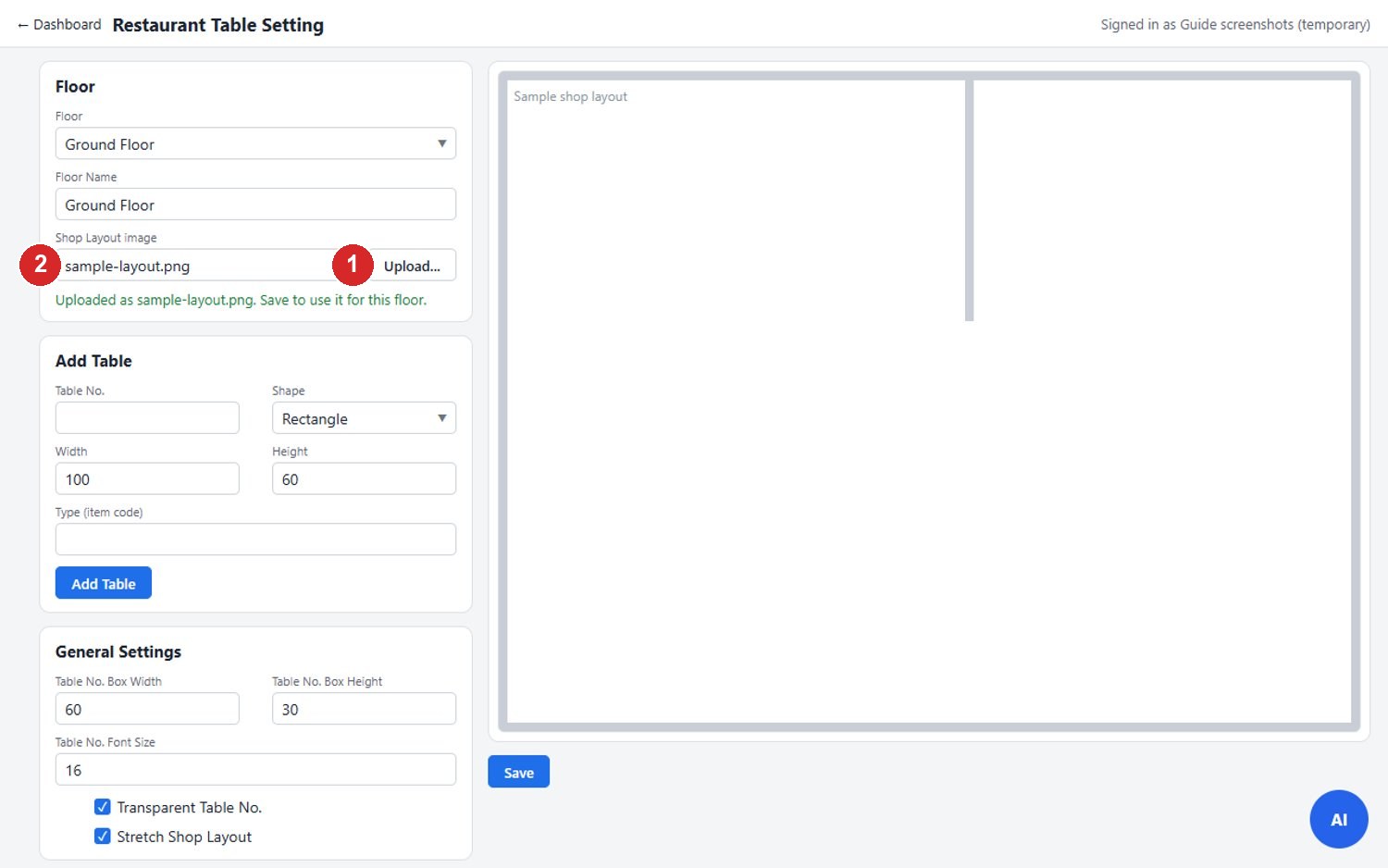
| Step | What to do |
|---|---|
| 1 | Click Upload… to send the picture. |
| 2 | Choose it in Shop Layout image. |
4. Add a table
Under Add Table fill in the table. For a time-billed table, also fill in Type (item code).
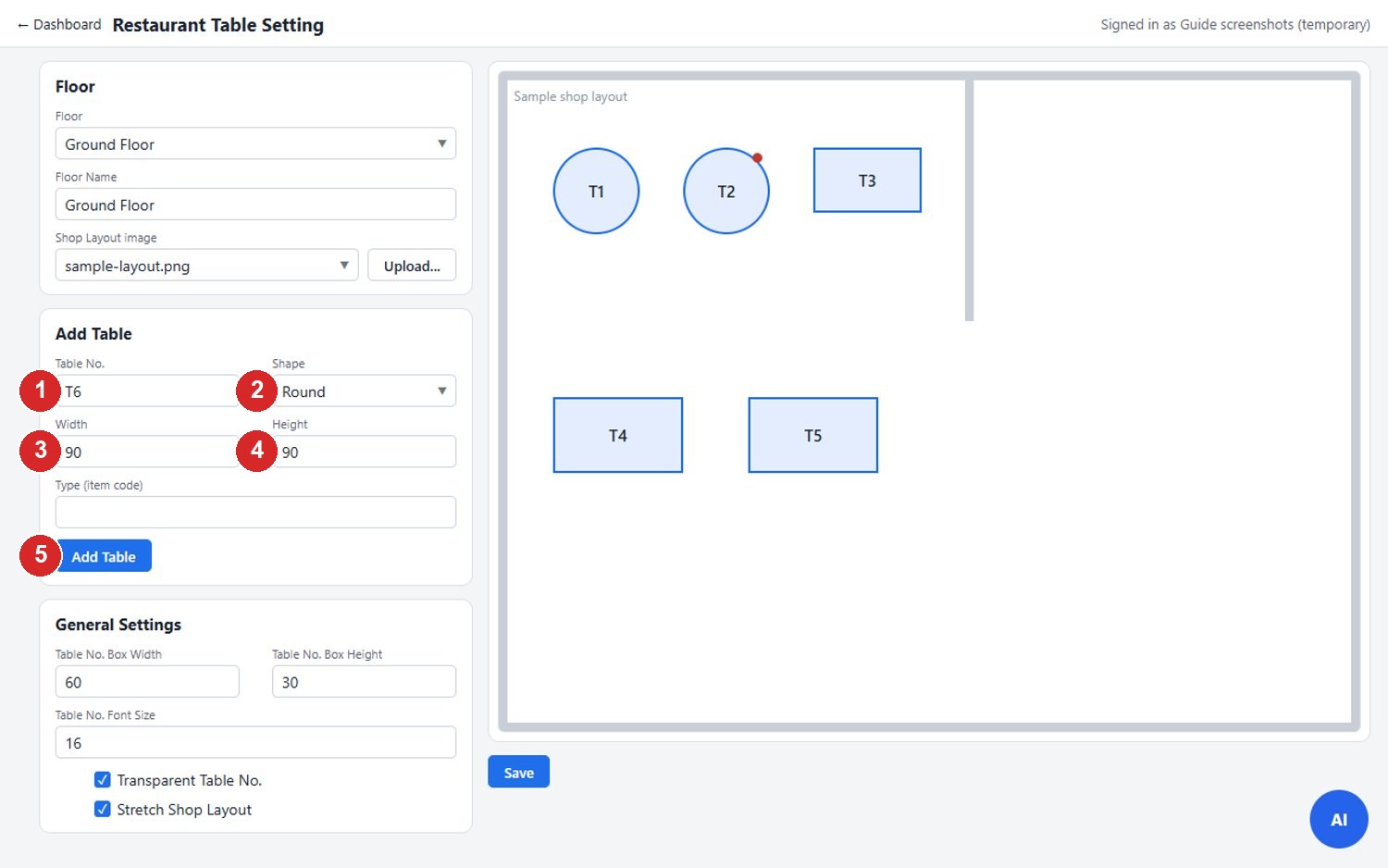
| Step | What to do |
|---|---|
| 1 | Type the Table No. (required). |
| 2 | Choose the Shape (Round or Rectangle). |
| 3 | Set the Width (16 to 2000). |
| 4 | Set the Height (16 to 2000). |
| 5 | Click Add Table. |
5. Place the tables
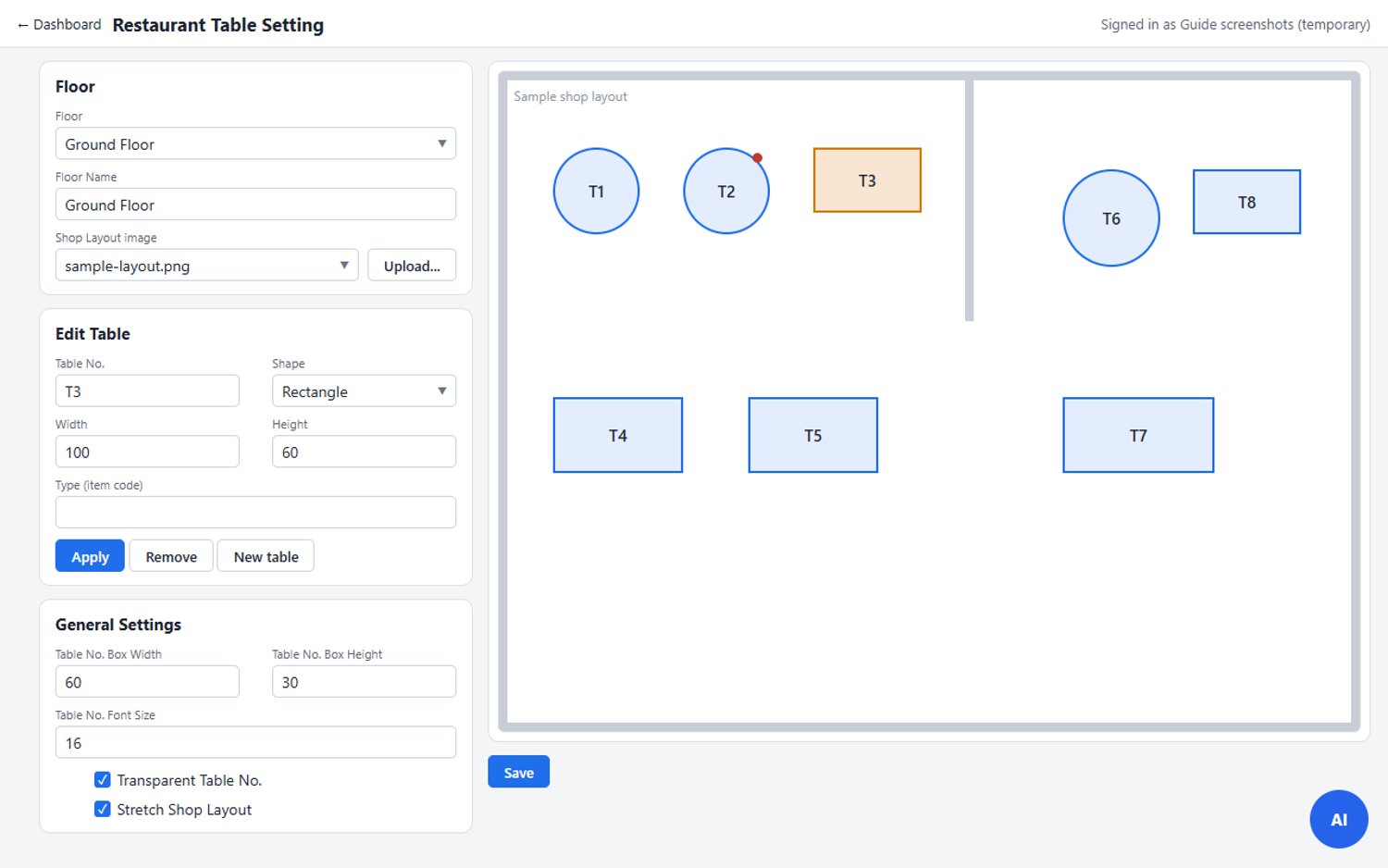
Drag a table to move it. Click a table to edit it, change its fields and click Apply. Use New table to go back to adding.
6. Remove a table
Select the table and click Remove. A table with a dot is in use (an open bill, a QR order, a booking or a time tracker) and cannot be removed.
7. Adjust how table numbers look
Under General Settings set how table numbers look. These apply to every floor.
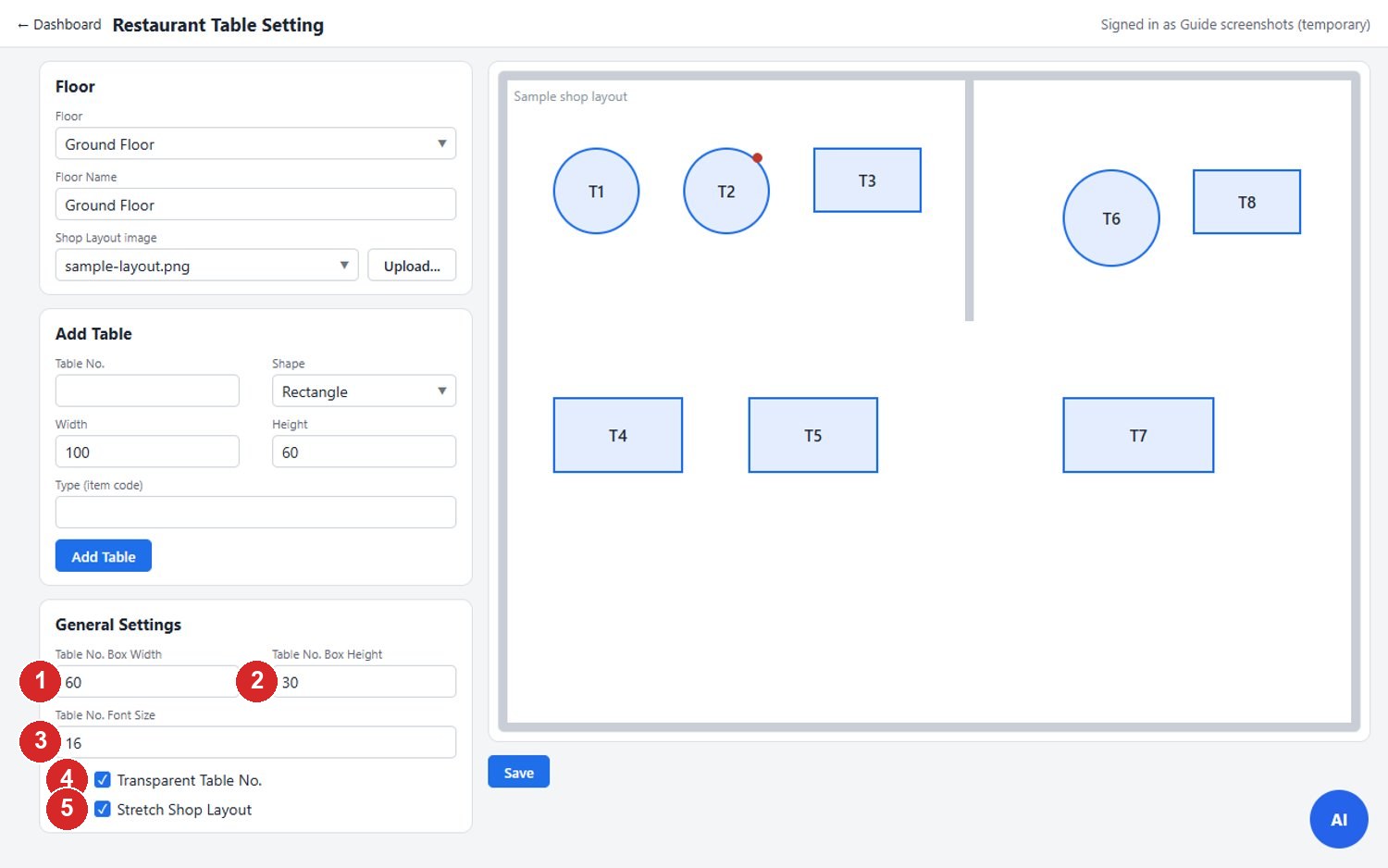
| Step | What to do |
|---|---|
| 1 | Table No. Box Width |
| 2 | Table No. Box Height |
| 3 | Table No. Font Size |
| 4 | Transparent Table No. |
| 5 | Stretch Shop Layout |
8. Save
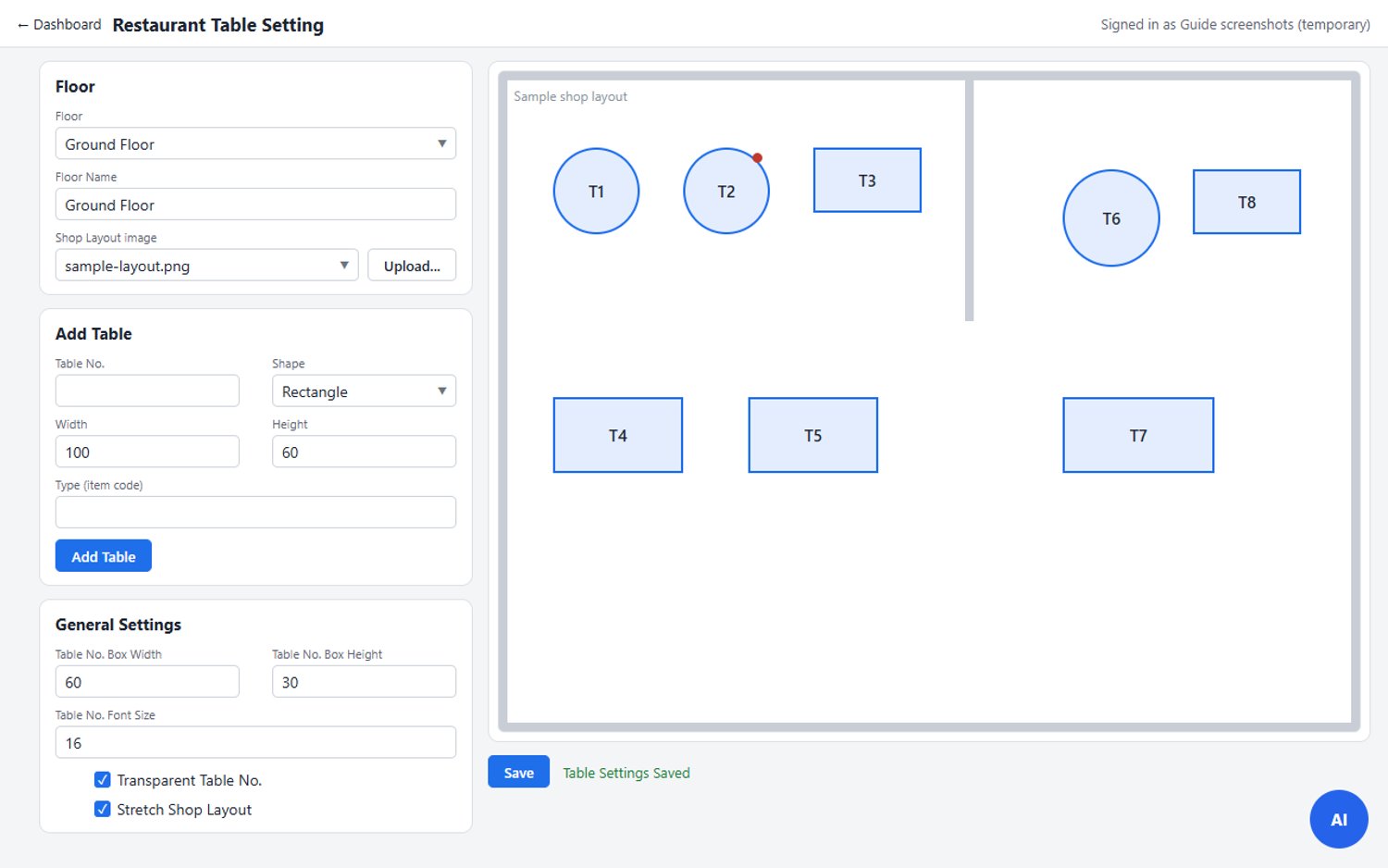
Click Save. The page says Table Settings Saved. Changes are not kept until you save.
Tips
- Each Table No. must be different on a floor. The page tells you if the number already exists.
- If you leave the page with changes that are not saved, the page asks you first.
- The same floors and tables are used by the POS, the Order App and QR Order.
Common problems
Table No. […] already exists.
Use a different table number.
Table … cannot be removed: it has …
The table is in use. Remove it after the bill, order or booking is finished.
[Floor Name] is required.
Type a name for the floor before you save.