
The first time a browser opens your Synergy Web address (for example https://yourcompany.softonline.org), it asks for an e-mail address and sends a code to it. The code is sent only to an e-mail address that is saved on an active Synergy user of that company. This guide shows where to type the address in Synergy, and how the code is then used to sign in.
Before you start
- Sign in to Synergy (the desktop program) as an administrator, in the company the user belongs to.
- When you have more than one company, and each company has its own web address, save the e-mail on a user in that company. Each address checks only its own company’s users.
- An e-mail address the user can open now.
Part 1 – Save the e-mail on the user in Synergy
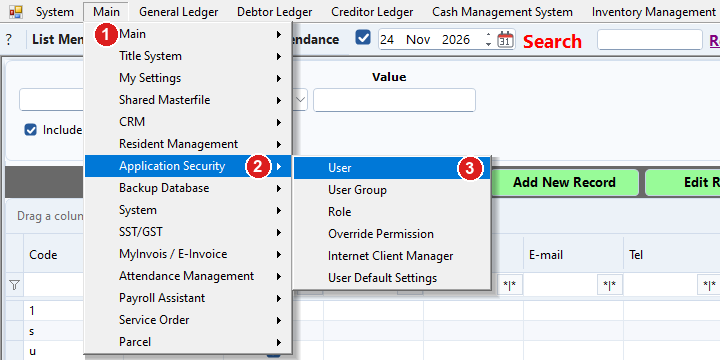
1. Open the User list
On the menu bar click Main (1), then Application Security (2), then User (3).
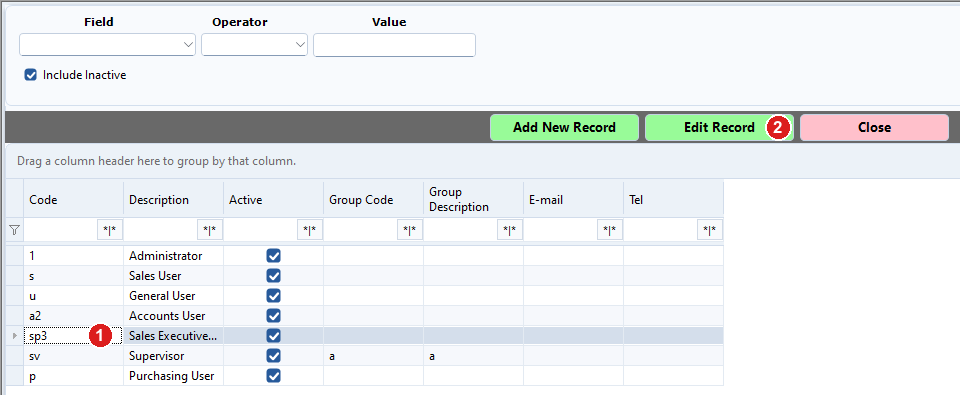
2. Open the user
Click the user in the list (1) and click Edit Record (2). You can also double-click the user. The list has an E-mail column, so you can see which users already have one.
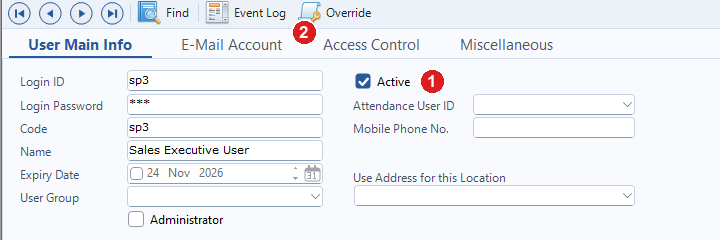
3. Check that the user is active
On the User Main Info tab, Active must be ticked (1). Inactive users never get a code. Then click the E-Mail Account tab (2).
4. Type the e-mail address
On the E-Mail Account tab (1), type the user’s address in E-mail (2), for example andrew@yourcompany.com.
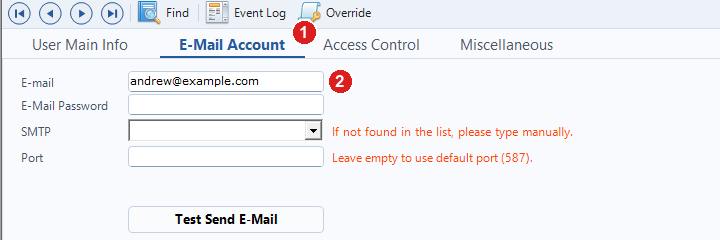
E-Mail Password, SMTP and Port on this tab are only for sending documents by e-mail from the desktop program. Sign-in codes don’t need them: leave them as they are.
5. Save
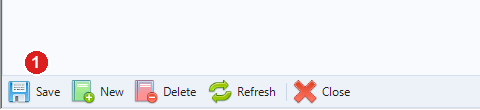
Click Save (1) at the bottom of the screen.
The website reads the address straight from Synergy: there is nothing to restart. Do the same for every user who will sign in to Synergy Web from outside the office.
Part 2 – Authorize the browser with the code
6. Ask for the code
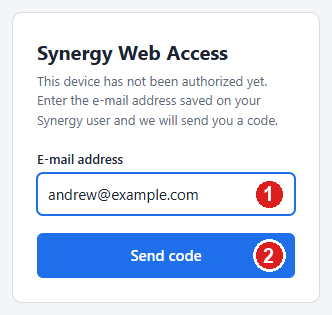
Open your Synergy Web address. If the page says this device has not been authorized yet, type the e-mail address you saved in step 4 (1) and click Send code (2).
7. Type the code
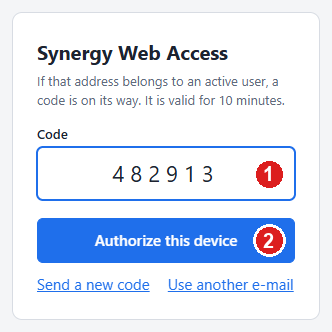
Open the e-mail “Your Synergy Web Access code”, type the code in Code (1) and click Authorize this device (2). The page says how many minutes the code is valid.
8. Sign in
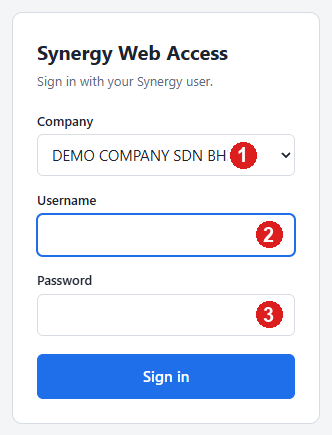
Choose the Company (1), type your Synergy Username (2) and Password (3) and click Sign in. This browser stays authorized, so next time only this step is needed.
Tips
- Once a browser is authorized, any Synergy user can sign in on it. The e-mail only proves the browser belongs to someone in your company.
- The codes come from Synergy’s mailbox unless your website has its own mail account. To send them from your own Gmail, see the guide “Sending Sign-in Codes From Your Own Gmail (Google App Password)”.
Common problems
“Send code” works but no e-mail arrives.
The page gives the same answer for every address, so it does not tell you when the address is unknown. Check:
- The address is typed exactly the same in Synergy (step 4) and on the web page.
- The user is Active (step 3).
- The user is in the company of the web address you opened. With two companies on two addresses, a user in company A does not get codes for company B’s address.
- Look in the spam or junk folder.
The code is refused.
Codes expire after a few minutes. Click Send a new code and type the code from the newest e-mail.
Several users share one office e-mail.
That works: save it on one active user, and whoever opens that mailbox can authorize the office browsers.