
When a browser signs in to Synergy Web Access for the first time, the website e-mails a code to the user. An activated website without its own mail account sends these codes from Synergy’s mailbox. This is optional: to send the codes from your own Gmail address instead, create a Google app password and enter it on the website’s Setup page. This guide shows both parts.
Before you start
- The Gmail (or Google Workspace) account that will send the codes, and its password. A separate company account, for example office.yourcompany@gmail.com, is better than a personal one.
- The phone that receives this Google account’s sign-in prompts or codes.
- The server PC where Synergy Web Access is installed. The Setup page opens at http://localhost:5987/setup on that PC (or at your website’s address followed by /setup when a Setup admin is set).
Part 1 – Create the Google app password
Google does not let other programs sign in to Gmail with the normal password. An app password is a separate 16-letter password for one program only.
1. Sign in to the Google account
Open https://myaccount.google.com in the browser and sign in with the Gmail account that will send the codes. Check the address at the top right: it must be the sending account, not your own.
2. Turn on 2-Step Verification
Click Security on the left. Under “How you sign in to Google”, open 2-Step Verification and turn it on (follow Google’s steps with your phone). App passwords only exist on accounts with 2-Step Verification on.
3. Open App passwords
Open https://myaccount.google.com/apppasswords. You can also type “App passwords” in the search box at the top of the Google Account page. Google may ask for the account password again.
4. Create the password
In App name type Synergy Web Access and click Create.
5. Copy the 16-letter password
Google shows the new password once, in a yellow box (four groups of four letters). Copy it or write it down without the spaces, then click Done. You will type it on the Setup page in Part 2. If you lose it, delete it on the same page and create a new one.
Part 2 – Enter the account on the Setup page
6. Open the mail account settings
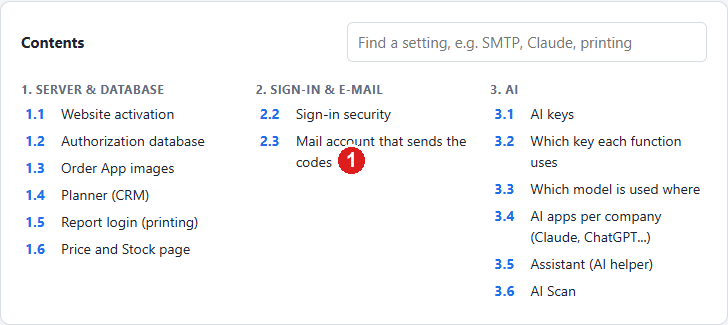
On the server PC open http://localhost:5987/setup. Sign in if the page asks for the Setup admin. Under Contents click 2.3 Mail account that sends the codes (1).
7. Fill in the Gmail account
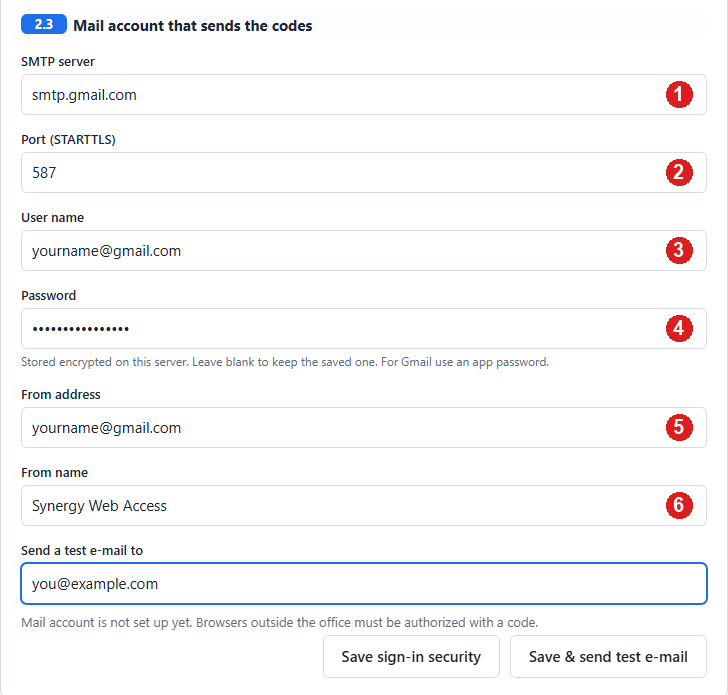
| Step | What to do |
|---|---|
| 1 | SMTP server: smtp.gmail.com |
| 2 | Port (STARTTLS): 587 |
| 3 | User name: the full Gmail address, for example office.yourcompany@gmail.com |
| 4 | Password: the 16-letter app password from step 5 (not the normal Gmail password) |
| 5 | From address: the same Gmail address. Gmail always sends from the signed-in address. |
| 6 | From name: the name users see on the e-mail, for example Synergy Web Access or your company name |
8. Send a test e-mail
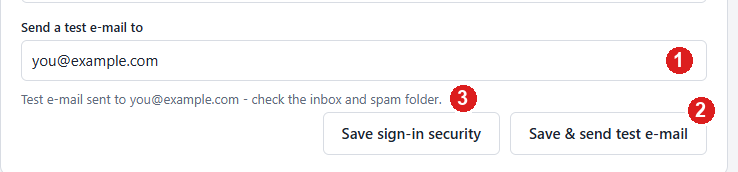
| Step | What to do |
|---|---|
| 1 | In Send a test e-mail to, type an address you can check. |
| 2 | Click Save & send test e-mail. This saves the account and sends the test. |
| 3 | The message under the box says the test e-mail was sent. Check the inbox and the spam folder of that address. |
From now on all sign-in codes (Web Access codes and Setup admin codes) are sent from this Gmail address.
Tips
- The password is stored encrypted on the server. To change other fields later, leave Password blank and it keeps the saved one.
- To go back to sending codes from Synergy’s mailbox, clear SMTP server and From address and click Save sign-in security. This works only while the website is activated.
- Changing the Google account’s normal password cancels its app passwords. Create a new app password and enter it again on the Setup page.
Common problems
Google says “The setting you are looking for is not available for your account”.
2-Step Verification is off (step 2), or the account is a Google Workspace account whose administrator does not allow app passwords. Turn 2-Step Verification on, or ask the Workspace administrator to allow it.
The test fails with “Username and Password not accepted” or “Authentication failed”.
The Password box has the normal Gmail password, the app password was typed with a mistake, or User name is not the full Gmail address. Create a new app password and type it again without spaces.
The test says sent, but nothing arrives.
Look in the spam or junk folder. Some company mail servers hold mail from Gmail for a few minutes.
Users still don’t receive their sign-in code.
The code goes only to an e-mail address saved on an active Synergy user of that company. See the guide “Setting the E-mail Address on a Synergy User for Sign-in Codes”.