
Synergy Web Access is signed in with your Synergy user name. A browser you have not used before is authorized once with a code sent to your e-mail, and after that you only type your company, user name and password. This guide shows both steps.
Before you start
- Your Synergy user name and password.
- The e-mail address saved on your user in Synergy, and access to that mailbox.
Steps
1. Open the sign-in page
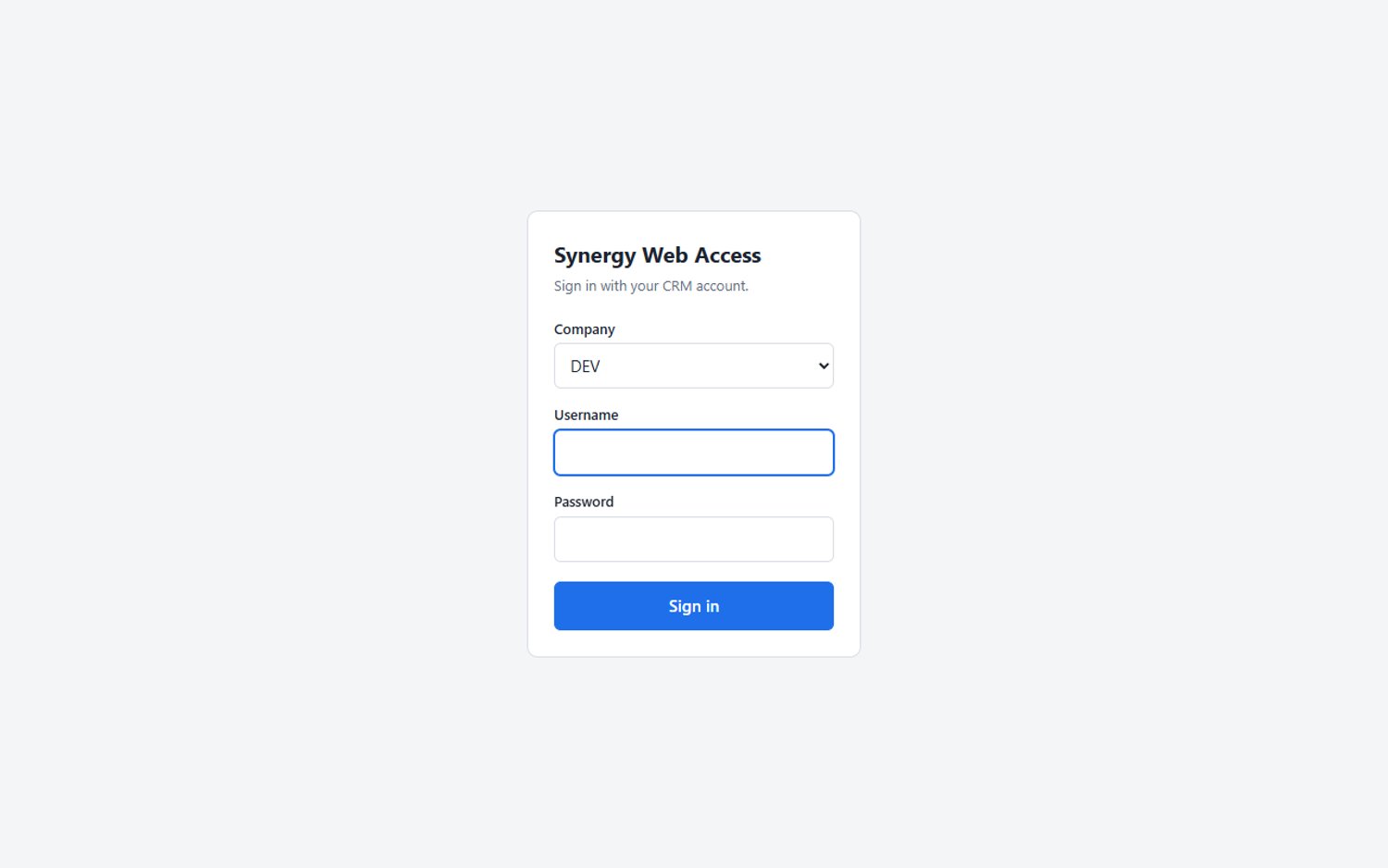
Open your company’s Synergy Web address in the browser. The page is titled Sign in – Synergy Web Access.
2. Authorize a new browser
If the page says this device has not been authorized yet, type your e-mail address in E-mail address and click Send code.
3. Enter the code
Open the e-mail, type the code in Code and click Authorize this device. The page tells you how many minutes the code is valid.
4. If the code does not come
Click Send a new code, or click Use another e-mail to start again.
5. Sign in
Choose your Company, type your Username and Password and click Sign in. The page remembers the company you used last on this browser.
6. Switch to another company
On the dashboard, click the company name at the top. It lists the companies this browser signed in to in the last 12 hours, and you can switch without typing a password.
7. Sign out
Click Sign out at the top of the dashboard when you finish, especially on a shared computer.
Tips
- The authorization belongs to the browser, not to one user. Once a browser is authorized, any user can sign in on it until the authorization expires.
- Click Devices at the top of the dashboard to see authorized browsers. An administrator sees all of them and can click Remove; other users only see the browser they are on. A removed browser has to be authorized again.
- If your company reaches Synergy Web through more than one web address, each address asks for its own code.
- Several wrong passwords in a row can lock the sign-in for a while. Wait and try again with the right password.
Common problems
No code arrives.
The address must be the e-mail saved on an active Synergy user. The page gives the same reply for every address, so check the spelling, look in the junk folder, and ask your Synergy administrator to check the e-mail on your user.
The Company list is empty or says it could not load.
Tell your Synergy administrator; the web site has not been set up with a company yet.
The page returns to the e-mail step after you type your password.
This browser is not authorized (or its authorization was removed). Authorize it again with a new code.