
The Stock Queries page shows stock balance by location and date, the movement of an item, the value of the stock and item information. It is a quick way to check stock from any browser.
Before you start
- Sign in to Synergy Web Access as a user who may use Stock Queries (under the Inventory tab).
- Cost and value figures are shown only to users who may see costs.
Steps
1. Open the Stock Queries page
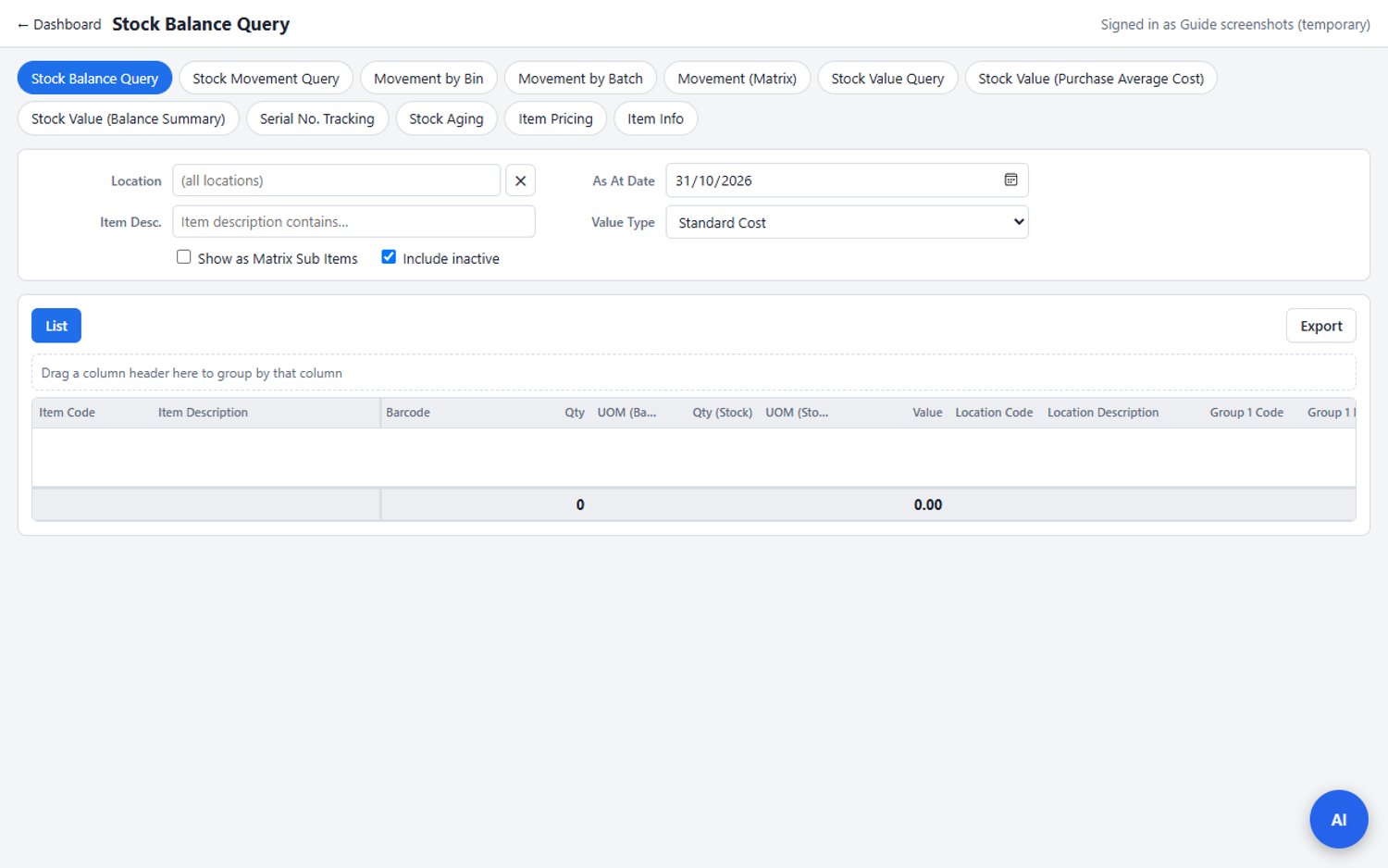
On the dashboard, open the Inventory tab and click Stock Queries. The tabs at the top are the queries your user may use, such as Stock Balance Query, Stock Movement Query, Stock Value Query, Stock Aging, Item Pricing and Item Info.
2. Check the stock balance
Use Stock Balance Query.
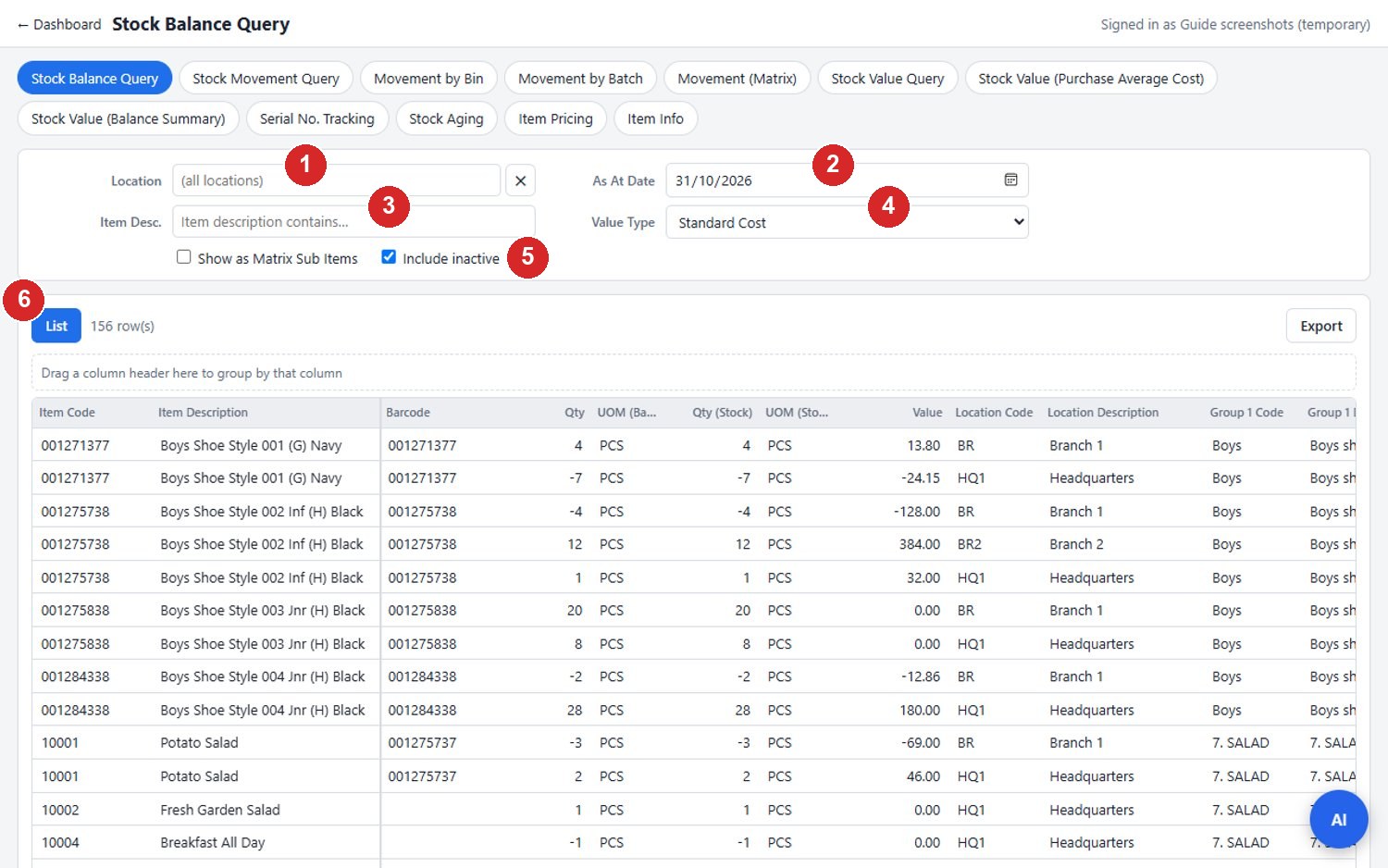
| Step | What to do |
|---|---|
| 1 | Choose the Location |
| 2 | Choose the As At Date |
| 3 | Narrow it with Item Desc. or Item description contains… |
| 4 | Choose the Value Type (Standard Cost or Last Cost) |
| 5 | Tick Include inactive if needed |
| 6 | Click List |
3. See an item’s movement
On Stock Movement Query pick the Item and the Date From and To, then click List. You see each stock movement with the quantity and the balance after it. Balance Brought Forward is shown for the days before.
4. Check the stock value
Stock Value Query works like the movement query and shows the value as well. Use Stock Value (Purchase Average Cost) or Stock Value (Balance Summary) for the other value views.
5. Look at stock by bin, batch or serial number
Movement by Bin, Movement by Batch and Serial No. Tracking let you fill in the Bin, Batch, Expiry From and To, or Serial Number and list the stock.
6. See how old the stock is
Stock Aging splits the stock on hand by when it came in. Set the Interval (Day, Month or Year) and the Columns.
7. Look up one item
Item Info shows an item with its stock at every location. Click a Pending Transfer or On Purchase figure to see the documents behind it.
8. Export
Click Export to save the rows and visible columns as a CSV file that opens in Excel.
Tips
- Matrix items can be shown as sub items, or by location, using the Matrix option.
- The stock value comes from cost tracking, which is kept per item for all locations together.
- Click the item in a row to open it, where the page offers that.
Common problems
You do not have access to any stock query.
Your Synergy user has no stock query permission. Ask your administrator.
The list is empty.
Check the Location and the date, and untick any filter that is too narrow.
I cannot see the cost columns.
Only users who may see costs get them. Ask your administrator.