
The Stock Take page records what you counted at a location, shows the variance against the book stock, and posts the difference as one stock adjustment. You can scan the counts or load them from a file.
Before you start
- Sign in to Synergy Web Access as a user who may use Stock Take (under the Inventory tab).
- The location you are counting, and the counts (scanned, typed or in an Excel or CSV file).
Steps
1. Open the Stock Take page
On the dashboard, open the Inventory tab and click Stock Take. The list shows the stock takes with Ref No., Date, Lines and Added by.
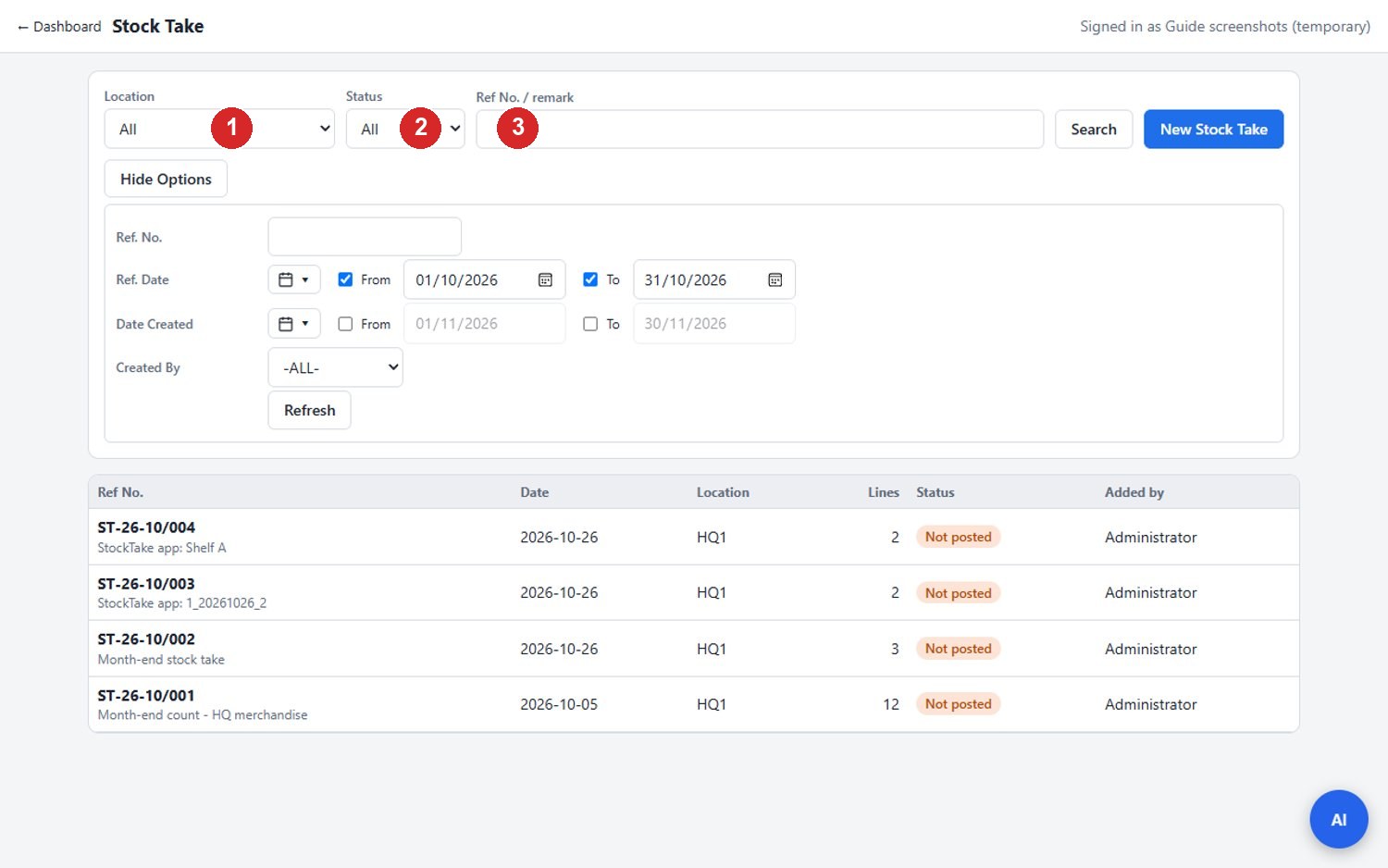
| Step | What to do |
|---|---|
| 1 | Filter by Location |
| 2 | Filter by Status (Not posted or Posted) |
| 3 | Search by Ref No. / remark |
2. Start a stock take
Click New Stock Take. The page says Choose the location to start counting until you choose the Location.
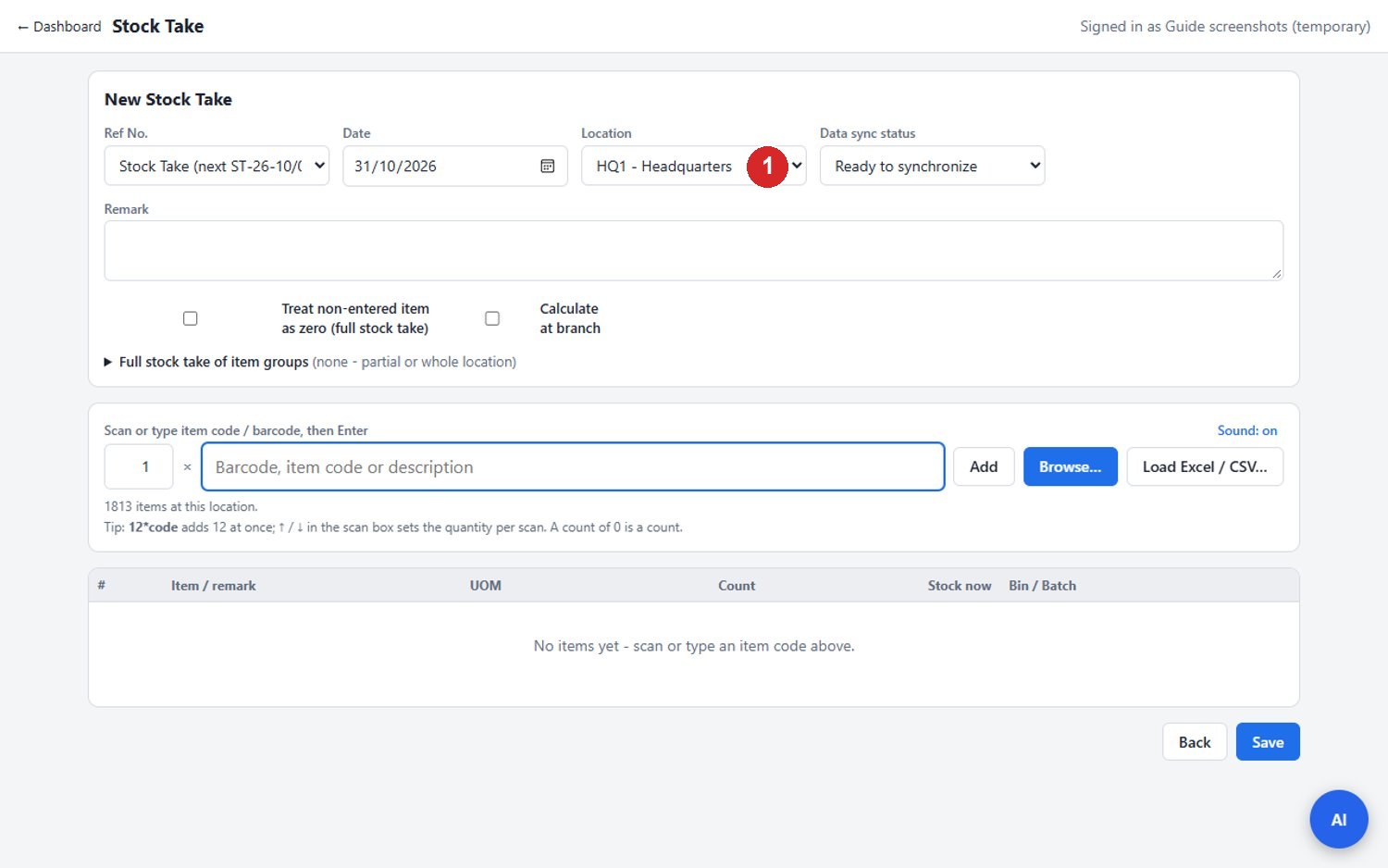
| Step | What to do |
|---|---|
| 1 | Choose the Location |
3. Decide how uncounted items are treated
Tick Treat non-entered item as zero (full stock take) only for a full count: every stock item at the location that you do not count goes to zero. To count only some items, leave it unticked. A full stock take of item groups can also be chosen with the groups.
4. Enter the counts
Scan or type an item code or barcode and press Enter, or use Browse… to search the item list. Type 12*code to enter 12 at once. Use the Count column for the quantity counted. The Stock now column shows the location’s stock, and a count of 0 is a count.
5. Load counts from a file
Click Load Excel / CSV… with a file that has the columns Code or Barcode and Qty. Remark, Convert UOM and BatchCode are optional.
6. Use bins and batches
For items with bins or batches, enter the quantities in the Bins / batches window. A batch with stock that is not counted goes to zero when the stock take is posted.
7. Preview the variance
Click Preview variance. The window Variance – what posting would adjust lists each item’s Counted, Book, Variance, Unit cost and Amount.
8. Save and post
Click Save to keep it. When the counts are right, click Post. Posting makes one stock adjustment with this Ref No., at each item’s standard cost.
Tips
- Book is the stock up to and including the stock take date.
- Batch adjustment does not work with Treat non-entered item as zero. The page warns you before continuing.
- If a stock take has been posted by mistake, open it and unpost the adjustment after you confirm.
- Serial number items are finished in the desktop program.
Common problems
Choose the location to start counting.
Select the Location first.
No items match.
Check the code or barcode, or use Browse… to find the item.
Do you want to unpost the Adjustment?
Confirm only if you want to reverse the posted stock adjustment.