
The Stock Transfer page moves stock from one location to another. You scan or type the items, save the transfer as pending, and post it when the goods have moved. This also works well on a phone or a scanner.
Before you start
- Sign in to Synergy Web Access as a user who may use Stock Transfer (under the Inventory tab).
- The From and To locations.
Steps
1. Open the Stock Transfer page
On the dashboard, open the Inventory tab and click Stock Transfer. The list shows the transfers with Ref No., Date, From to To, Lines, Qty and Added by.
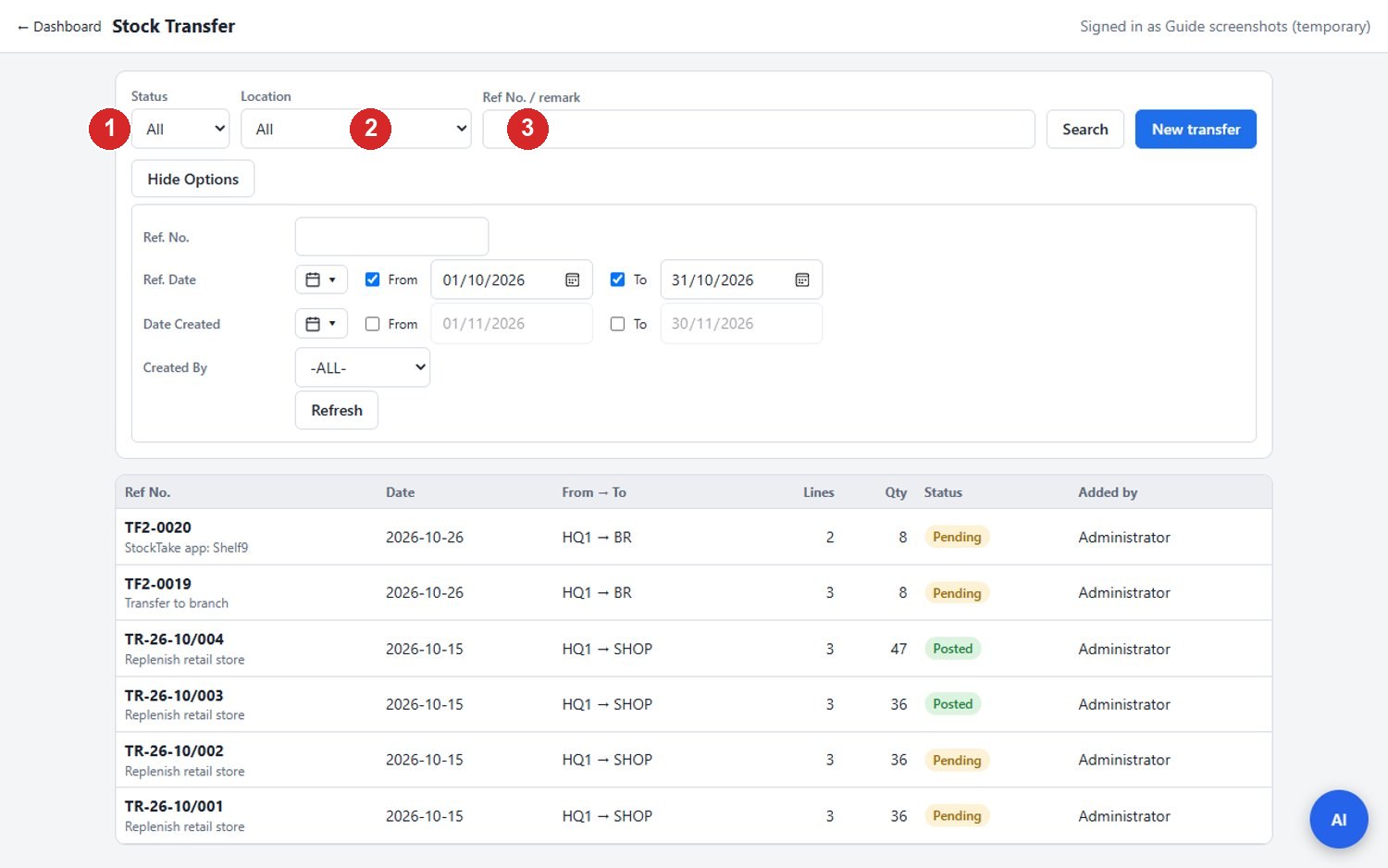
| Step | What to do |
|---|---|
| 1 | Filter by Status (All, Pending or Posted) |
| 2 | Filter by Location |
| 3 | Search by Ref No. / remark |
2. Start a transfer
Click New transfer, then fill in the header.
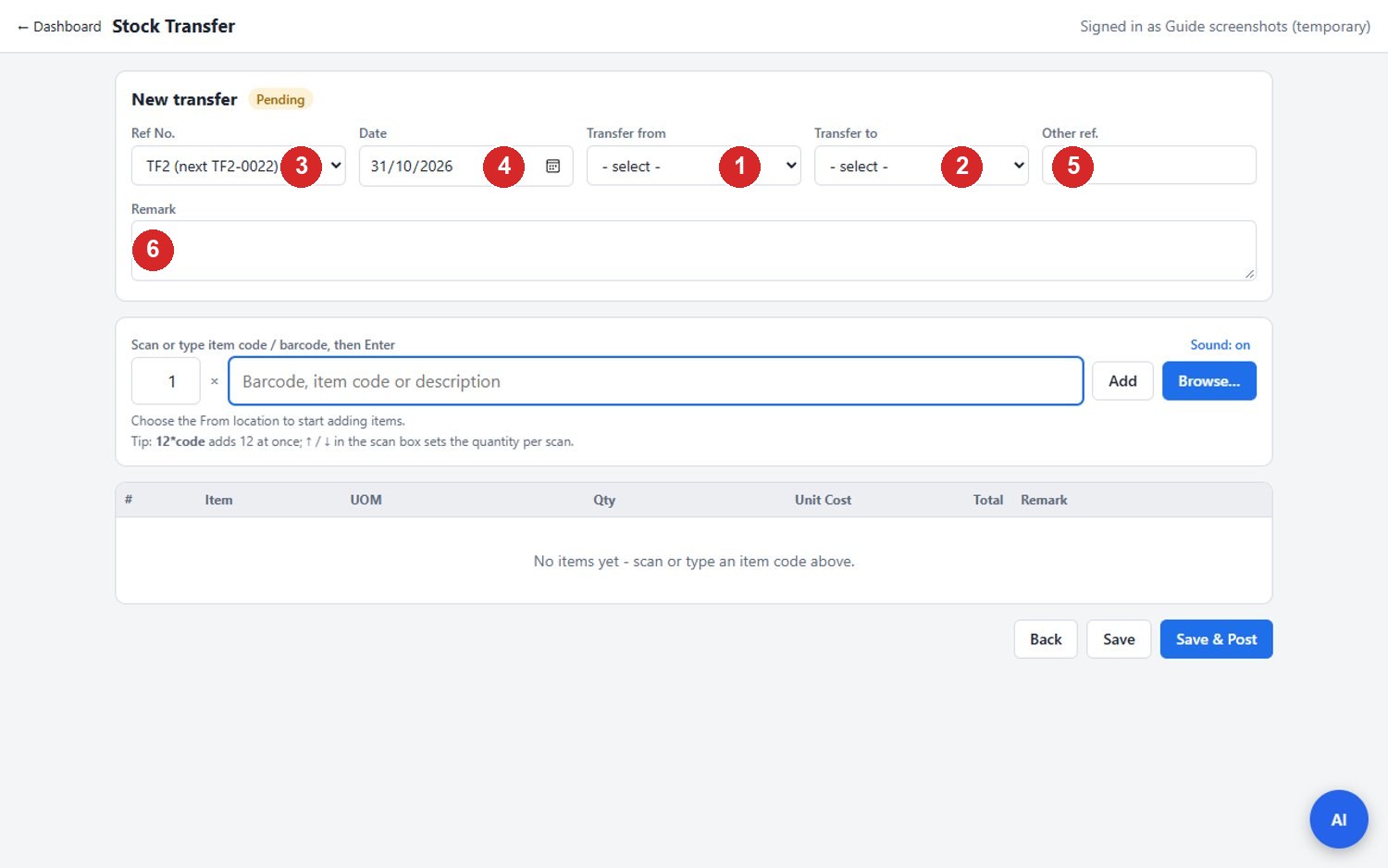
| Step | What to do |
|---|---|
| 1 | Choose Transfer from |
| 2 | Choose Transfer to |
| 3 | Check the Ref No. |
| 4 | Check the Date |
| 5 | Add an Other ref. if you want |
| 6 | Add a Remark if you want |
3. Add items by scanning
Choose the From location first, then click in the scan box and scan or type an item code or barcode and press Enter. To add many at once, type 12*code to add 12. The up and down arrows in the scan box change the quantity added per scan. Beep / vibrate on each scan can be turned on or off with the Sound button.
4. Add items by searching
Type part of the code or description and click Add, or click Browse… to search the item list and pick items.
5. Check the lines
Each line shows the Item, UOM, Unit and Total. Items with sizes or colours open a Variants window where you enter each quantity. Remove a line with the cross.
6. Save as pending
Click Save to keep the transfer as pending. Nothing moves yet.
7. Post the transfer
Click Save & Post and confirm Do you want to post this Stock Transfer? The stock moves. If the stock at the From location is not enough, the page lists the Insufficient stock items.
8. Undo a posting
Open a posted transfer and click Unpost. The stock movement is reversed after you confirm.
Tips
- Packing Checklist checks what was packed against the transfer, and Print Barcode prints labels for its items.
- Items that need serial, batch or bin details are finished in the desktop program.
- If you leave with changes that are not saved, the page asks Discard your changes?
- Delete removes a transfer after you confirm.
Common problems
Choose the From location to start adding items.
Select the Transfer from location first.
Insufficient stock.
Reduce the quantity or add stock first, then post again.
No details entered. Do you want to continue?
The transfer has no lines. Click No and add items, or continue if you really want to save it empty.