
A Synergy website that you host yourself, such as Synergy Web Access, QR Order or the Open API, works for 60 days from its first start. Within that time Synergy activates it once, and after that it never needs the internet for activation again. This guide shows how to ask for the activation.
Before you start
- Do this on the server PC itself. The activation page only opens there.
- The folder of the desktop Synergy program that holds License.lcf (or the path of the file itself).
- An internet connection, but only while you send the request.
- Your name and a phone number or e-mail, so Synergy can reach you.
Steps
1. Open the activation page
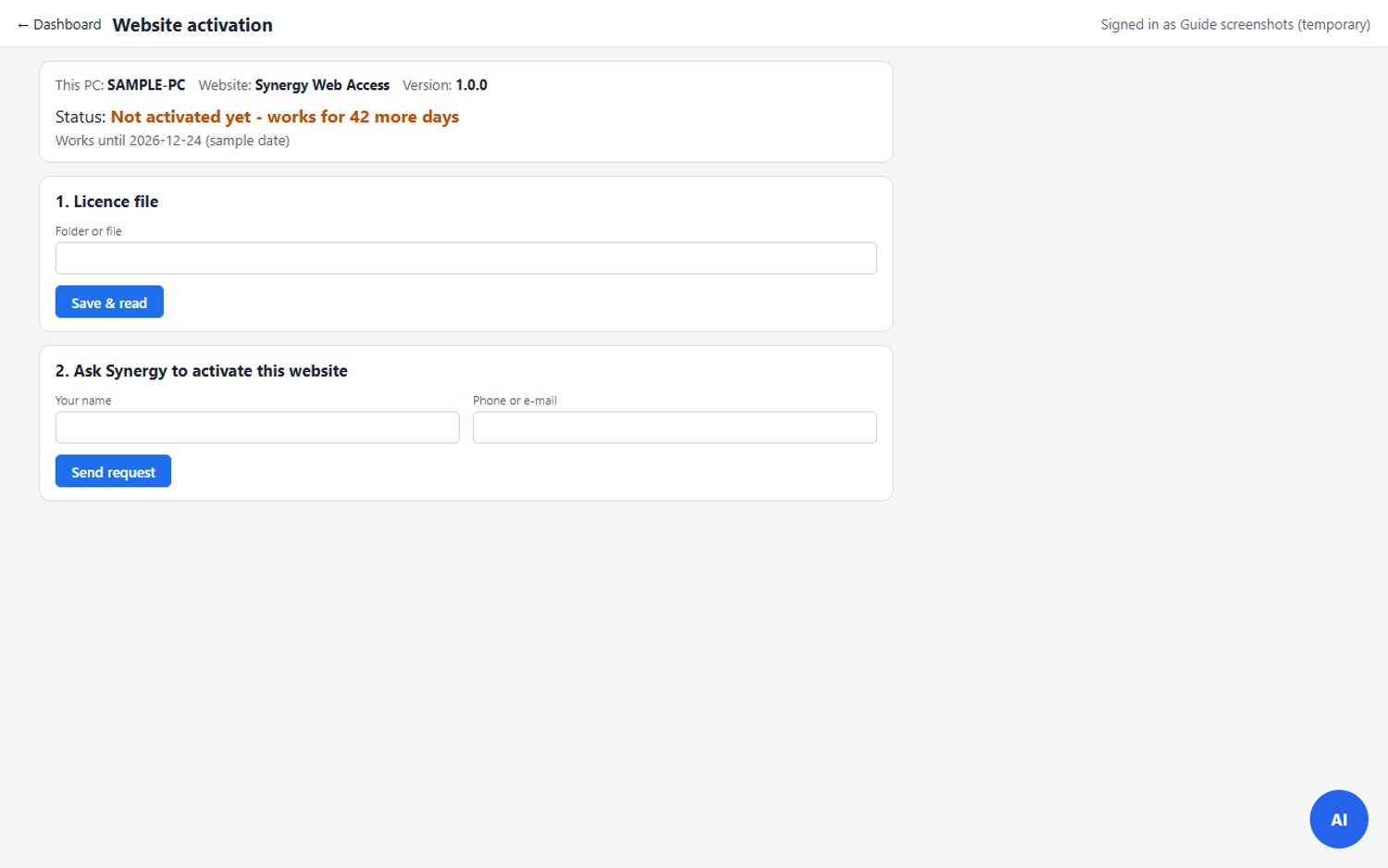
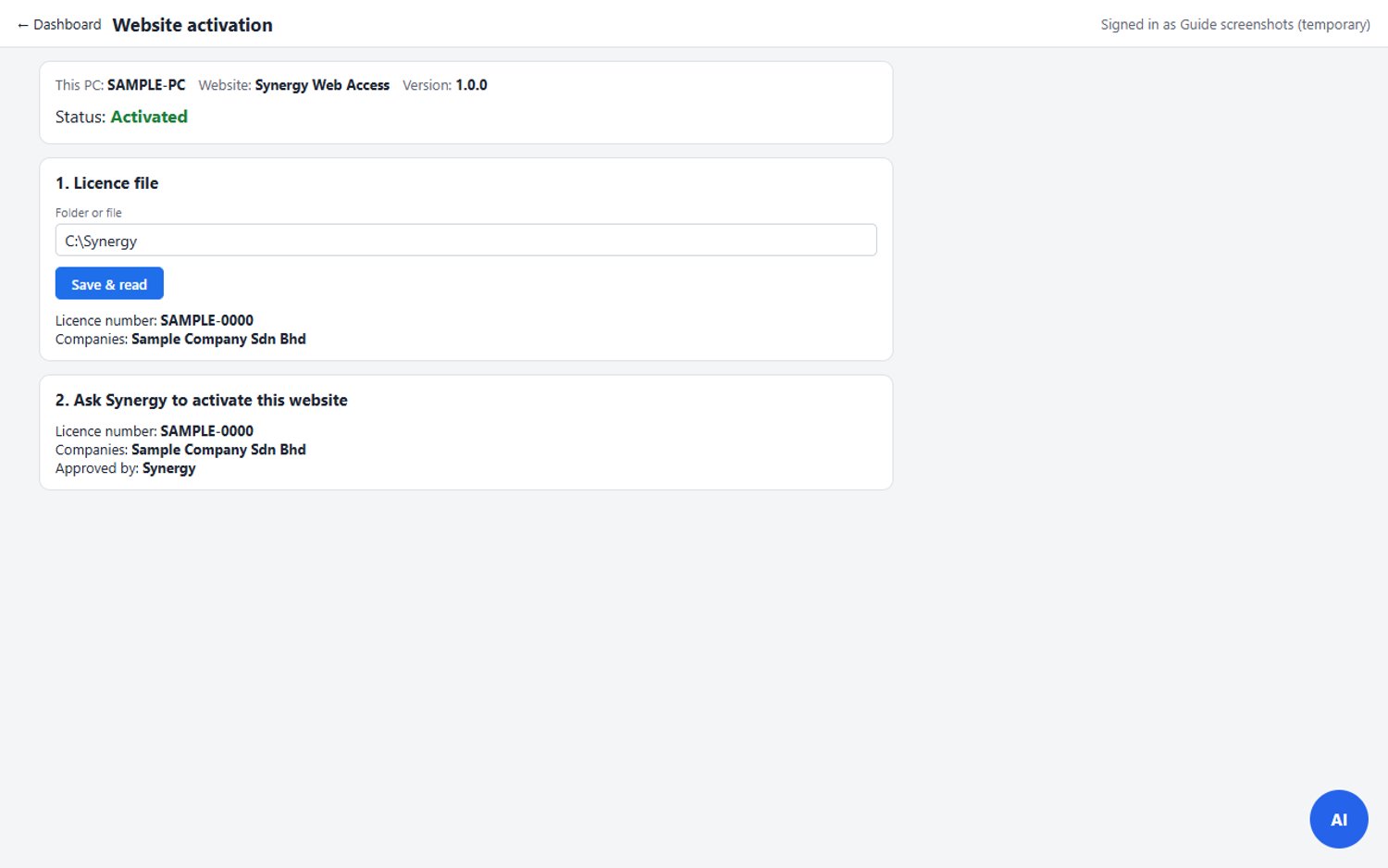
On the server PC open the website’s Website activation page. At the top you see the Status.
2. Read the status
Not activated yet – works for N more days means the grace period is running; the page also shows the date it stops. Not activated – stopped means it has stopped and must be activated. Activated means nothing more to do.
3. Point to the licence file
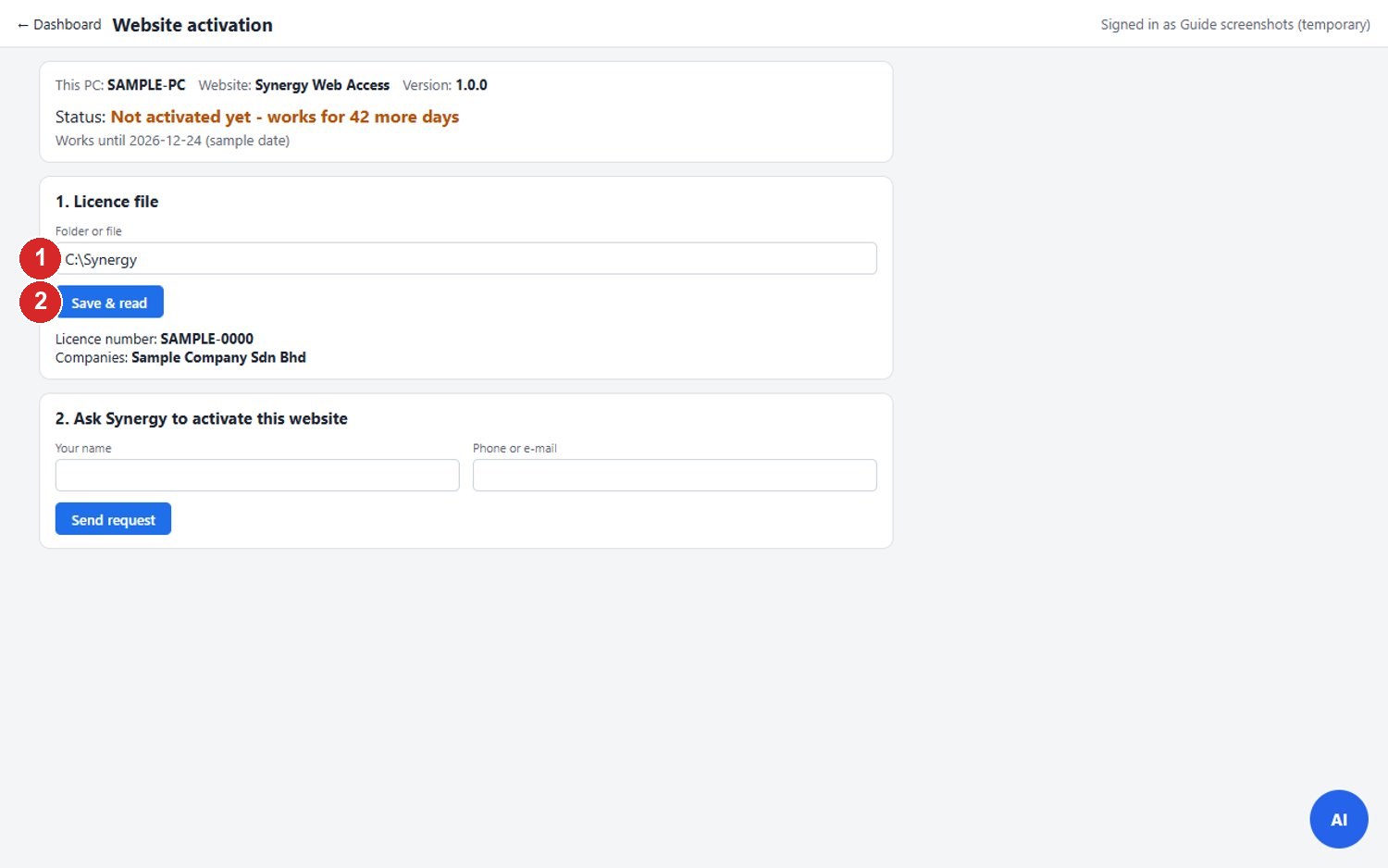
Under 1. Licence file: the page then shows your licence number and companies.
| Step | What to do |
|---|---|
| 1 | Type the Folder or file that holds License.lcf. |
| 2 | Click Save & read. |
4. Send the request
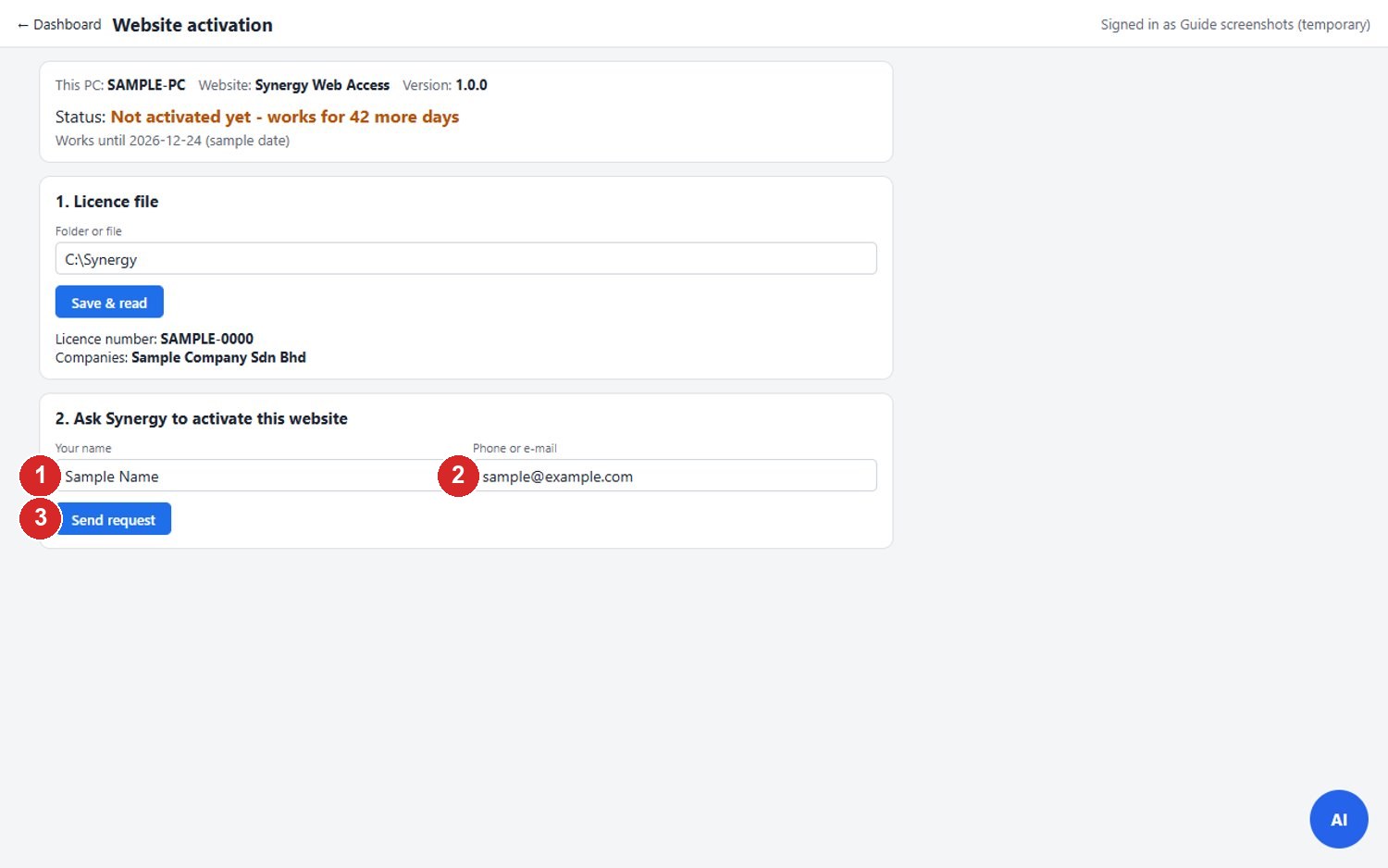
Under 2. Ask Synergy to activate this website:
| Step | What to do |
|---|---|
| 1 | Type Your name. |
| 2 | Type Phone or e-mail. |
| 3 | Click Send request. |
5. Wait for Synergy
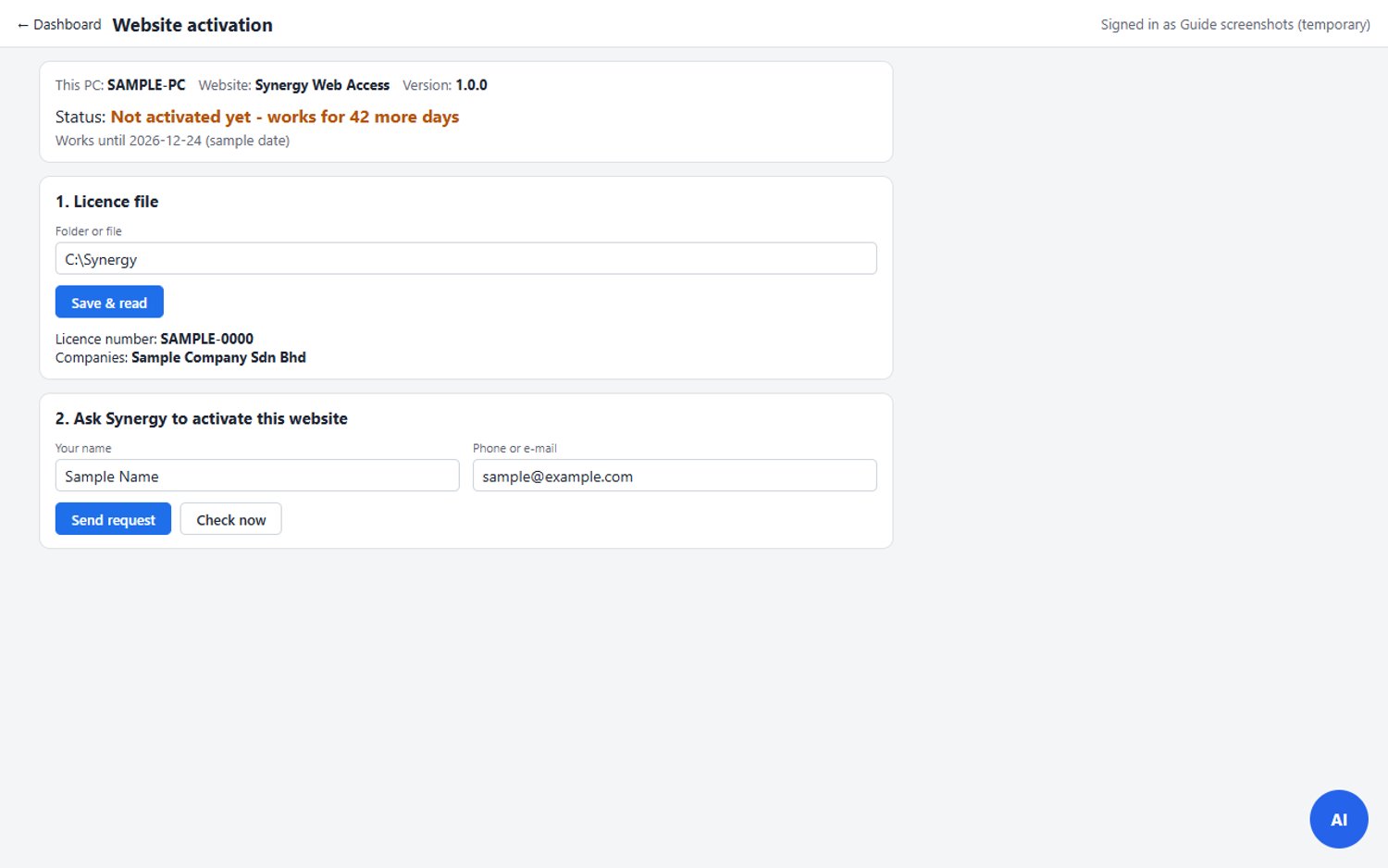
The page checks every 20 seconds while it is open. You can also click Check now. When Synergy approves, the website activates by itself.
6. Confirm
The status changes to Activated. The page shows the licence, the companies and who approved it.
Tips
- The page is Website activation and it shows This PC, Website and Version so you can confirm you are on the right website.
- If the request is not approved straight away, click Send request again or contact Synergy.
- Once Activated, the website does not ask the internet again.
Common problems
The page does not open on another PC.
It only opens on the server PC itself.
Send request is greyed out.
The licence file was not read. Check the Folder or file path and click Save & read again; the page shows the problem under it.
The website stopped after the 60 days.
Open the activation page on the server PC and send the request. Contact Synergy if it is not approved.