
The Stock Aging Query shows how old your stock is, so you can spot slow-moving items. The Stock Value Summary Query shows stock quantity and value per item based on purchase cost, and lets you update each item’s standard cost. This guide covers both.
Before you start
- For the Stock Value Summary Query, make sure your costs have been posted through Inventory Cost Posting first, because the result depends on it.
- Updating standard costs changes item records, so decide carefully which items to update.
Steps
1. Check how old your stock is
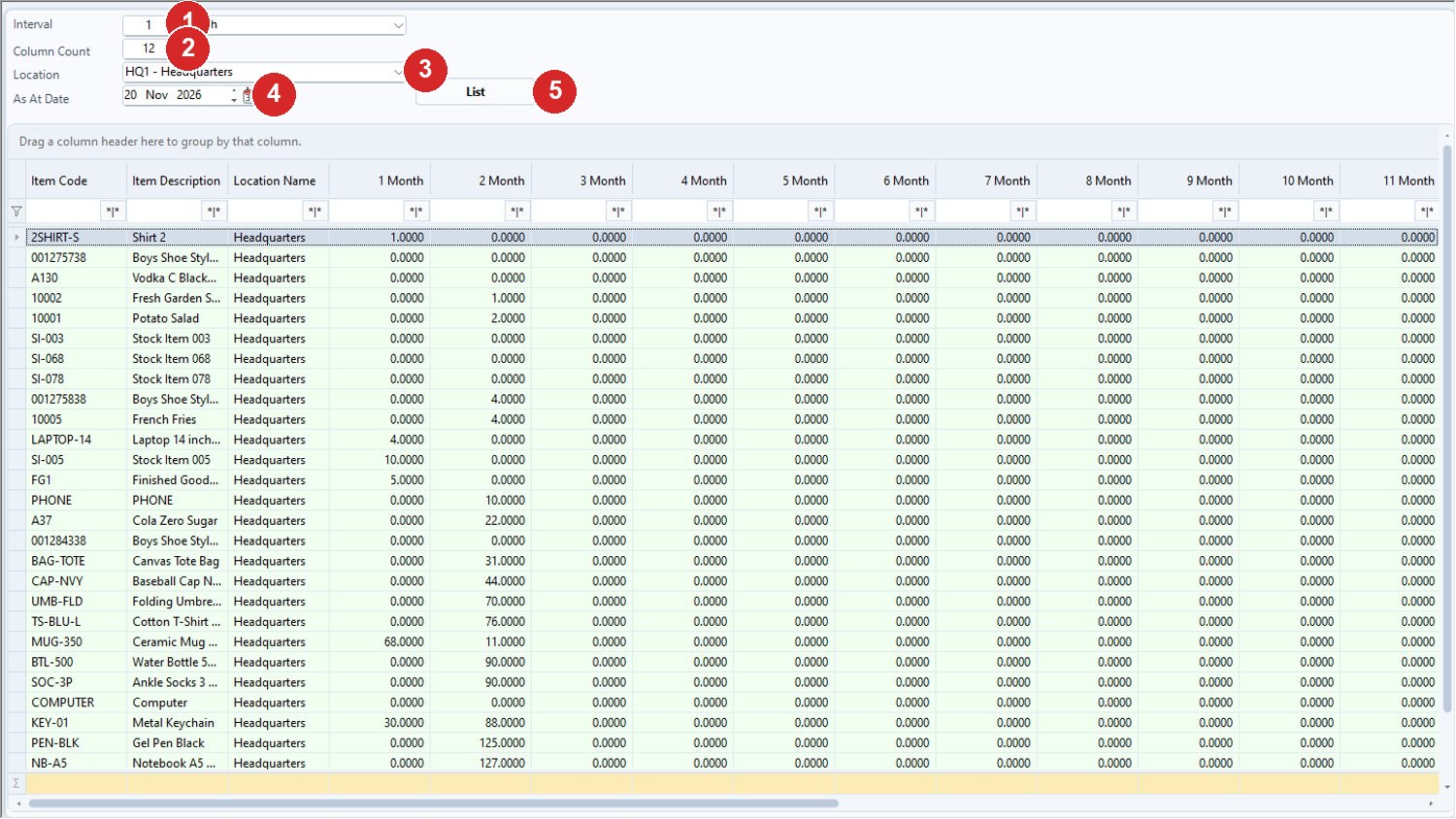
Go to Inventory Management > Query > Stock Query > Stock Aging Query. The result shows each item’s quantity in each age column (here HQ1 by month: 68 mugs from the last month and 11 older).
| Step | What to do |
|---|---|
| 1 | Interval and its unit (Day or Month). The first time it is 30 days; the screen remembers what you used last. |
| 2 | Column Count: how many age columns (default 4, up to 12). |
| 3 | Location, or ALL for every location. |
| 4 | As At Date (starts as today). |
| 5 | Click List (pressing Enter also lists). |
2. Compare purchase average cost and update standard cost
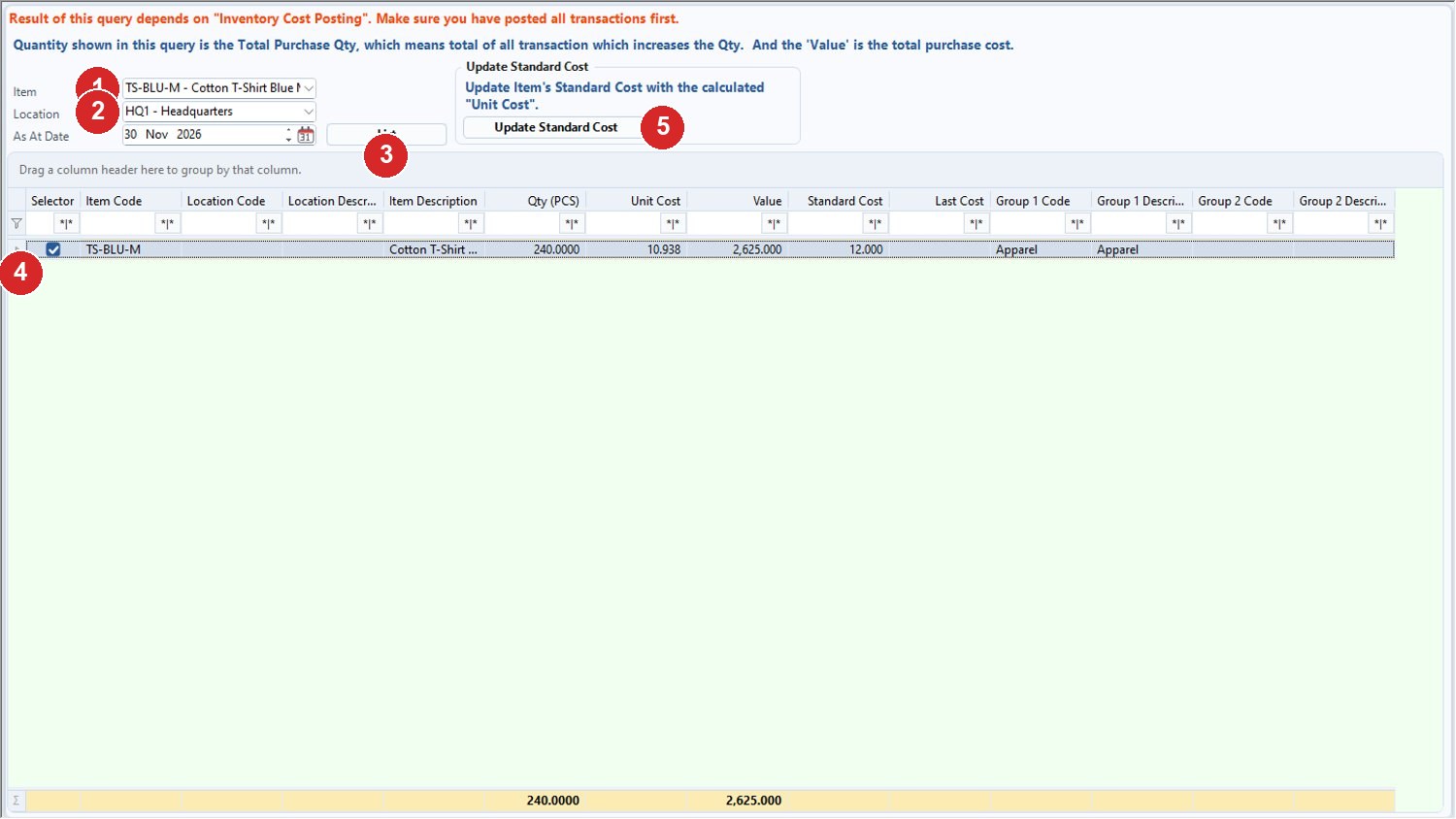
Go to Inventory Management > Query > Stock Query > Stock Value Query (Purchase Average Cost). The result depends on Inventory Cost Posting, so post first. Qty is the total purchased (everything that increased stock) and Value the total purchase cost (here TS-BLU-M: 240 pieces, 2,625.00, unit cost 10.938 against standard cost 12.000).
| Step | What to do |
|---|---|
| 1 | Item (optional) and |
| 2 | Location, or ALL. As At Date starts at the end of this month. |
| 3 | Click List. |
| 4 | Tick the rows whose standard cost you want to replace with the calculated Unit Cost. |
| 5 | Click Update Standard Cost, tick the confirmation box and click OK (CANCEL stops). When you see Done. Please refresh data., click List again. |
Tips
- Your last used column count and interval are remembered in the Stock Aging Query.
- In the Stock Aging Query, a group column is hidden if that item group has no name set.
- In the Stock Value Summary Query, the quantity shown is the total purchase quantity. Depending on how the screen is opened, it can instead show the balance quantity and value, which is purchase cost minus stock issued.
- Update Standard Cost skips rows that are not ticked and rows with a quantity of zero.
- The confirmation box in the pop-up window is different from the row tick boxes in the grid. Tick the rows first, then click Update Standard Cost.
- Quantities and costs follow the decimal settings of your company.
Common problems
The aging columns are not what I expected.
Check Interval and Column Count.
Update Standard Cost changes nothing.
No rows are ticked, or the ticked rows have a quantity of zero.
The stock value figures look old.
Costs have not been posted yet. Post them through Inventory Cost Posting, then click List again.